The Antifraud Check module compares the current session against prior sessions and known identities to detect signs of fraud.
For an overview of this module and how it works, see Antifraud Check.
Supported with:
✅ Workflows | ✅ Flows
Add Antifraud Check to Workflows
- In the left menu in Dashboard, click Flow Builder > Workflows.
- Click New or select an existing Workflow.
- Add the Antifraud check module. Do one of the following, depending on whether you have the New or Classic view enabled in the toggle in the top right:
- New: Click Add node
 > Processes, then search for and select Antifraud check.
- Classic: From the Processes list, drag and drop the Antifraud check module into the builder.
- New: Click Add node
- You can click Options
 > Edit on the module node to open the Configuration Options panel and adjust settings as needed.
Add Antifraud Check to Flows
- In the left menu in Dashboard, click Flow Builder > Flows.
- Click New or select an existing Flow.
- On the Select Modules tab, find the Antifraud check module and click Add.
- You can click Details & Configurations to open the Configuration Options panel and adjust settings as needed.
Configuration Options
This section details all the configuration options available for this module. The options that appear depend on whether you have the New or Classic view enabled in the toggle in the top right in your Flow or Workflow. After changing anything, click Save configuration before closing the configuration panel.
The options you see in your configuration may differ from those documented below. Contact your Incode representative for more information.
Configuration Options: New
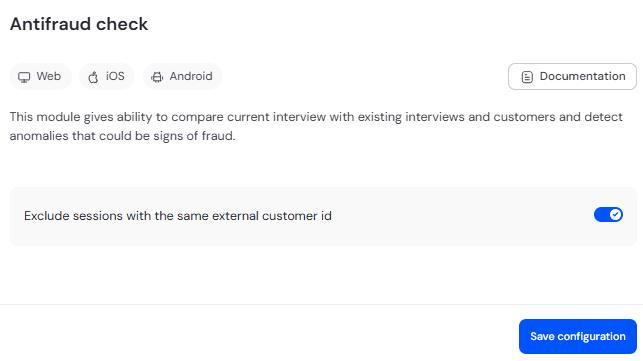
View image of Workflow configuration panel
View image of Flow configuration panel
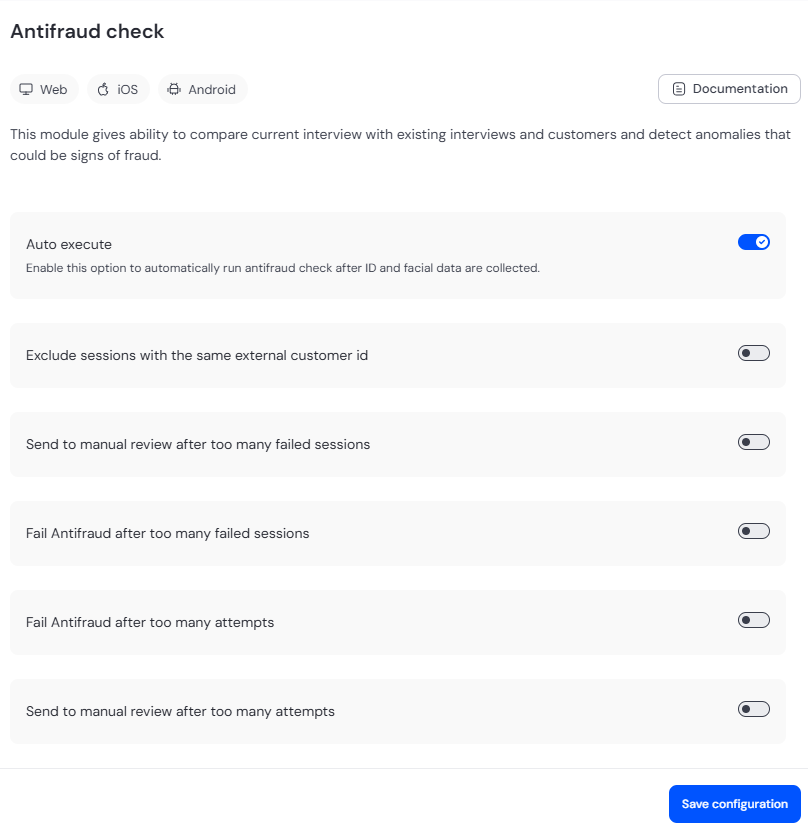
| Setting | Description |
|---|---|
| Auto execute Flows only |
When enabled, the module runs automatically after biometric and document data are collected. |
| Exclude sessions with the same external customer id | When enabled, sessions that share the same external customer ID are excluded from the fraud comparison. |
| Send to manual review after too many failed sessions Flows only |
When enabled, sends the session to manual review if the count of sessions where the total fraud score failed exceeds the specified threshold. Default: 3. |
| Fail Antifraud after too many failed sessions Flows only |
When enabled, causes the Antifraud Check to fail if the count of sessions where the total fraud score failed exceeds the specified threshold. Default: 4. |
| Fail Antifraud after too many attempts Flows only |
When enabled, causes the Antifraud Check to fail if the total number of attempts exceeds the specified threshold. Default: 4. |
| Send to manual review after too many attempts Flows only |
When enabled, sends the session to manual review if the total number of attempts exceeds the specified threshold. Default: 3. |
Configuration Options: Classic
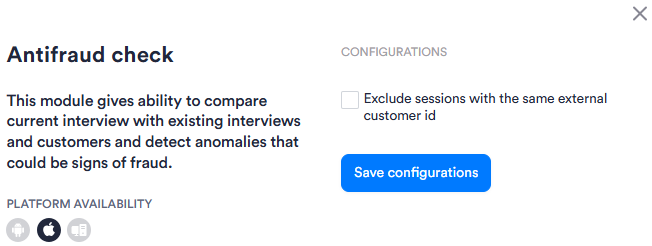
View image of Workflow configuration panel
View image of Flow configuration panel
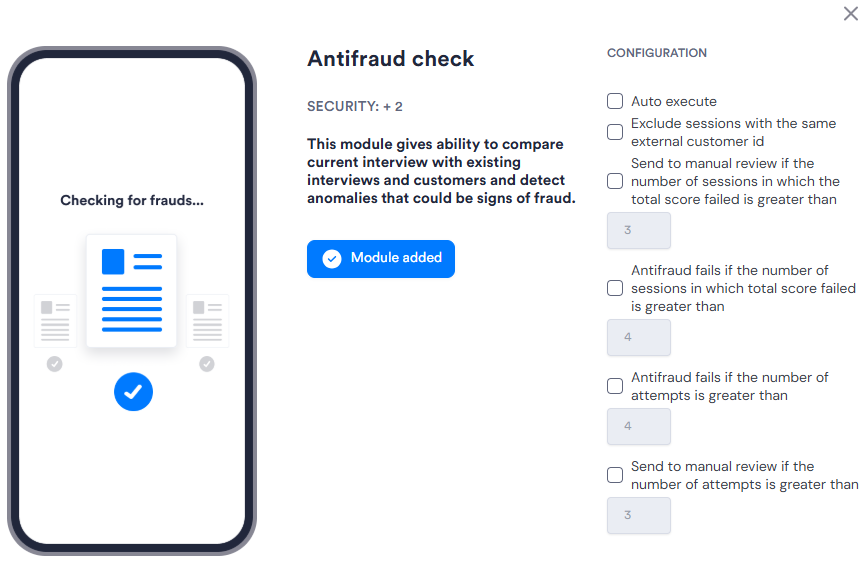
| Setting | Description |
|---|---|
| Auto execute Flows only |
When enabled, the module runs automatically after biometric and document data are collected. |
| Exclude sessions with the same external customer id | When enabled, sessions that share the same external customer ID are excluded from the fraud comparison. |
| Send to manual review if the number of sessions in which the total score failed is greater than Flows only |
When enabled, sends the session to manual review if the count of sessions where the total fraud score failed exceeds the specified threshold. Default: 3. |
| Antifraud fails if the number of sessions in which total score failed is greater than Flows only |
When enabled, causes the Antifraud Check to fail if the count of sessions where the total fraud score failed exceeds the specified threshold. Default: 4. |
| Antifraud fails if the number of attempts is greater than Flows only |
When enabled, causes the Antifraud Check to fail if the total number of attempts exceeds the specified threshold. Default: 4. |
| Send to manual review if the number of attempts is greater than Flows only |
When enabled, sends the session to manual review if the total number of attempts exceeds the specified threshold. Default: 3. |