---
title: "Trust Graph"
url: "https://developer.incode.com/dashboard-platform-administration/trust-graph-module-configuration/"
section: "dashboard-platform-administration"
group: "Add Modules"
version: "v1.1"
status: "live"
---
# Trust Graph
[TrustGraph](/features-and-modules/trust-graph-overview) is Incode's privacy-preserving trust network. It runs on every session in a flow that has it enabled and returns real-time signals when a session's attributes have shown up before in ways worth flagging, in your own history or across the network.
## Supported with:
:white_check_mark: Workflows | :white_check_mark: Flows
## Add TrustGraph to Workflows
1. In the left menu, click **Flow Builder** > **Workflows**.
2. Click **New** or select an existing Workflow.
3. Add verification modules such as [ID Capture](/dashboard-platform-administration/id-capture-dashboard/) or [Face Capture](/dashboard-platform-administration/face-capture-dashboard/).
4. From the Processes list, drag and drop **TrustGraph** into the builder.
5. Click **Add node**  > **Processes**, then search for and select **Face Authentication**.
6. You can click **Options**  > **Edit** on the module node to open the [Configuration Options](#configuration-options) panel and adjust settings as needed.
## Add Trust Graph to Flows
1. In the left menu, click **Flow Builder** > **Flows**.
2. Click **New** or select an existing Flow.
3. On the **Select Modules** tab, find the **Trust Graph** module and click **Add**.
4. You can click **Details & Configurations** to open the [Configuration Options](#configuration-options) panel and adjust settings as needed.
## Configuration Options
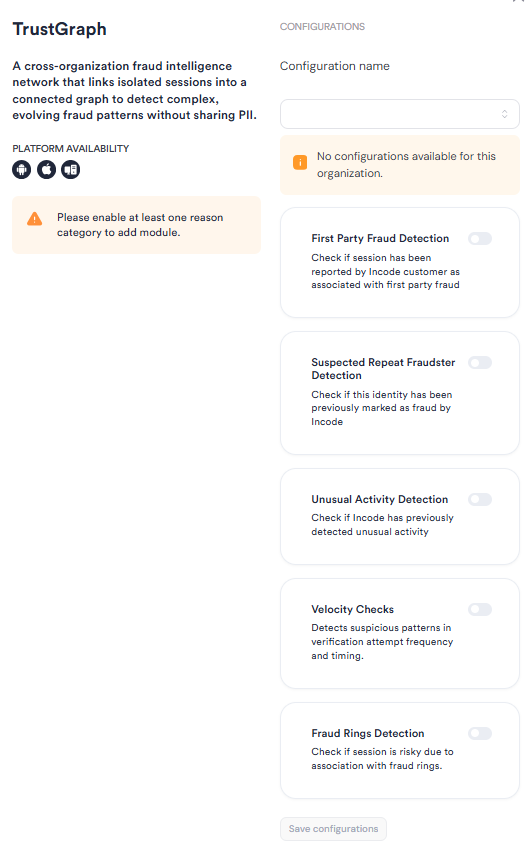
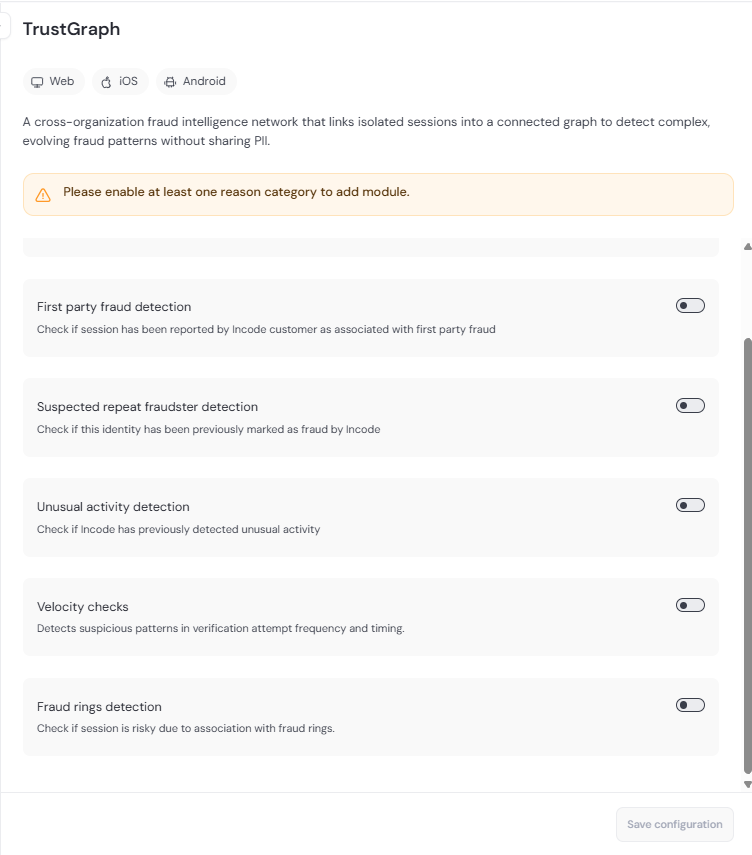
This section details all the configuration options available for the TrustGraph module. After changing anything, click **Save configurations** before closing the configuration panel.
The options you see in your configuration may differ from those documented below. Contact your Incode representative for more information.
Each setting represents a [category](/features-and-modules/trust-graph-overview/#categories). Turning a category on evaluates it against every session in the flow; turning it off returns `NOT_EXECUTED` for that category and excludes it from the overall TrustGraph status. You must enable at least one to add the module to the flow.
| Toggle | Description |
| --- | --- |
| **First Party Fraud Detection** | Checks whether the session has been reported by an Incode customer as associated with first party fraud (rewards abuse, account selling, mule and circular trading patterns, and similar). |
| **Suspected Repeat Fraudster Detection** | Checks whether the identity in this session has been previously marked as fraud by Incode. Compares against the Suspected Fraud List using face, face-on-ID, device hash, and document, personal, or voter numbers. |
| **Unusual Activity Detection** | Checks for inconsistencies across sessions, such as one document appearing with several faces, one face presenting several documents, or one device tied to conflicting identities. |
| **Velocity Checks** | Detects suspicious patterns in verification attempt frequency and timing. Flags the same face, face-on-ID, document number, personal number, voter number, or device onboarding more times than the configured threshold within the configured time window. |
| **Fraud Rings Detection** | Checks whether the session is risky due to association with a fraud ring discovered in your history. See [Fraud Ring Explorer](/dashboard-platform-administration/trust-graph-fraud-ring-explorer) for the investigation surface. |
## Add Conditions
[Conditions](/dashboard-platform-administration/configure-workflow-conditions/) let you branch the Workflow based on the TrustGraph verification result. When adding a Condition after the TrustGraph process, search, filter, or browse for the **Trust graph** section in the first drop-down and select from the following options:
| Condition | Description |
| --- | --- |
| OVERALLRISK | The overall TrustGraph status for the session. Returns `AT_RISK` when at least one enabled reason category is `AT_RISK`; otherwise returns `OK`. |
| UNUSUALACTIVITYRISK | Whether the Unusual Activity Detection category returned `AT_RISK` for the session. |
| KNOWNFRAUDSTERRISK | Whether the Suspected Repeat Fraudster Detection category returned `AT_RISK` for the session. |
| FIRSTPARTYFRAUDRISK | Whether the First Party Fraud Detection category returned `AT_RISK` for the session. |
| VELOCITYCHECKSRISK | Whether the Velocity Checks category returned `AT_RISK` for the session. |
All TrustGraph Conditions use the same operators (`==`, `!=`) and possible values (`AT_RISK`, `OK`).