---
title: "Watchlist"
url: "https://developer.incode.com/dashboard-platform-administration/watchlist-dashboard/"
section: "dashboard-platform-administration"
group: "Add Modules"
version: "v1.1"
status: "live"
---
# Watchlist
The Watchlist Business module screens business entities against global sanctions lists, Politically Exposed Persons (PEP) databases, and adverse media, returning any matches found across the configured sources. As a processing module, it runs after user data has been collected by a Forms module or by ID Capture followed by ID Validation. Watchlist matches on first name and last name only; middle names are not processed.
For an overview of this module and how it works, see [Watchlist](/features-and-modules/watchlist/).
## Supported with:
:white_check_mark: Workflows | :white_check_mark: Flows
## Add Watchlist to Workflows
1. In the left menu, click **Flow Builder** > **Workflows**.
2. Click **New** or select an existing Workflow.
3. Ensure a module that collects the user's name and date of birth (such as ID Capture followed by ID Validation, or a Forms module) is in your Workflow.
4. From the **Processes** list, drag and drop the Watchlist module into the builder after the data-collection module.
5. You can click the three dots > **Edit** on the module node to open the [Configuration Options](#configuration-options) panel and adjust settings as needed.
## Add Watchlist to Flows
1. In the left menu, click **Flow Builder** > **Flows**.
2. Click **New** or select an existing Flow.
3. On the **Select Modules** tab, find the **Watchlist** module and click **Add**.
4. You can click **Details & Configurations** to open the [Configuration Options](#configuration-options) panel and adjust settings as needed.
## Configuration Options
This section details all the configuration options available for this module. After changing anything, click **Save configurations** before closing the configuration panel.
The options you see in your configuration may differ from those documented below. Contact your Incode representative for more information.
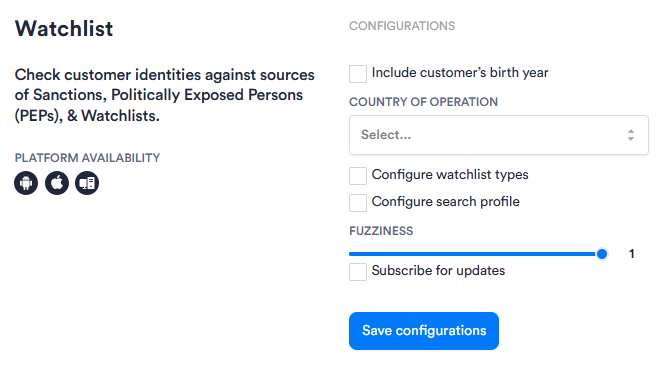
| Setting | Description |
| --------------------------------- | ------------------------------------------------------------------------------------------------------------------------------------------------------------------------------------------------------------------------------------------------------------------------------------------------------------------------------------------------------------------------------------------------------------------------------ |
| **Include customer's birth year** | When enabled, narrows the search by including the customer's birth year as a filter. Use this to reduce false positives on common names. |
| **Country of operation** | Filters results by the entity's country of operation or office. Select one or more countries from the drop-down. Country filtering does not apply to entities on sanction lists, entities with adverse media mentions only, or entities with no country assigned—these always appear regardless of the country filter. |
| **Configure watchlist types** | When enabled, displays a **_Watchlist Types_** drop-down for selecting which categories the search should cover (such as sanctions, PEP classes, fitness-probity, and FATF-aligned adverse media categories). Configure either watchlist types or a search profile, not both. |
| **Configure search profile** | When enabled, displays a **_Search Profile_** input where you can specify a predefined search profile to use for the search. Configure either a search profile or watchlist types, not both. |
| **Fuzziness** | Determines how closely returned results must match the supplied name. The slider ranges from 0 to 1. A value of _0_ requires an exact match, and a value of _1_ allows the loosest matching. Default: _1_.
:warning: **Important**: Dashboard configuration for fuzziness does not automatically carry over to direct API calls. To call the endpoint directly, include `fuzziness` explicitly in the request body. |
| **Subscribe for updates** | When enabled, subscribes the search to ongoing updates. When the underlying watchlist data for a search changes, Incode sends a notification to your configured webhook so the updated result can be retrieved. For setup instructions, see [Watchlist Webhook](/general-reference/global-watchlists-webhook/). |
## Add Conditions
[Conditions](/dashboard-platform-administration/configure-workflow-conditions/) let you branch the Workflow based on a result. Conditions are optional for Watchlist, but you can add one or more Conditions after the module to route the session based on what the search returned.
To add a Condition for Watchlist:
1. Drag a Condition into the builder from the left panel. Place it after the Watchlist module.
2. In the first drop-down, find the **Global Watchlist** section and select one of the conditions listed below.
| Condition | Description |
| ------------------------------- | ------------------------------------------------------------------------------------------------------------------------------------------------------------------------------------------------------------------------------------------------------------------------- |
| Watchlist risk level | The search risk level, returned as one of: _LOW_, _MEDIUM_, _HIGH_, _UNKNOWN_. :warning:**Deprecated — do not use. ** |
| Watchlist warning match score | |
| Watchlist match status | The search match status, returned as one of: _NO MATCH_, _FALSE POSITIVE_, _POTENTIAL MATCH_, _TRUE POSITIVE_, _UNKNOWN_, _TRUE POSITIVE APPROVE_, _TRUE POSITIVE REJECT_. :warning:**Deprecated — do not use. ** |
| Watchlist total hits | The total number of hits returned by the search. |
| Watchlist sanctions match score | |
| Watchlist total matches | The total number of matches returned by the search. |
3. In the second drop-down, select an operator.
4. In the value field, enter or select the value to compare against.
5. Select the **Yes path** or **No path** radio button to route the Workflow when the Condition is met.
6. Click **Save condition**.