This section provides a complete overview of all possible user-facing states within the eKYC Verification experience.
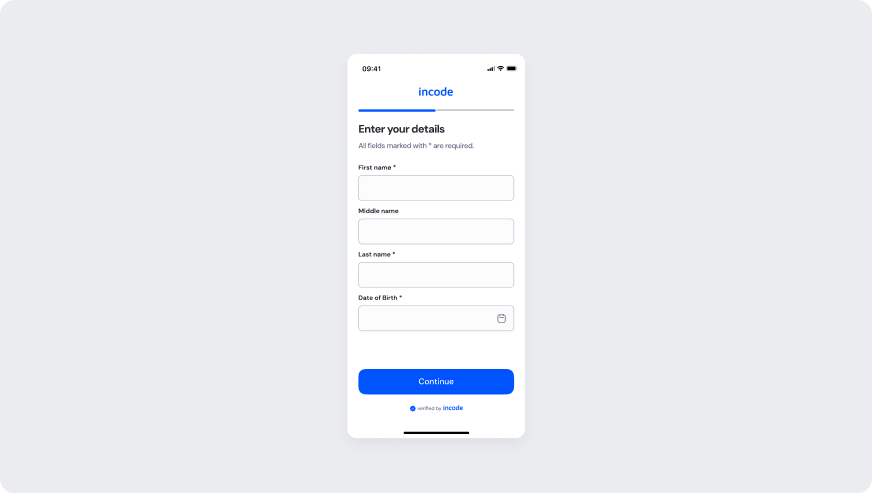
Enter your details
The image below shows the Enter your details form in its empty state. First name, Last name, and Date of Birth are required fields marked with an asterisk. Middle name is optional. Continue submits the step.
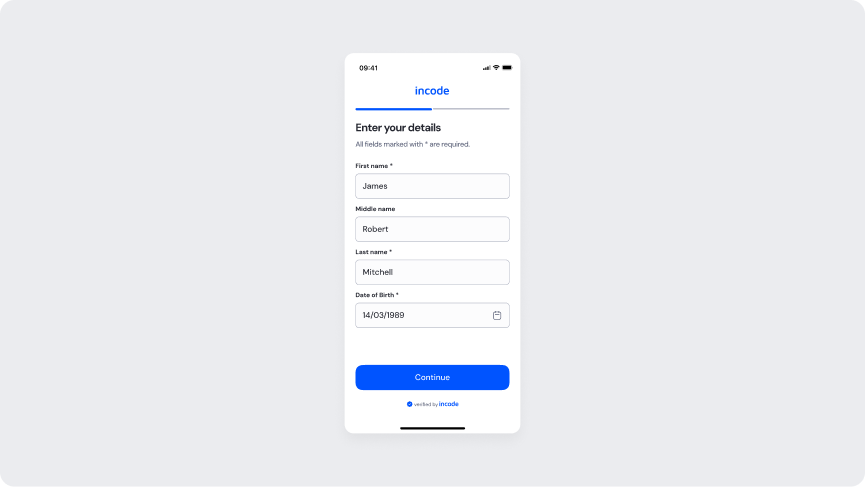
Enter your details - Filled
The image below shows the Enter your details form with First name, Last name, and Date of Birth filled in. Continue advances to Driver’s License details.
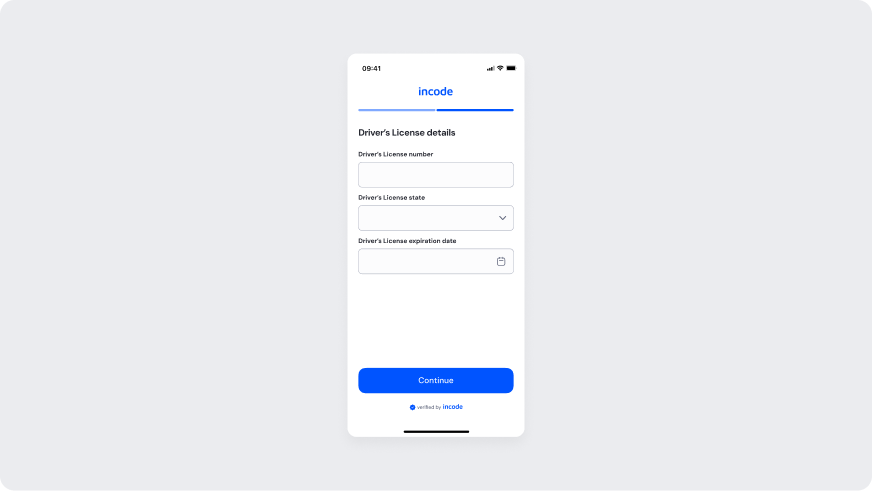
Driver’s License details
The image below shows the Driver’s License details form in its empty state. Driver's License number, Driver's License state, and Driver's License expiration date are all required. Continue submits the step.
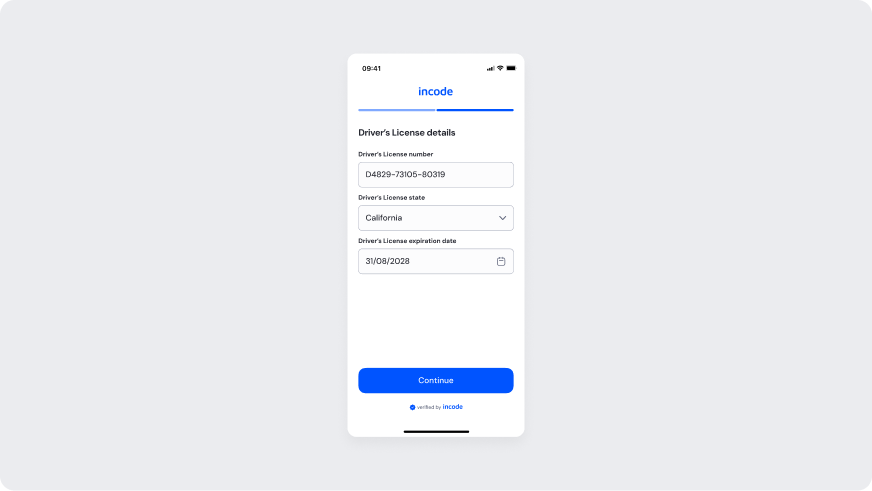
Driver’s License details - Filled
The image below shows the Driver's License details form with Driver's License number, Driver's License state, and Driver's License expiration date filled in. Continue submits the step.
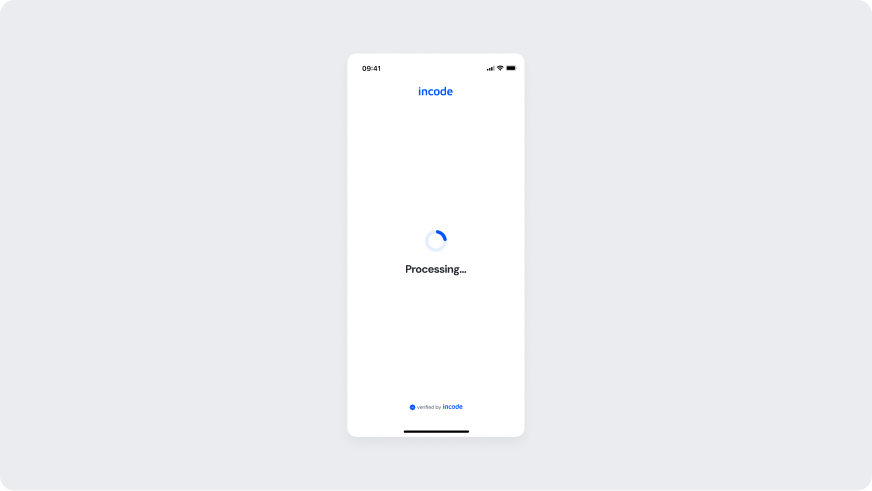
Processing
A full-screen processing state shown right after submission. The screen reads “Processing…” while the request is in flight.
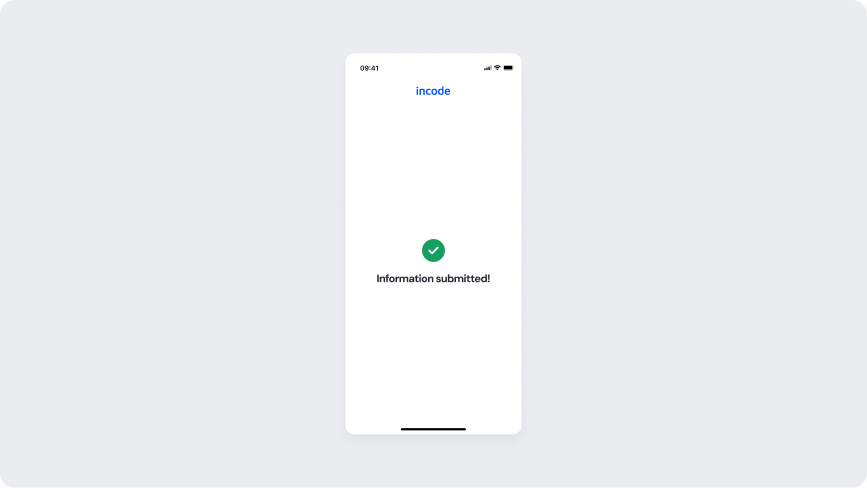
Success
The success state that closes the flow. Shows an “Information submitted!” message confirming the eKYC verification was successful.
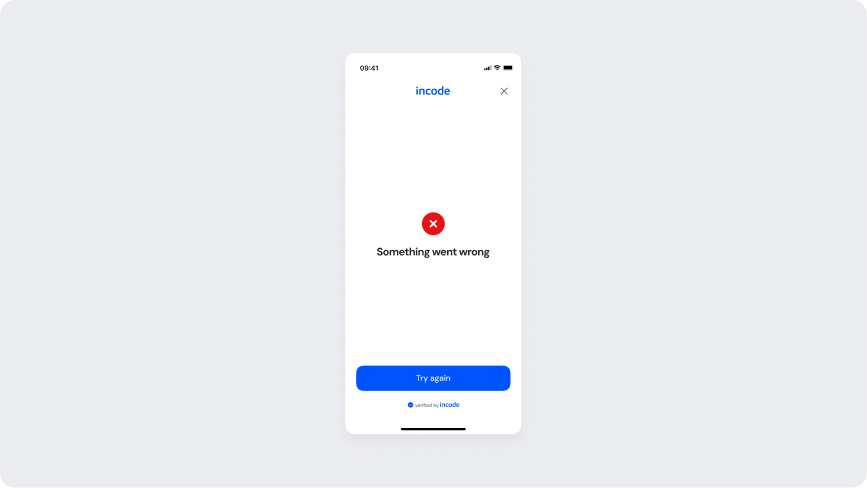
Error
Shown when eKYC verification fails due to backend validation or service errors. Shows a “Something went wrong” message and a Try again button to let the user restart the attempt.