---
title: "Slack"
url: "https://developer.incode.com/ecosystem-workforce/slack/"
section: "ecosystem-workforce"
group: "Productivity Integrations"
version: "v1.1"
status: "live"
---
# Slack
You can add identity verification to Slack using the Incode app for Slack. After installing, employees and IT teams can request on-demand identity verification directly from Slack before sharing sensitive information, handling high-risk requests, or granting access to protected meetings.
***
## Prerequisites
Ensure you have the following before you begin:
- A Slack workspace where you have admin permissions to install apps.
- Access to the Integrations page in Dashboard. Contact your Incode Representative if you do not see it.
- Your Slack **Team ID.**
***
## Understand What the Incode Slack App Does
The Incode app adds two slash commands to your Slack workspace:
- `/incode`: Send an identity verification request to another Slack user. Both the sender and recipient can view verification results in real time.
- `/incode-meeting`: Protect a Zoom meeting invite with identity verification. The recipient only receives the meeting link after passing verification. Requires a Zoom subscription.
### **Common Use Cases**
- IT administrators verifying an employee's identity before handling an MFA reset or account lockout through Slack.
- Finance and sales teams protecting wire transfer requests, contracts, or invoices before sending to recipients.
***
## Set Up Slack Integration
### Find Your Slack Team ID
1. Open your Slack workspace in a web browser using your workspace URL. After the page loads, the URL will be formatted as: `https://app.slack.com/client/TXXXXXXX/CXXXXXXX`.
2. Find your Team ID is the string beginning with `T`. For Enterprise Grid organizations, use the string beginning with `E`.
### Create the Integration in Dashboard
1. Log in to Dashboard.
2. In the left menu, click **Integrations**.
3. Click **New Integration**.
4. From the Productivity tab, click **Slack**, then click **Continue**.
5. Enter an **Integration Name**.
6. Enter your **Team ID** and click **Save**.
7. Click **Install Workforce App in Slack** to proceed to the Slack authorization flow.
### Install the App in Your Slack Workspace
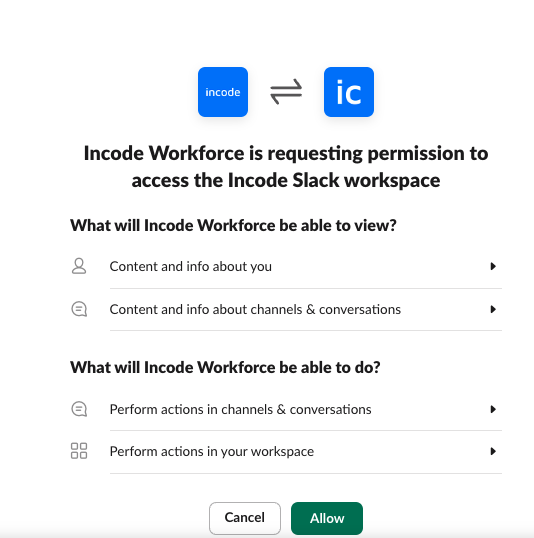
Follow the prompts to grant the Incode app access to your Slack workspace.
***
## Test the Integration
Use the `/incode` and `/incode-meeting` commands in a Slack direct message to confirm the integration is working.