This module verifies the identity and legitimacy of a business by matching business details submitted by the end user against records in recognized government and commercial data sources. The fields collected depend on the country the end user selects.
Supported with:
✅ Workflows | ✅ Flows
Add eKYB to Workflows
- In the left menu, click Flow Builder > Workflows.
- Click New or select an existing Workflow.
- Add the eKYB module. Do one of the following, depending on whether you have the New or Classic view enabled in the toggle in the top right:
- New: Click Add node
 > Modules, then search for and select eKYB.
- Classic: From the Modules list, drag and drop the eKYB module into the builder after the modules that collect user data.
- New: Click Add node
- You can click Options
 > Edit on the module node to open the Configuration Options panel and adjust settings as needed.
Add eKYB to Flows
- In the left menu, click Flow Builder > Flows.
- Click New or select an existing Flow.
- On the Select Modules tab, find the eKYB module and click Add.
- You can click Details & Configurations to open the Configuration Options panel and adjust settings as needed.
Configuration Options
This section details all the configuration options available for this module. The options that appear depend on whether you have the New or Classic view enabled in the toggle in the top right in your Flow or Workflow. After changing anything, click Save configuration before closing the configuration panel.
The options you see in your configuration may differ from those documented below. Contact your Incode representative for more information.
Configuration Options: New
In New view, the eKYB configuration panel opens on the Configuration tab. Use the Operation type toggle at the top to switch between Verification and Prefill. The settings below the toggle change based on your selection.
Verification
View image of configuration panel
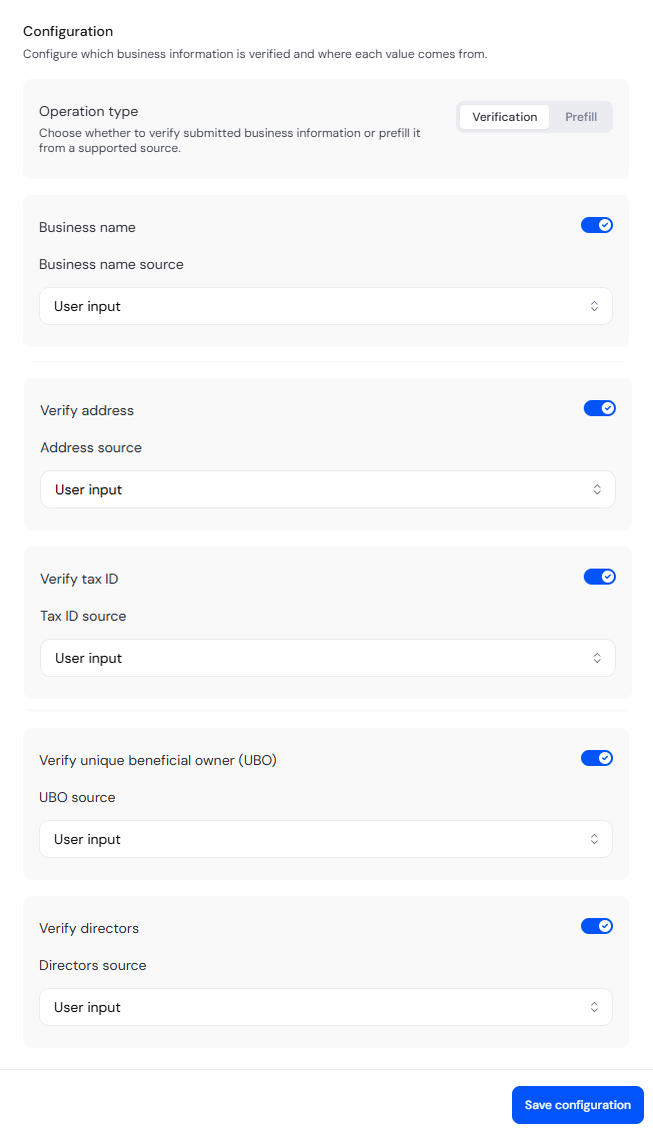
Verification is the core business identity check. The end user submits business details, and the system verifies the submitted values against a source of truth. For request and response schemas, supported countries, and per-country details, see the eKYB Verification Coverage and eKYB Verification API Reference pages.
With Verification selected, use the toggles to enable each field you want to collect from the end user. For fields with a source drop-down, select where the value comes from. The default is User input, which means the value is entered by the end user.
| Setting | Description |
|---|---|
| Business name | When enabled, the end user is asked to provide the business name. |
| Verify address | When enabled, the end user is asked to provide the business address. |
| Verify tax ID | When enabled, the end user is asked to provide the business tax ID. |
| Verify unique beneficial owner (UBO) | When enabled, the end user is asked to provide the full legal names of the business's Unique Beneficial Owners. |
| Verify directors | When enabled, the end user is asked to provide the full legal names of the business's directors. |
Not all fields are supported by every country. See the country page for each country's supported fields. Country pages are listed on the eKYB Verification Coverage page.
Prefill
View image of configuration panel
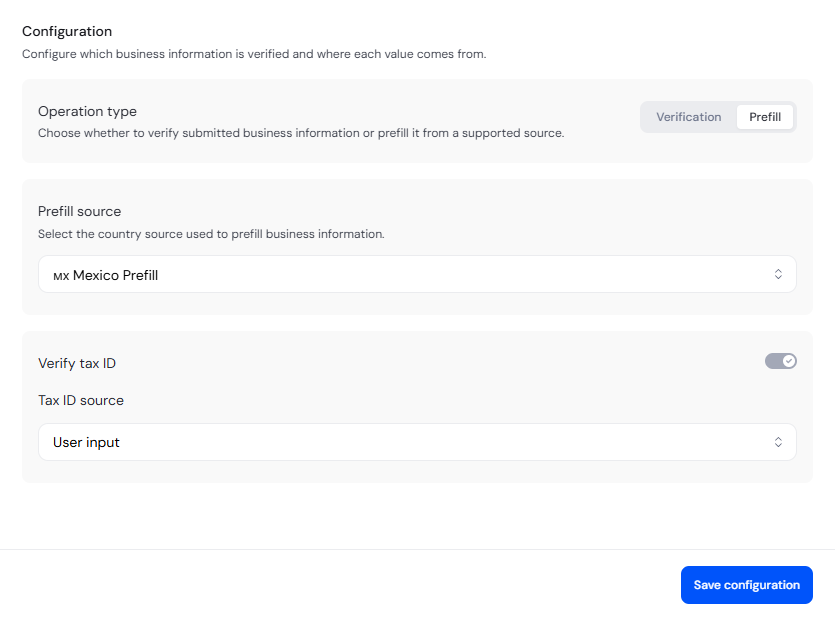
Prefill is an enrichment option that reduces end user friction. The end user submits only the tax ID (and business name where required), and the system looks up the business in official registries and returns additional details for pre-fill. Prefill does not verify submitted values against a source of truth; it retrieves and returns data.
For request and response schemas, supported countries, and per-country details, see the eKYB Prefill Coverage and eKYB Prefill API Reference pages.
Select the Prefill source for the country you want to use. Each country has mandatory and optional fields available for collection from the end user. Configure the fields as needed; see eKYB Prefill Field Requirements by Source for a reference of the fields available per source.
Configuration Options: Classic
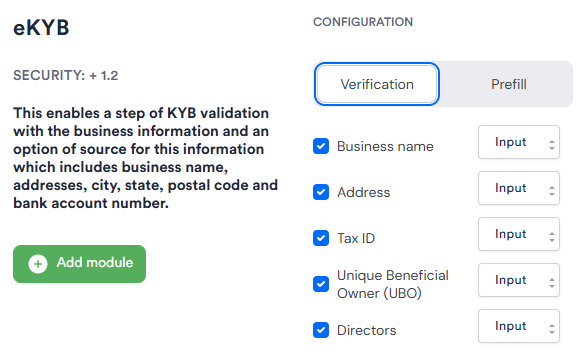
The eKYB module supports two configuration options: Verification and Prefill. Switch between the two using the tabs at the top of the configuration panel.
Verification
Verification is the core business identity check. The end user submits business details (business name, tax ID, address, and optionally UBOs and directors), and the system verifies the submitted values against a source of truth. The response includes match results for each submitted field, along with enrichment details (registration status and entity type) where available.
For request and response schemas, supported countries, and per-country details, see the eKYB Verification Coverage and eKYB Verification API Reference pages.
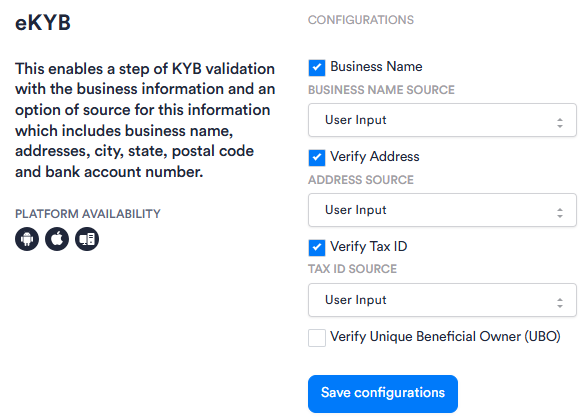
The field checkboxes control which fields are collected from the end user and submitted for verification. The end user selects the country in the flow itself; there is no country selector in the module configuration.
View image of Workflow configuration panel
View image of Flow configuration panel
| Setting | Description |
|---|---|
| Business name | When enabled, the end user is asked to provide the business name. |
| Address | When enabled, the end user is asked to provide the business address. |
| Tax ID | When enabled, the end user is asked to provide the business tax ID. |
| Unique Beneficial Owner (UBO) | When enabled, the end user is asked to provide the full legal names of the business's Unique Beneficial Owners. |
| Directors | When enabled, the end user is asked to provide the full legal names of the business's directors. |
Not all fields are supported by every country. See the country page for each country's supported fields. Country pages are listed on the eKYB Verification Coverage page.
Prefill
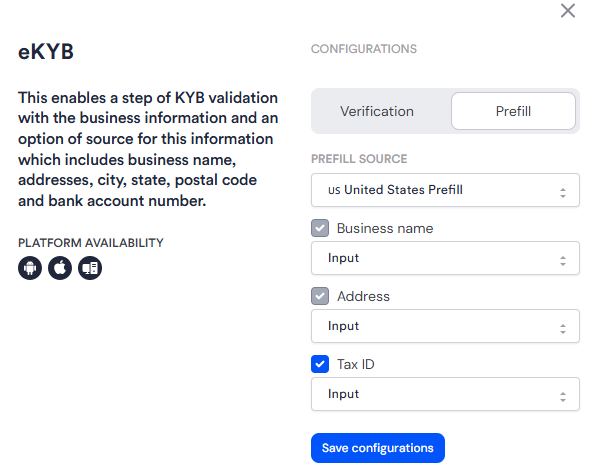
Prefill is an enrichment option that reduces end user friction. The end user submits only the tax ID and business name, and the system looks up the business in official registries and returns additional details (registered address, entity type, and other authoritative data) for pre-fill. Prefill does not verify submitted values against a source of truth; it retrieves and returns data.
For request and response schemas, supported countries, and per-country details, see the eKYB Prefill Coverage and eKYB Prefill API Reference pages.
View image of Workflow configuration panel
View image of Flow configuration panel
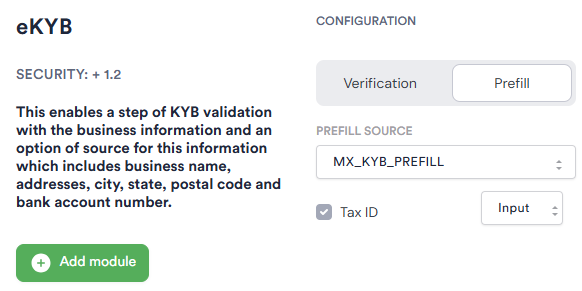
Select the Prefill source for the country you want to use. Each country has mandatory and optional fields available for collection from the end user. Configure the fields as needed; see eKYB Prefill Field Requirements by Source for a reference of the fields available per source.
Add Conditions
Conditions let you branch the Workflow based on the eKYB verification result. When adding a Condition after the eKYB module, search, filter, or browse for the eKYB section in the first drop-down and select from the following options:
| Condition | Description |
|---|---|
| Address deliverability US only |
The USPS deliverability status for the submitted business address. Possible values: DELIVERABLE, UNDELIVERABLE. |
| Unique beneficial owners count | The number of Unique Beneficial Owners associated with the business. Supports comparison operators. Possible values: any numeric value. |
| TaxID verification | The match status for the submitted tax ID. Possible values: VERIFIED, APPROXIMATE MATCH, UNVERIFIED. |
| Ubo name match | The match status for the submitted UBO names. Possible values: VERIFIED, APPROXIMATE MATCH, UNVERIFIED. |
| Address verification | The match status for the submitted business address. Possible values: VERIFIED, APPROXIMATE MATCH, UNVERIFIED. |
| Business name | The match status for the submitted business name. Possible values: VERIFIED, APPROXIMATE MATCH, UNVERIFIED. |
| Address property type US only |
The property type of the submitted business address. Possible values: RESIDENTIAL, COMMERCIAL. |