The Document Capture module captures a supplementary document, such as a proof of address document, medical document, or bank statement. Users can upload a file or take a photo of the document with their device’s camera.
Submitted documents appear in the Other tab in single Session view.
For an overview of this module and how it works, see Document Capture.
Supported with:
✅ Workflows | ✅ Flows
Add Document Capture to Workflows
- In the left menu in Dashboard, click Flow Builder > Workflows.
- Click New or select an existing Workflow.
- Add the Document Capture module. Do one of the following, depending on whether you have the New or Classic view enabled in the toggle in the top right:
- New: Click Add node
 > Modules, then search for and select Document Capture.
- Classic: From the Modules list, drag and drop the Document Capture module into the builder.
- New: Click Add node
- You can click Options
 > Edit on the module node to open the Configuration Options panel and adjust settings as needed.
Add Document Capture to Flows
- In the left menu in Dashboard, click Flow Builder > Flows.
- Click New or select an existing Flow.
- On the Select Modules tab, find the Document Capture module and click Add.
- You can click Details & Configurations to open the Configuration Options panel and adjust settings as needed.
Configuration Options
This section details all the configuration options available for this module. The options that appear depend on whether you have the New or Classic view enabled in the toggle in the top right in your Flow or Workflow. After changing anything, click Save configuration before closing the configuration panel.
The options you see in your configuration may differ from those documented below. Contact your Incode representative for more information.
Configuration Options: New
View image of configuration panel
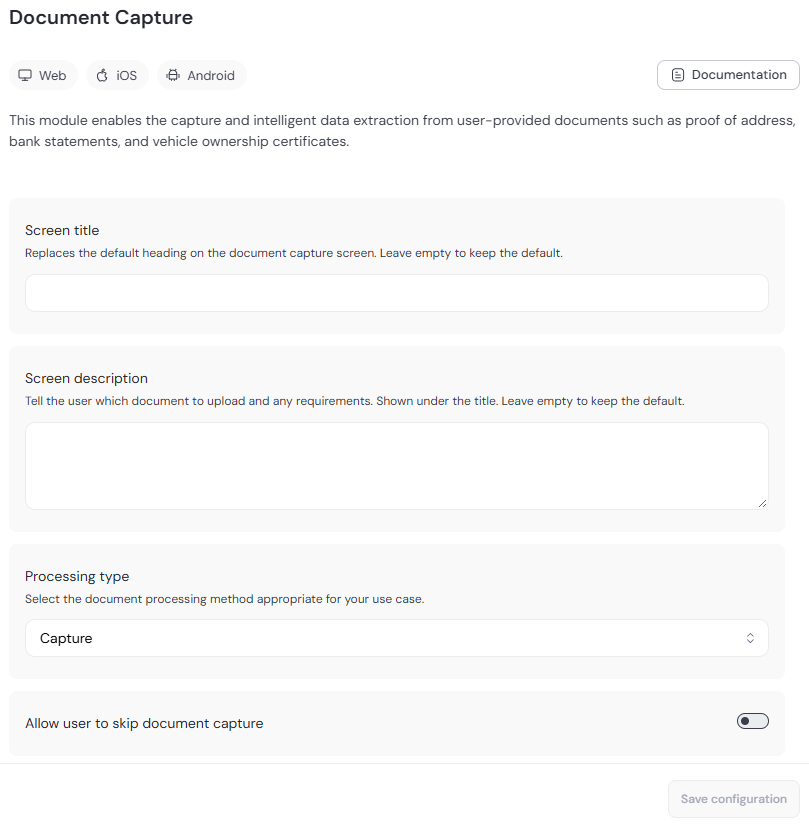
| Setting | Description |
|---|---|
| Screen title | Custom title text displayed to the user on the document capture screen. Leave blank to use the default. |
| Screen description | Custom instructional text displayed to the user on the document capture screen. Leave blank to use the default. |
| Processing Type | Determines how the captured document is processed after submission. Select one of the following options: • Capture • Process Proof Of Address OCR • Process Letter Of Authorization OCR • Process Asylum Seeker Visa ZAF OCR • Process Bank Statement OCR • Process Voided Check OCR • Process V5C Logbook • Process Car Invoice • Process Circulation Card • Process Finance Settlement • Process Mexican INE as POA • Process Colombia RUT form • Process W-8BEN OCR • Process W-8BEN-E OCR |
| Allow user to skip document capture | When enabled, users can bypass the document capture step and continue without submitting a document. |
Configuration Options: Classic
View image of Workflow configuration panel
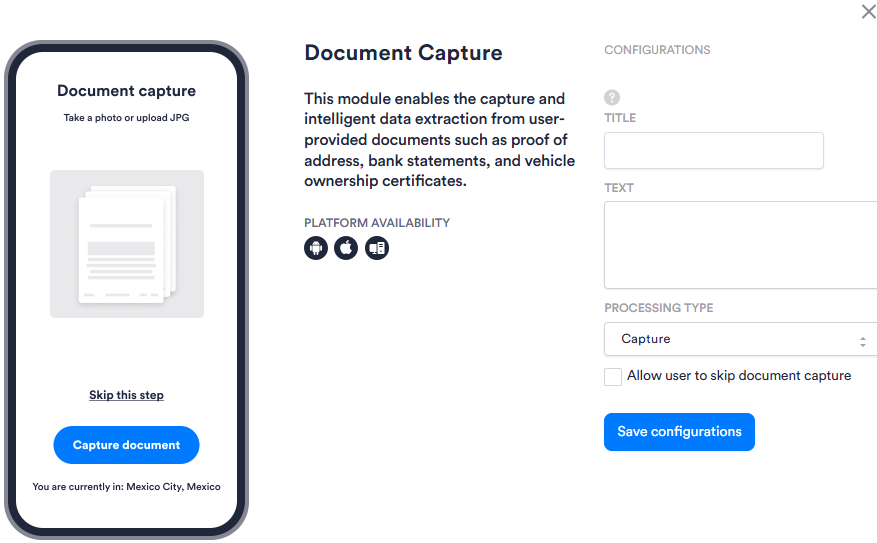
View image of Flow configuration panel
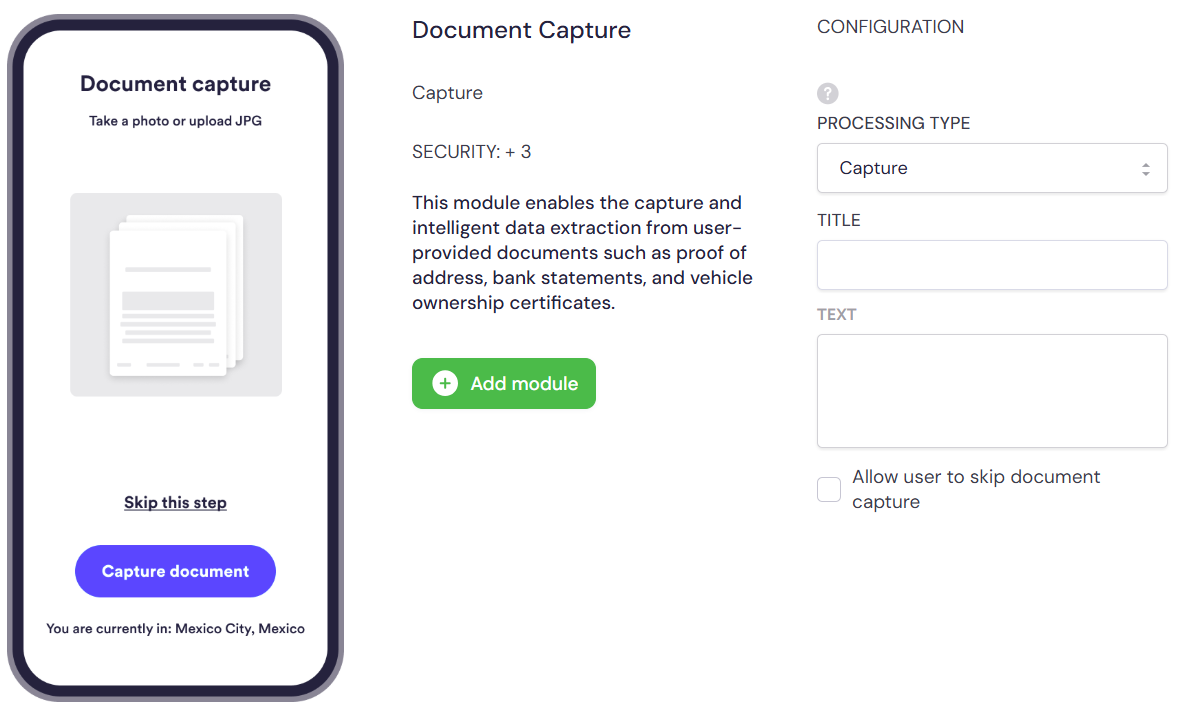
| Setting | Description |
|---|---|
| Title | Custom title text displayed to the user on the document capture screen. Leave blank to use the default. |
| Text | Custom instructional text displayed to the user on the document capture screen. Leave blank to use the default. |
| Processing Type | Determines how the captured document is processed after submission. Select one of the following options: • Capture • Process Proof Of Address OCR • Process Letter Of Authorization OCR • Process Asylum Seeker Visa ZAF OCR • Process Bank Statement OCR • Process Voided Check OCR • Process V5C Logbook • Process Car Invoice • Process Circulation Card • Process Finance Settlement • Process Mexican INE as POA • Process Colombia RUT form • Process W-8BEN OCR • Process W-8BEN-E OCR |
| Allow user to skip document capture | When enabled, users can bypass the document capture step and continue without submitting a document. |