The Face Authentication module captures a returning user's face with the device camera and matches it against an enrolled face. It then returns a pass or fail result.
For an overview of this module and how it works, see Face Authentication.
Supported with:
✅ Workflows | ✅ Flows
Add Face Authentication to Workflows
- In the left menu in Dashboard, click Flow Builder > Workflows.
- Click New.
- Add the Face Authentication module. Do one of the following, depending on whether you have the New or Classic view enabled in the toggle in the top right:
- New: Click Add node
 > Modules, then search for and select Face Authentication.
- Classic: From the Modules list, drag and drop the Face Authentication module into the builder.
- New: Click Add node
- On the module node, you can click Options
 > Edit to change specific settings for the module, like using 1:N, setting image quality, or setting a different number of allowed capture attempts. The Configuration Options section below describes all of these settings. The default settings work as designed, so no changes are needed.
- Add a Condition after the Face Authentication module and configure it:
- IF
Face authentication resultSTATUS==OK - Select Yes path for Configure what happens with existing steps after condition.
- Click Save Condition.
- IF
- Click Save & Publish.
Add Face Authentication to Flows
- In the left menu in Dashboard, click Flow Builder > Flows.
- Click New.
- On the Select Modules tab, find the Face Authentication module and click Add.
- You can click Details & Configurations to change specific settings for the module, like using 1:N, setting image quality, or setting a different number of allowed capture attempts. The Configuration Options section below describes all of these settings. The default settings work as designed, so no changes are needed.
- Click Save Changes.
Configuration Options
This section details all the configuration options available for this module. The options that appear depend on whether you have the New or Classic view enabled in the toggle in the top right in your Flow or Workflow. After changing anything, click Save configuration before closing the configuration panel.
The options you see in your configuration may differ from those documented below. Contact your Incode representative for more information.
Configuration Options: New
In New view, the Face Authentication module's configuration panel has three tabs that categorize its settings:
- Authentication: Configure how the captured face is matched to an existing identity and how strictly a match is evaluated.
- Capture options: Configure the selfie capture experience, including capture behavior and image-quality requirements.
- Fraud prevention: Configure liveness and anti-spoofing checks that detect physical spoofs, digital attacks, and face evasion. If Deepsight is enabled for your organization, and in your Flow or Workflow settings, Deepsight settings appear on this tab as well.
Authentication
| Setting | Description |
|---|---|
| Authentication type | Choose whether to compare the captured face with a specific user’s biometric template (1:1 verification) or search for a match across enrolled identities (1:N search). |
| Auto capture timeout (secs) | Set how long the system attempts to capture a suitable selfie automatically before allowing manual capture. The default is 25 seconds. |
| Max authentication attempts | Set the maximum number of times a user can retry after an unsuccessful authentication attempt. The suggested value is 3. This number balances fraud detection with user friction. With fewer retries, real users are more likely to get rejected. With more retries, fraudulent faces have more opportunity to slip past. |
| Allow authentication after biometric deletion | Allow authentication without a stored biometric template by comparing the captured face with a reference selfie submitted through the API. |
Capture options
Info
By default, these settings are configured to Incode's recommendations for successful face authentication. Changing them may weaken session completion, image quality, and fraud protection.
To change these settings, click Customize, acknowledge the warning, then click Continue customizing in the dialog. At any time, you can click Reset to Recommended at the top to return to Incode's defaults.
| Setting | Description |
|---|---|
| Show face capture tutorial | Show instructions that help the user position their face and prepare for capture. |
| Lighting check | Detect lighting conditions that are too bright or too dark for a suitable face image. |
| Closed eyes check | Detect whether the user’s eyes are closed in the captured image. |
| Hat check | Detect whether the user is wearing headwear that may obscure the face or forehead. |
| Lenses check | Detect whether the user is wearing glasses or other eyewear that may obscure the eyes. |
| Mask check | Detect whether the user is wearing a face covering that obscures facial features. |
| Face obstruction check | Detect whether objects, hands, hair, or other obstructions cover important facial features. |
| Minimum image quality | Require the captured face image to meet a minimum quality threshold before it is accepted. |
| Image quality severity | Set how strictly the Minimum image quality requirement is applied: Ultra Low, Low, Medium, High, or Ultra High. |
Fraud prevention
Info
By default, these settings are configured to Incode's recommendations for successful face authentication. Changing them may weaken session completion, image quality, and fraud protection.
To change these settings, click Customize, acknowledge the warning, then click Continue customizing in the dialog. At any time, you can click Reset to Recommended at the top to return to Incode's defaults.
| Setting | Description |
|---|---|
| Block reused face images | Detect and block attempts that reuse the same face image from enrollment, instead of capturing a new live image. |
| Face match | Set how strictly the captured face must match the enrolled or submitted reference image: Low, Medium, or High. |
| Digital spoof detection | Detect manipulated, AI-generated, or digitally injected face images and videos. Choose Low, Medium, or High severity. |
| Liveness evasion detection | Detect attempts to evade liveness checks using techniques such as extreme expressions, makeup, or intentional facial distortion. Choose Low, Medium, or High severity. |
| Physical spoof detection | Detect physical presentation attacks such as printed photos, screen replays, and 2D or 3D masks. Choose Low, Medium, or High severity. |
Configuration Options: Classic
View image of configuration panel
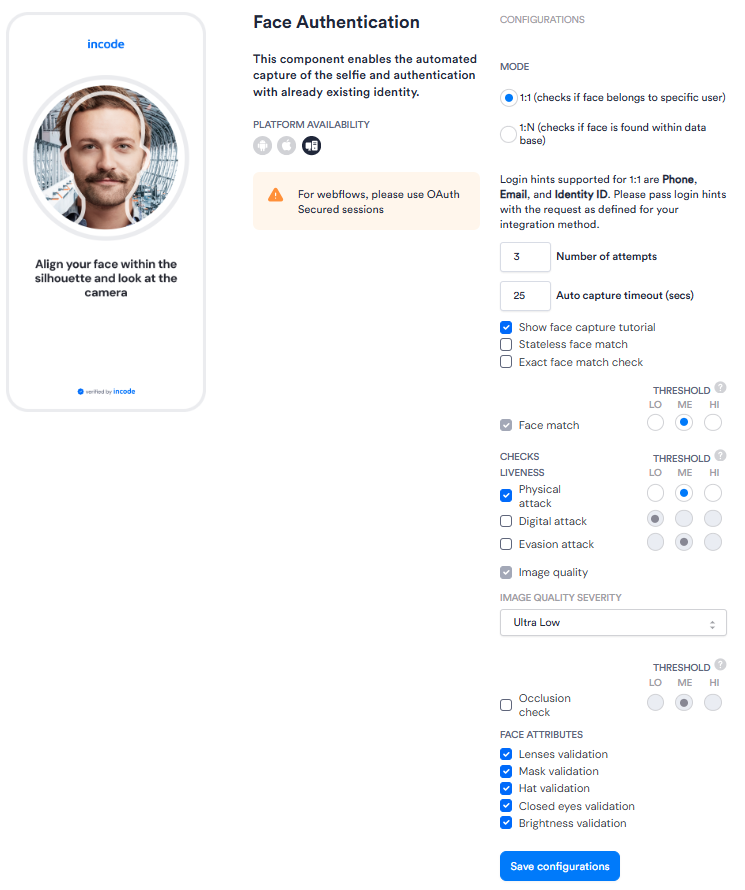
| Setting | Description |
|---|---|
| Mode | Determines the mode of comparison. Select one: • 1:1: Compares the authentication selfie against a specific existing user. • 1:N: Compares the authentication selfie against all the faces in the customer organization and finds the closest match. Default value: 1:1. |
| Number of attempts | The maximum number of auto capture attempts Incode will make. As soon as there is a successful attempt, the module ends. Enter a number. Default value: 3 |
| Auto capture timeout (secs) | The maximum number of seconds Incode will attempt to auto capture the selfie. After this time, manual capture is required. Enter a number of seconds. Default value: 25. |
| Show face capture tutorial | Controls whether the user sees a tutorial on how to capture the best possible selfie. Selected by default. |
| Stateless face match | When enabled, allows face authentication for users who have deleted their biometric data. The face match process uses the selfie submitted via API instead of a stored template. |
| Exact face match check | When enabled, compares the selfie captured during authentication against the selfie from the original onboarding session to detect the reuse of identical images. Face recognition scores above a fixed threshold are failed. This setting is disabled by default. |
| Face match | Controls the severity on the model that does the face matching process. A high threshold is better for security, but a low threshold is better for conversions. Select one: Lo, Me, or Hi. Default value: Me. Note that this setting cannot be deselected; it is a crucial part of the authentication process. |
| Checks Liveness | Controls the severity on the model that performs liveness checks. A high threshold is better for security, but a low threshold is better for conversions. There are three separate Liveness checks: • Physical attack is selected by default; its default value is Me. • Digital attack is deselected by default; its default value is Lo. • Evasion attack is deselected by default; its default value is Me. |
| Image quality | Checks for the quality of the captured selfie. A high threshold is better for security, but a low threshold is better for conversions. Select an Image Quality Severity: Lo, Me, or Hi. Default value: Me. |
| Occlusion check | Detects when part of the face in the captured selfie is covered, such as by a hand or another object. When enabled, it checks the received image before face matching; if occlusion is detected, the session’s face-recognition score fails by default, though Flow rules and Workflow conditions can override that result. Select a threshold: Lo, Me, or Hi. Default value: Me. |
| Lenses validation | In the Face Attributes section. Controls whether the system checks if the user is wearing lenses or sunglasses in the selfie. Selected by default. |
| Mask validation | In the Face Attributes section. Controls whether the system checks if the user is wearing a mask in the selfie. Selected by default. |
| Hat validation | In the Face Attributes section. Controls whether the system checks if the user is wearing a hat in the selfie. Selected by default. |
| Closed eyes validation | In the Face Attributes section. Controls whether the system checks if the user's eyes are closed in the selfie. Selected by default. |
| Brightness validation | In the Face Attributes section. Controls whether the system checks for minimum necessary brightness of the image. Selected by default. |
Deepsight Settings
If Deepsight is enabled for your organization, and in your Flow or Workflow settings, the following settings appear in the Face Authentication configuration panel.
| Deepsight Setting | Description |
|---|---|
| Multi-Modal Intelligence | Select one of the following: • Single frame: Analyzes one selfie image. • Single frame + Depth: Analyzes one selfie image with depth data. • Single frame + Depth + Video: Adds recorded video for analysis across multiple frames. When Single frame + Depth + Video is enabled, you can also enable Strict video checks. This requires a face to be detected and match the selfie when video is captured; otherwise, the check fails. |
| Ignore missing metadata | Prevents missing capture metadata from automatically making the Deepsight result unavailable. Recommended for API integrations. |
| In-browser debugger detection | Detects when browser inspection tools are open during capture. |
| Mocked browser detection | Detects when the browser identity appears altered or simulated. |
| Motion | Checks for natural device movement during selfie capture. |
| Monotonic borders | Detects uniform-color borders in the selfie that can occur in some injection attempts. |
| Detection values deviation | Checks for image patterns that may indicate a static or replayed image. |
| Camera label check | Detects suspicious camera labels that may indicate a virtual camera. |
| Camera challenges | Checks camera responses to security challenges to help identify virtual or injected camera feeds. |
Scoring
Every authentication attempt gets its own score.
When Liveness is OFF:
- The numerical score represents the face recognition/match score.
- The face attributes have binary impact on the scoring; if any fail, the attempt fails.
When Liveness is ON:
- The numerical score represents a combination face recognition/match score and the Liveness score.
- The face attributes have binary impact on the scoring; if any fail, the attempt fails.