The Face Capture module captures a user’s face with their device’s camera and runs configurable liveness, face recognition, and image quality checks. It can enroll new users so their face can be matched against an ID photo or used for later authentication. It can also log in returning users using 1:1 or 1:N face authentication.
For an overview of this module and how it works, see Face Capture.
Supported with:
✅ Workflows | ✅ Flows
Add Face Capture to Workflows
- In the left menu in Dashboard, click Flow Builder > Workflows.
- Click New.
- Add the Face Capture module. Do one of the following, depending on whether you have the New or Classic view enabled in the toggle in the top right:
- New: Click Add node
 > Modules, then search for and select Face Capture.
- Classic: From the Modules list, drag and drop the Face Capture module into the builder.
- New: Click Add node
- You can click Options
 > Edit on the module node to open the Configuration Options panel and adjust settings as needed.
Add Face Capture to Flows
- In the left menu in Dashboard, click Flow Builder > Flows.
- Click New.
- On the Select Modules tab, find the Face Capture module and click Add.
- You can click Details & Configurations to open the Configuration Options panel and adjust settings as needed.
Configuration Options
This section details all the configuration options available for this module. The options that appear depend on whether you have the New or Classic view enabled in the toggle in the top right in your Flow or Workflow. After changing anything, click Save configuration before closing the configuration panel.
The options you see in your configuration may differ from those documented below. Contact your Incode representative for more information.
Several liveness and validation checks use a threshold scale (Ultra Low, Low, Medium, High, Ultra High) that controls how strictly the check is applied. A lower threshold matches faces with a higher degree of anomalies (more permissive); a higher threshold matches faces with a lower degree of anomalies (more strict).
Configuration Options: New
In New view, the Face Capture module's configuration panel has two tabs that categorize its settings:
- Capture Options: Configure the selfie capture experience, including user guidance, image quality requirements, and capture behavior.
- Fraud Prevention: Configure liveness and anti-spoofing checks that detect physical spoofs, digital attacks, and face evasion. If Deepsight is enabled for your organization, and in your Flow or Workflow settings, Deepsight settings appear on this tab as well.
Capture Options
Info
By default, these settings are configured to Incode's recommendations for successful face capture. Changing them may weaken session completion, image quality, and fraud protection.
To change these settings, click Customize, acknowledge the warning, then click Continue customizing in the dialog. At any time, you can click Reset to Recommended at the top to return to Incode's defaults.
| Setting | Description |
|---|---|
| Concealment style | Choose whether an avatar or privacy lens replaces the user’s live camera preview during capture. This does not alter the captured selfie. Select one: • None: Shows the user's face normally. • 3D Avatar: Shows a 3D avatar in place of the user’s face. • 2D Avatar: Shows a 2D avatar that mirrors the user’s head movements. • Privacy Lens: Blurs the capture preview. |
| Face capture tutorial | Show instructions that help the user position their face and prepare for selfie capture. |
| Allow selfie upload from gallery | Allow the user to select an existing selfie from their device instead of capturing one with the camera. |
| Show face capture preview | Let the user review the captured selfie before submitting it or trying again. |
| Rear-camera capture mode | Use the device’s rear camera for operator-assisted or kiosk capture scenarios. |
| Autocapture timeout (secs) | Set how long the system attempts to capture a suitable selfie automatically before allowing manual capture. The default is 25 seconds. |
| Max face capture retries | Set the maximum number of times the user can retry after an unsuccessful face capture. The suggested value is 3. This number balances fraud detection with user friction. With less retries, real users are more likely to get rejected. With more retries, fraudulent faces have more opportunity to slip past. |
| Minimum image quality | Require the captured selfie to meet a minimum quality threshold before it is accepted. |
| Severity | Set how strictly the minimum image-quality requirement is applied. |
| Face obstruction check | Detect whether objects, hands, hair, or other obstructions cover important facial features. |
| Lenses check | Detect whether the user is wearing glasses or other eyewear that may obscure the eyes. |
| Mask check | Detect whether the user is wearing a face covering that obscures facial features. |
| Hat check | Detect whether the user is wearing headwear that may obscure the face or forehead. |
| Closed eyes check | Detect whether the user’s eyes are closed in the captured selfie. |
| Lightning check | Detect lighting conditions that are too bright or too dark for a suitable selfie. |
Fraud Prevention
Info
By default, these settings are configured to Incode's recommendations for successful face capture. Changing them may weaken session completion, image quality, and fraud protection.
To change these settings, click Customize, acknowledge the warning, then click Continue customizing in the dialog. At any time, you can click Reset to Recommended at the top to return to Incode's defaults.
| Setting | Description |
|---|---|
| Physical spoof detection | Detect physical presentation attacks such as printed photos, screen replays, and 2D or 3D masks. |
| Digital spoof detection | Detect manipulated, AI-generated, or digitally injected face images and videos. |
| Liveness evasion detection | Detect attempts to evade liveness checks using techniques such as extreme expressions, makeup, or intentional facial distortion. |
| Age estimate from face | Estimate the user’s age from the captured face without relying on a date of birth. |
| Record face capture | Record the face capture process for additional fraud analysis or manual review. |
| Allow manual review | Allow the face capture and its verification results to be reviewed manually when needed. |
| On-Device Processing | Run liveness detection and age estimation on the user’s device and submit only the results, without uploading biometric images. |
Configuration Options: Classic
View image of configuration panel
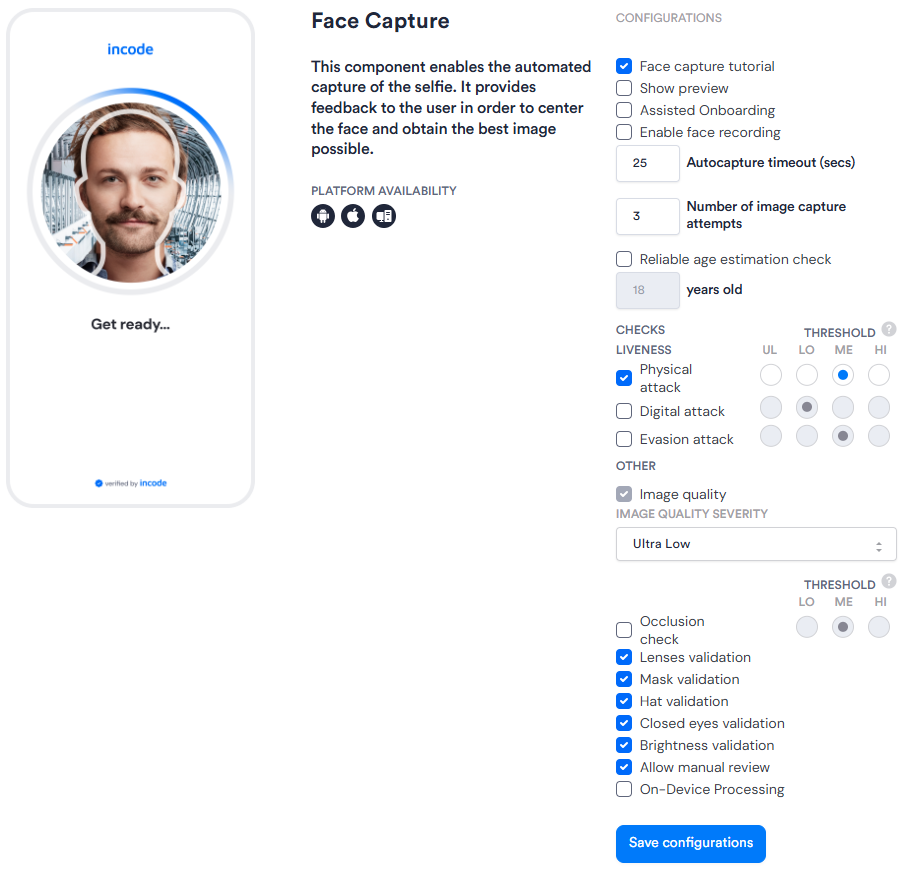
| Setting | Description |
|---|---|
| Concealment style | Controls how the user’s face is hidden in the on-screen preview during capture. It changes only the preview—not the image data used for detection. This setting is only compatible with Web SDK 2.0. Select one: • None: Shows the user's face normally. • 3D Avatar: Shows a 3D avatar in place of the user’s face. • 2D Avatar: Shows a 2D avatar that mirrors the user’s head movements. • Privacy Lens: Blurs the capture preview. |
| Face capture tutorial | When enabled, displays an instructional screen before the capture step to guide the user through the process. |
| Allow selfie upload from gallery | Allows users to select a selfie from their device instead of taking one with the live camera. The upload option appears on the Face Capture tutorial screen; it’s disabled by default and can support users who have difficulty completing live capture. Gallery uploads may increase fraud risk because Incode can’t confirm the image came from a live camera or shows a real, present person. |
| Show preview | When enabled, shows the user a preview of the captured face or selfie. |
| Assisted Onboarding | When enabled, allows face capture using the rear camera. |
| Enable face recording | When enabled, records the face capture session for review purposes. |
| Autocapture timeout (Seconds) | The number of seconds the camera will attempt automatic capture before timing out. Default: 25. If autocapture does not succeed within this window, the user is prompted to retry or switch to manual capture. |
| Number of image capture attempts | The maximum number of times a user can attempt to capture their face before the session ends. Default: 3. |
| Reliable age estimation check | When enabled, estimates the user's age from the captured selfie and checks it against a minimum age threshold (set in the adjacent "years old" field; default 18). |
| Physical attack (Liveness) |
When enabled, checks the selfie for signs of a physical presentation attack (e.g., printed photo, mask). Threshold sets the strictness of the check. |
| Digital attack (Liveness) |
When enabled, checks the selfie for signs of a digital presentation attack (e.g., a face displayed on a screen). Threshold sets the strictness of the check. |
| Evasion attack (Liveness) |
When enabled, checks the selfie for signs that the user is attempting to evade detection (e.g., obscuring or distorting their face). Threshold sets the strictness of the check. |
| Image quality | When enabled, validates that the captured image meets a minimum quality standard. Severity is configured in the Image Quality Severity dropdown, with options Ultra Low, Low, Medium, High, and Ultra High. |
| Occlusion check | When enabled, checks whether the user's face is partially obscured in the captured image. Threshold sets the strictness of the check. |
| Lenses validation | When enabled, checks whether the user is wearing glasses or contact lenses that may interfere with capture. |
| Mask validation | When enabled, checks whether the user is wearing a face mask. |
| Hat validation | When enabled, checks whether the user is wearing a hat or other headwear that may obscure the face. |
| Closed eyes validation | When enabled, checks whether the user's eyes are closed in the captured image. |
| Brightness validation | When enabled, checks whether the image brightness is within an acceptable range. |
| Allow manual review | When enabled, sessions that fail face capture after all attempts are routed for manual review instead of being rejected outright. |
| On-Device Processing | When enabled, performs face capture processing on the user's device rather than server-side. |
Deepsight Settings
If Deepsight is enabled for your organization, and in your Flow or Workflow settings, the following settings appear in the Face Capture configuration panel.
| Deepsight Setting | Description |
|---|---|
| Multi-Modal Intelligence | Select one of the following: • Single frame: Analyzes one selfie image. • Single frame + Depth: Analyzes one selfie image with depth data. • Single frame + Depth + Video: Adds recorded video for analysis across multiple frames. When Single frame + Depth + Video is enabled, you can also enable Strict video checks. This requires a face to be detected and match the selfie when video is captured; otherwise, the check fails. |
| Ignore missing metadata | Prevents missing capture metadata from automatically making the Deepsight result unavailable. Recommended for API integrations. |
| In-browser debugger detection | Detects when browser inspection tools are open during capture. |
| Mocked browser detection | Detects when the browser identity appears altered or simulated. |
| Motion | Checks for natural device movement during selfie capture. |
| Monotonic borders | Detects uniform-color borders in the selfie that can occur in some injection attempts. |
| Detection values deviation | Checks for image patterns that may indicate a static or replayed image. |
| Camera label check | Detects suspicious camera labels that may indicate a virtual camera. |
| Camera challenges | Checks camera responses to security challenges to help identify virtual or injected camera feeds. |