The Face Match module compares the user's selfie against their ID photo, their NFC chip photo, or both in a 3-way match. It then returns a confidence score.
For an overview of this module and how it works, see Face Match.
Supported with:
✅ Workflows | ✅ Flows
Add Face Match to Workflows
- In the left menu in Dashboard, click Flow Builder > Workflows.
- Click New or select an existing Workflow.
- Add the Face Match module. Do one of the following, depending on whether you have the New or Classic view enabled in the toggle in the top right:
- New: Click Add node
 > Processes, then search for and select Face Match.
- Classic: From the Processes list, drag and drop the Face Match module into the builder.
- New: Click Add node
- You can click Options
 > Edit on the module node to open the Configuration Options panel and adjust settings as needed.
Add Face Match to Flows
- In the left menu in Dashboard, click Flow Builder > Flows.
- Click New or select an existing Flow.
- On the Select Modules tab, find the Face Match module and click Add.
- You can click Details & Configurations to open the Configuration Options panel and adjust settings as needed.
Configuration Options
This section details all the configuration options available for this module. The options that appear depend on whether you have the New or Classic view enabled in the toggle in the top right in your Flow or Workflow. After changing anything, click Save configuration before closing the configuration panel.
The options you see in your configuration may differ from those documented below. Contact your Incode representative for more information.
Configuration Options: New
In New view, the Face Match module's configuration panel has three tabs that categorize its settings:
- Matching options: Configure which face images are compared and how strictly they must match.
- Fraud prevention: Configure checks that detect facial manipulation, identity substitution, and other attempts to deceive face matching.
- Image integrity: Check the submitted images for signs that they are outdated, edited, or otherwise unsuitable for face matching.
Info
By default, these settings are configured to Incode's recommendations for successful face matching. Changing them may weaken your defense against spoof attacks.
To change these settings, click Customize, acknowledge the warning, then click Continue customizing in the dialog. At any time, you can click Reset to Recommended at the top to return to Incode's defaults.
Matching Options
| Setting | Description |
|---|---|
| Compare face image to | Select which captured document provides the reference portrait: the First ID or the Second ID. |
| Matching source | Select which reference image the captured face is compared against. |
| Skip face match animation | Do not show the face comparison animation while the match is processed. |
Fraud Prevention
| Setting | Description |
|---|---|
| Face recognition severity | Set how strictly the captured face must match the reference portrait. Higher severity requires greater facial similarity. |
| Exact face match | Detect when the exact same image is used for both the selfie and reference portrait, which may indicate a spoofing attempt. |
Image Integrity
| Setting | Description |
|---|---|
| Face image edit detection | Check the face image’s metadata for signs that it was modified using image-editing software. |
| Face image freshness check | Check the image’s original capture time and flag it if it is older than the configured limit. |
Configuration Options: Classic
View image of configuration panel
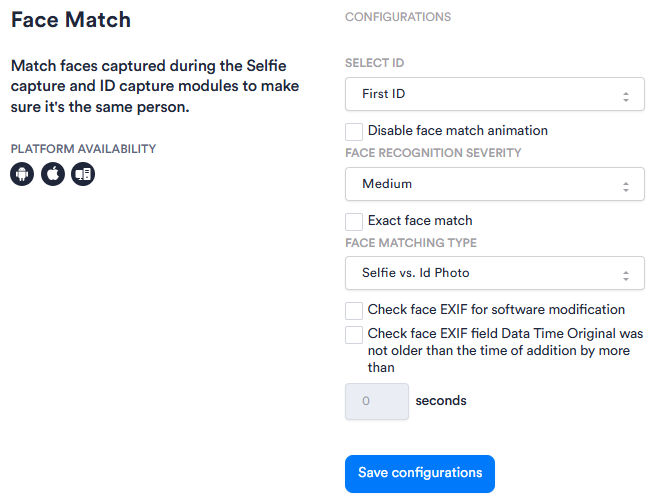
| Setting | Description |
|---|---|
| Select ID Workflows only |
Specifies which ID in a multi-ID session this module applies to (First ID or Second ID). Use this when your Workflow or Flow captures more than one identity document. |
| Disable face match animation | When enabled, suppresses the animation shown to the user during face matching. |
| Face Recognition Severity | Sets the strictness of face recognition matching, with options Low, Medium, and High. A higher severity requires a closer match between the compared faces. |
| Exact face match | Scans for unusually high similarity between the selfie and ID portrait, suggesting the ID photo may have been reused as the selfie. If it detects an exact match, the check is marked failed. The selected Exact Face Match Severity controls the impact on the overall face-recognition score: • Low leaves the score unchanged. • Medium reduces it. • High sets it to zero. |
| Face Matching Type Workflows only |
The pair of images compared during face matching. Select one: • Selfie vs. Id Photo • Selfie vs. NFC Photo • Selfie vs. ID vs. NFC Photo |
| Check face EXIF for software modification | When enabled, inspects the EXIF metadata of the captured face image for signs that it was modified by editing software. |
| Check face EXIF field Data Time Original was not older than the time of addition by more than | When enabled, checks that the EXIF DateTimeOriginal field on the captured face image is no older than the configured number of seconds before submission. |