The NFC Scan module reads the secure NFC chip embedded in ICAO 9303-compliant travel documents, such as e-passports. It then returns the document holder's data, including the chip's portrait image.
For an overview of this module and how it works, see NFC Scan.
Supported with:
✅ Workflows | ✅ Flows
Add NFC Scan to Workflows
- In the left menu in Dashboard, click Flow Builder > Workflows.
- Click New or select an existing Workflow.
- Add the NFC Scan module. Do one of the following, depending on whether you have the New or Classic view enabled in the toggle in the top right:
- New: Click Add node
 > Modules, then search for and select NFC Scan.
- Classic: From the Modules list, drag and drop the NFC Scan module into the builder.
- New: Click Add node
- You can click Options
 > Edit on the module node to open the Configuration Options panel and adjust settings as needed.
Add NFC Scan to Flows
- In the left menu in Dashboard, click Flow Builder > Flows.
- Click New or select an existing Flow.
- On the Select Modules tab, find the NFC Scan module and click Add.
- You can click Details & Configurations to open the Configuration Options panel and adjust settings as needed.
Configuration Options
This section details all the configuration options available for this module. The options that appear depend on whether you have the New or Classic view enabled in the toggle in the top right in your Flow or Workflow. After changing anything, click Save configuration before closing the configuration panel.
The options you see in your configuration may differ from those documented below. Contact your Incode representative for more information.
Configuration Options: New
Info
By default, these settings are configured to Incode's recommendations for successful NFC scan. Changing them may make the module less effective.
To change these settings, click Customize, acknowledge the warning, then click Continue customizing in the dialog. At any time, you can click Reset to Recommended at the top to return to Incode's defaults.
| Setting | Description |
|---|---|
| NFC Validation | Activates NFC chip data extraction for verification. Enabled by default. |
| Show NFC compatibility check | Displays a screen prompting the user to confirm that the NFC symbol is visible on their document before scanning begins. Enabled by default. |
| Show OCR data confirmation before first scan | Shows a screen displaying the data extracted via OCR for the user to confirm before the NFC scan is initiated. Enabled by default. |
Configuration Options: Classic
View image of configuration panel
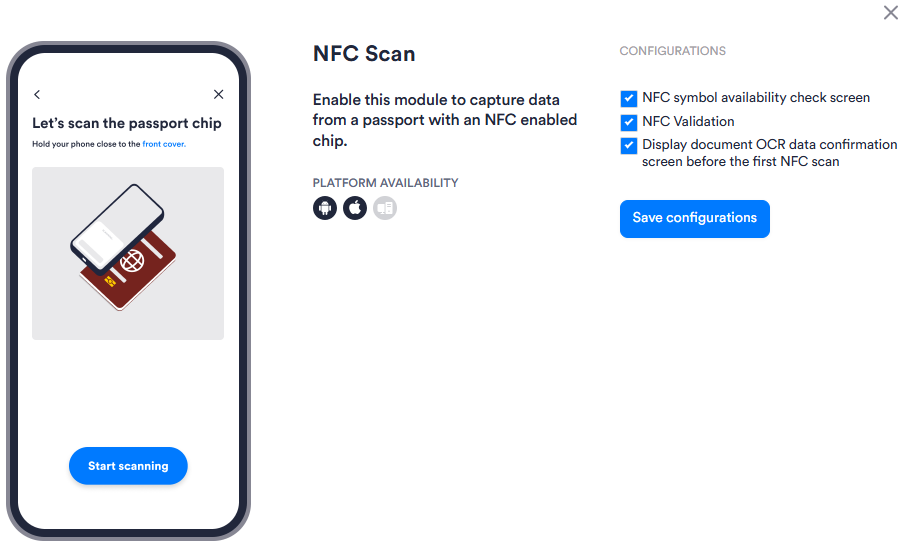
| Setting | Description |
|---|---|
| NFC symbol availability check screen | Displays a screen prompting the user to confirm that the NFC symbol is visible on their document before scanning begins. Enabled by default. |
| NFC Validation | Activates NFC chip data extraction for verification. Enabled by default. |
| Display document OCR data confirmation screen before the first NFC scan | Shows a screen displaying the data extracted via OCR for the user to confirm before the NFC scan is initiated. Enabled by default. |