TrustGraph is Incode's privacy-preserving trust network. It runs on every session in a flow that has it enabled and returns real-time signals when a session's attributes have shown up before in ways worth flagging, in your own history or across the network.
Supported with:
✅ Workflows | ✅ Flows
Add TrustGraph to Workflows
- In the left menu, click Flow Builder > Workflows.
- Click New or select an existing Workflow.
- Add verification modules such as ID Capture or Face Capture.
- From the Processes list, drag and drop TrustGraph into the builder.
- Beta Click Add node
 > Processes, then search for and select Face Authentication.
 - You can click Options
 > Edit on the module node to open the Configuration Options panel and adjust settings as needed.
Add Trust Graph to Flows
- In the left menu, click Flow Builder > Flows.
- Click New or select an existing Flow.
- On the Select Modules tab, find the Trust Graph module and click Add.
- You can click Details & Configurations to open the Configuration Options panel and adjust settings as needed.
Configuration Options
Info
There are two versions of Dashboard: Standard and Beta. Learn more about Standard and Beta and contact your Incode representative for more information.
View Standard configuration
View Beta configuration
Beta
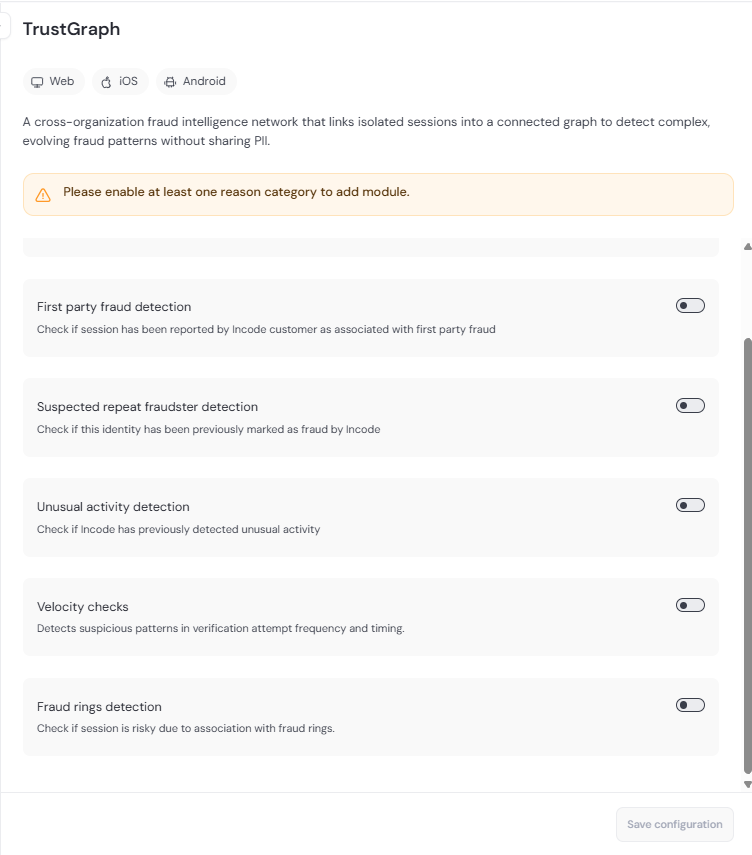
This section details all the configuration options available for the TrustGraph module. After changing anything, click Save configurations before closing the configuration panel.
The options you see in your configuration may differ from those documented below. Contact your Incode representative for more information.
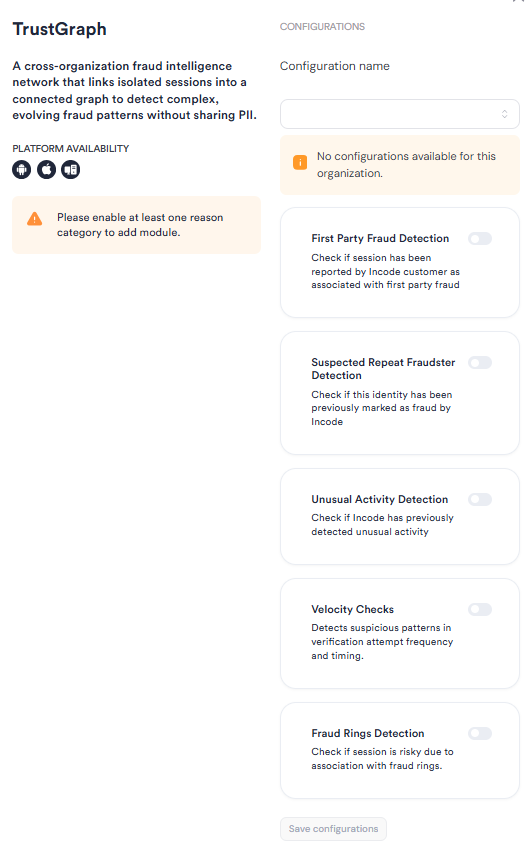
Each setting represents a category. Turning a category on evaluates it against every session in the flow; turning it off returns NOT_EXECUTED for that category and excludes it from the overall TrustGraph status. You must enable at least one to add the module to the flow.
| Toggle | Description |
|---|---|
| First Party Fraud Detection | Checks whether the session has been reported by an Incode customer as associated with first party fraud (rewards abuse, account selling, mule and circular trading patterns, and similar). |
| Suspected Repeat Fraudster Detection | Checks whether the identity in this session has been previously marked as fraud by Incode. Compares against the Suspected Fraud List using face, face-on-ID, device hash, and document, personal, or voter numbers. |
| Unusual Activity Detection | Checks for inconsistencies across sessions, such as one document appearing with several faces, one face presenting several documents, or one device tied to conflicting identities. |
| Velocity Checks | Detects suspicious patterns in verification attempt frequency and timing. Flags the same face, face-on-ID, document number, personal number, voter number, or device onboarding more times than the configured threshold within the configured time window. |
| Fraud Rings Detection | Checks whether the session is risky due to association with a fraud ring discovered in your history. See Fraud Ring Explorer for the investigation surface. |
Add Conditions
Conditions let you branch the Workflow based on the TrustGraph verification result. When adding a Condition after the TrustGraph process, search, filter, or browse for the Trust graph section in the first drop-down and select from the following options:
| Condition | Description |
|---|---|
| OVERALLRISK | The overall TrustGraph status for the session. Returns AT_RISK when at least one enabled reason category is AT_RISK; otherwise returns OK. |
| UNUSUALACTIVITYRISK | Whether the Unusual Activity Detection category returned AT_RISK for the session. |
| KNOWNFRAUDSTERRISK | Whether the Suspected Repeat Fraudster Detection category returned AT_RISK for the session. |
| FIRSTPARTYFRAUDRISK | Whether the First Party Fraud Detection category returned AT_RISK for the session. |
| VELOCITYCHECKSRISK | Whether the Velocity Checks category returned AT_RISK for the session. |
All TrustGraph Conditions use the same operators (==, !=) and possible values (AT_RISK, OK).