
Flows
Flows define the onboarding and authentication experiences. Flows run modules in the exact order they are added, without conditional logic or branching. We recommend using Workflows because there is more flexibility to cover more use cases.
In the left navigation, click Flows.
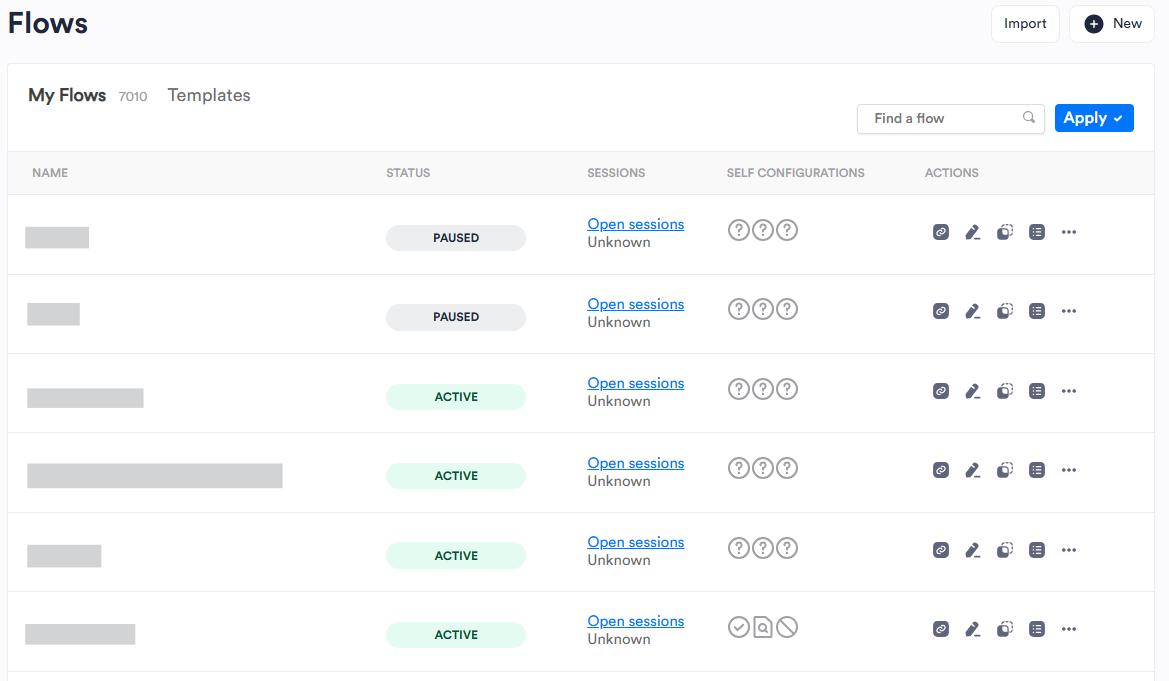
From this page, you can:
- Search the list of Flows in the system
- Create or import new Flows
- View Sessions that used the Flow
- Copy the Flow URL or ID
- Edit a Flow
- View a list of modules in the Flow
- Pause a Flow from use
- Download the Flow configuration
- Delete a Flow
Create Flows
-
In the left navigation, click Flows.
-
Click New.
-
In the top left, click Edit. Enter a name for the Flow and click Save.
-
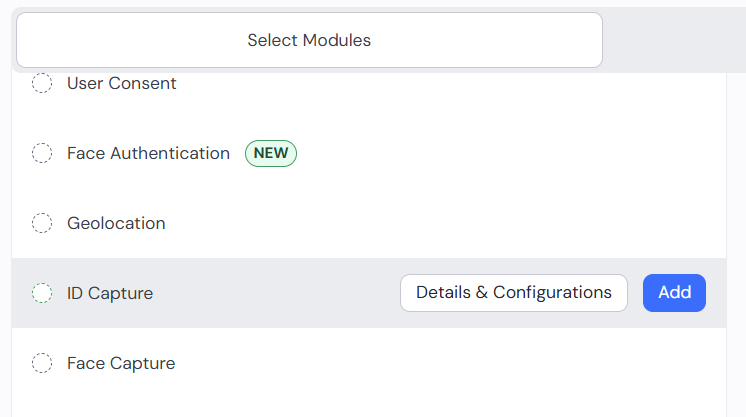
On the Select Modules tab, browse or search to locate a module you want to add. While hovering over the module name, click Add to add it to the Flow.
-
While hovering over the module name, you can click Details & Configurations to open the configuration panel. Every module has its own group of settings. You can leave the default settings or customize to meet your needs. Documentation for individual module settings is in progress.
-
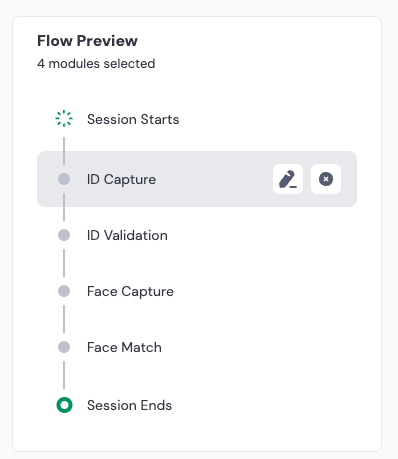
Continue adding and configuring modules to complete the Flow. Use the Flow Preview on the right to confirm what modules you added. You can also hover over the module names to edit configurations or remove modules from the Flow.
-
On the Settings tab, you can customize settings to meet your needs. The default settings work for most cases.
- If your system is configured with Risk AI Agent or Deepsight, you can enable them for the Flow. Separate licensing is required for each. Contact your Incode Representative for more information.
- Customize the Session Results settings.
Expand to view details
Setting Description Identity creation Session Score: Pass If the session ends with Pass, you can Approve Identity creation or Send to manual review. Click Reset All to remove a selection. Session Score: Warn If the session ends with Warn, you can Approve Identity creation, Send to manual review, or Fail Identity creation. Click Reset All to remove a selection. Session Score: Failed If the session ends with Failed, you can Send to manual review, or Fail Identity creation. Click Reset All to remove a selection. Session completion Optional Mark Verification as Finished On This drop-down allows you to define which milestone should end the Session. You can choose: ID Validation Finished, Face Validation Finished, EKYC Validation Finished, or Government Validation Finished - Customize the User Experience settings.
Expand to view details
Setting Description Default Getting Started Skip intro screen When on, users skip the launch screen and go directly to verification steps. Off Create Flow template for Onboarding Optimizer When on, this setting automatically generates a reusable template based on this onboarding Flow to optimize future setups. Off Phishing Resistance When on, this offers protection against man-in-the-middle phishing attacks using dynamic QR codes and device-session binding. This also turns on Redirect Desktop attempts to Mobile and its sub-setting Disable SMS option. Off OAuth2 Secured (web only) When enabled, this setting can strengthen the security of the user journey against replay attacks with OAuth2 security protocol. When this setting is used, a Redirect URL is required for the Workflow to save. The OAuth clientid is saved in the configuration settings for future reference. Off Redirect Desktop attempts to Mobile When on, this redirects users who start the Flow on desktop to continue on their mobile device. This setting has several sub-settings. Allow "continue on desktop": Show an option allowing users to stay and complete the Flow on desktop instead. Redirect origin only: Redirect users only at the starting point of the Flow. Once they switch to mobile, the Flow ends there without sending them back to desktop. Display result on desktop: Once the mobile Flow is completed, display the verification result on the original desktop tab. Disable SMS option: Remove SMS option and only show the QR code to transfer the Flow to mobile. Off In person or assisted Onboarding When on, it indicates that onboarding Sessions using this Flow will happen in-person or in-branch. Off Hide unsupported browser screen When on, this setting lets users continue with any browser. Only Chrome and Safari are officially supported. Off After Verification Redirect URL This is the URL where users will be sent after completing the onboarding Session through this Flow. This field is required if OAuth2 Secured (web only) is enabled. Session Control Mark Session as "Expired" When on, Sessions will be labeled as "expired" in your admin Dashboard after the specified time of inactivity to help with Session monitoring and management. Enter a number of minutes the Session should be open before being marked Expired. Off Allow multiple Onboarding completions When on, users can complete the onboarding Flow more than once if needed. Off - Customize the Compliance & Privacy settings.
Expand to view details
Setting Description Default Age Verification Enhanced privacy protection When on, users will see a privacy adjusted tutorial and no PII will be saved (except for date of birth). Off Compliance Require biometric consent When on, shows required consent before biometric capture for users in applicable U.S. states. Off Save verification videos When on, merges ID and face capture recordings into a single video and stores it with the Session data for audit trail. Off
-
Click Save Changes.
Import Flows
-
In the left navigation, click Flows.
-
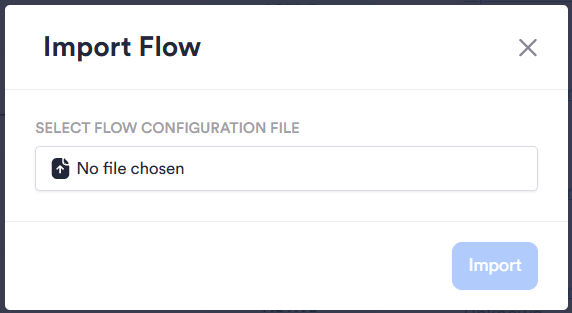
Click Import.
-
Click Select Flow Configuration File and browse to the JSON file on your device.
-
Click Import.
View Sessions for a Flow
- In the left navigation, click Flows.
- Browse or search to locate the Flow you want to view Sessions for.
- Click Open Sessions. This will redirect you to the Sessions page with a filter applied to only show Sessions using that Flow.
Other Flow Actions
-
In the left navigation, click Flows.
-
Browse or search to locate the Flow you want to take action on.
-
Select from the available options:

- Copy Flow URL: Copies the URL needed to start the Flow.
- Edit: Opens the Flow for editing.
- Copy Flow ID: Copies the unique identifier for the Flow.
- View modules: Hovering over this option shows a list of the modules used in the Flow.
-
For even more options, click Actions to open the menu:
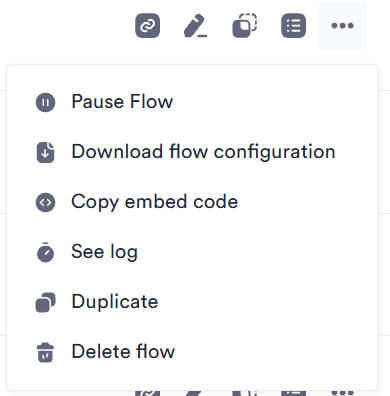
- Pause Flow: Prevents the Flow from being used in Onboarding. When a Flow is paused, the menu displays Activate Flow instead.
- Download Flow configuration: Downloads a JSON file of the Flow settings and configurations.
- Copy embed code: Copies the iFrame for the Flow to your clipboard.
- See log: Opens a panel showing the change history for the Flow. You can select a date range or view all time history.
- Duplicate: Makes a copy of the Flow.
- Delete Flow: Permanently deletes the Flow. This cannot be undone. In the confirmation dialog, click Confirm.
Updated 25 days ago