
Screens & States
This section provides a complete overview of all possible user-facing states within the eKYB Verification experience.
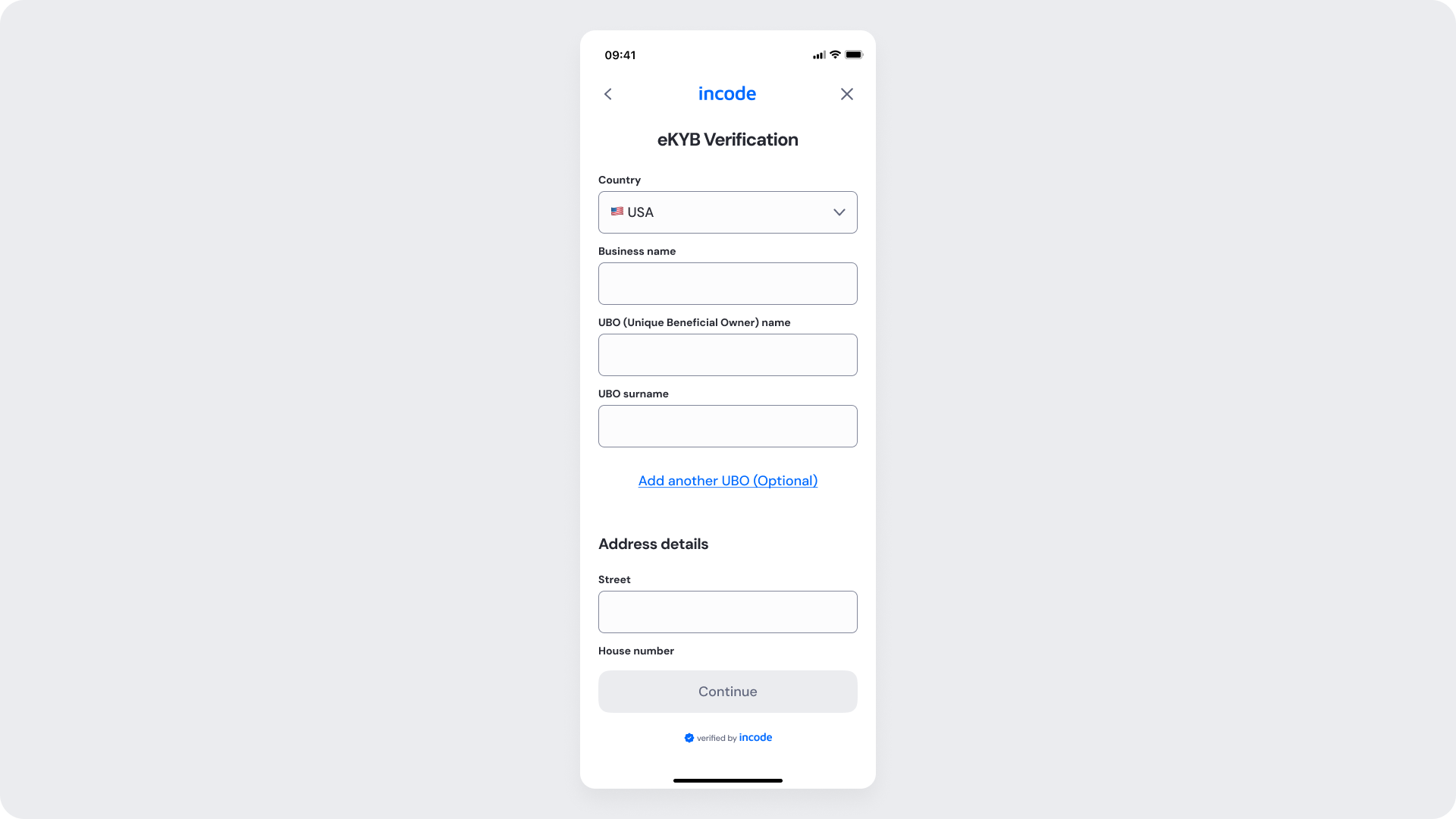
Entry Form
Entry point of the eKYB module. This screen collects the business and beneficial ownership information required for electronic Know Your Business (eKYB) verification. The set of displayed fields depends on the selected verification source (e.g., Driver's License, Credit Bureau, Government Registry). In this example, the flow uses Driver's License verification.
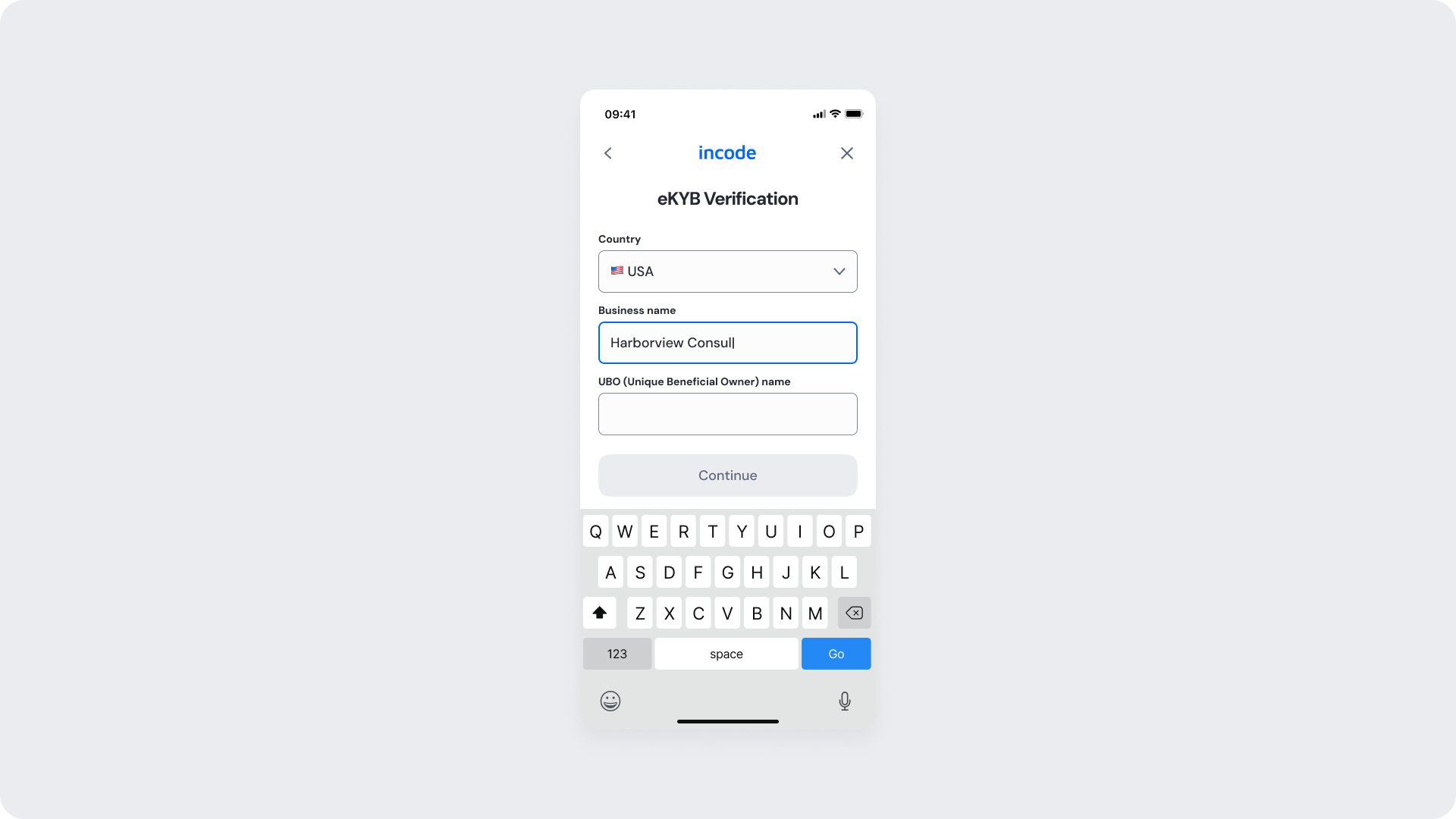
Form filling
This state appears while the user is actively entering business and beneficial ownership information in the eKYB form. Focused fields are visually highlighted, and system components such as the keyboard are displayed. Real-time validation may occur as the user types, guiding accurate data entry before submission.
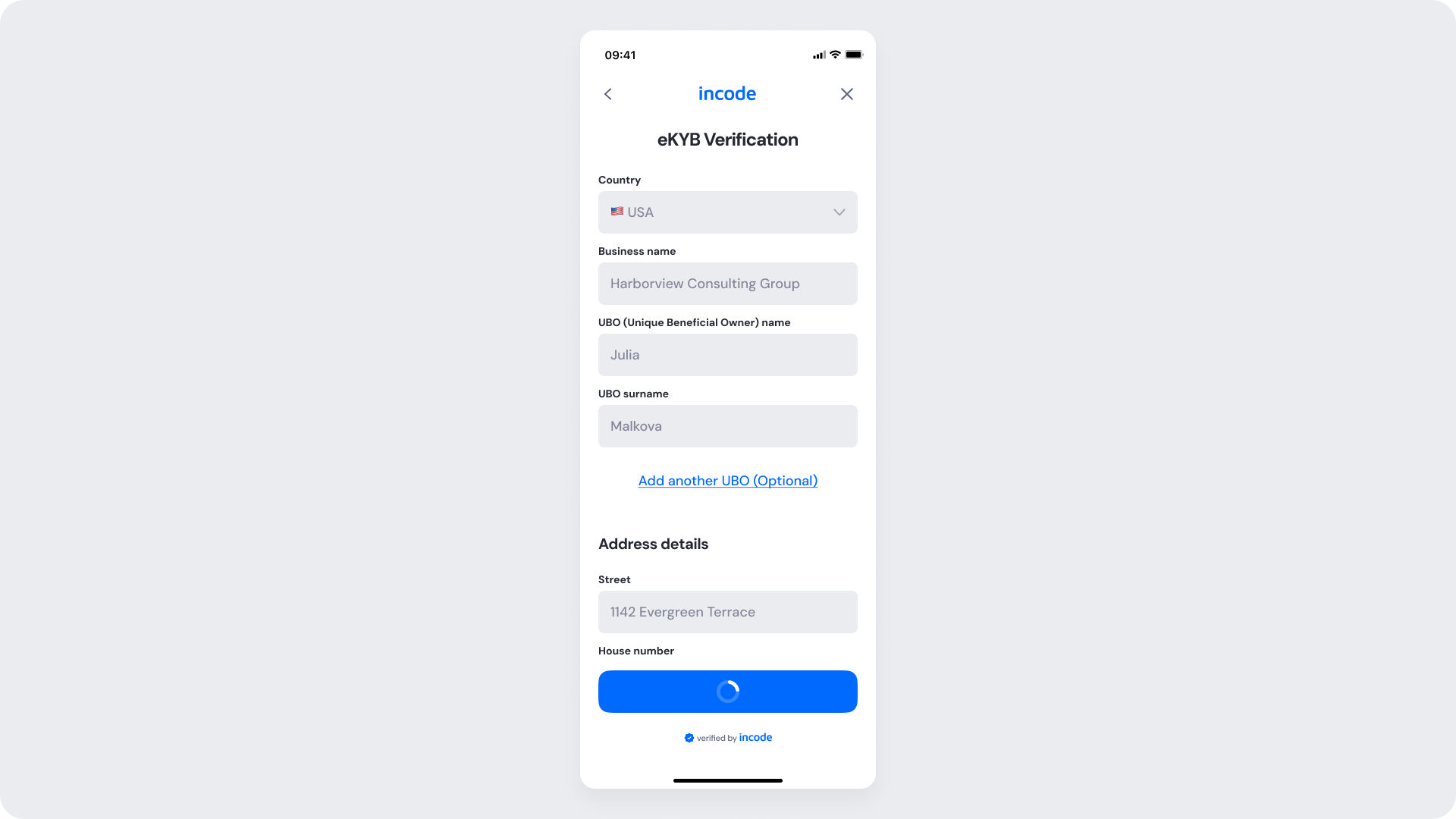
Form Processing (Inline Submission State)
Displayed once all required fields are completed with valid values.
All form fields appear in a disabled, read-only state while the submission is in progress, preventing edits during the loading phase. A loading spinner replaces the Continue button label to indicate that the system is processing the request.
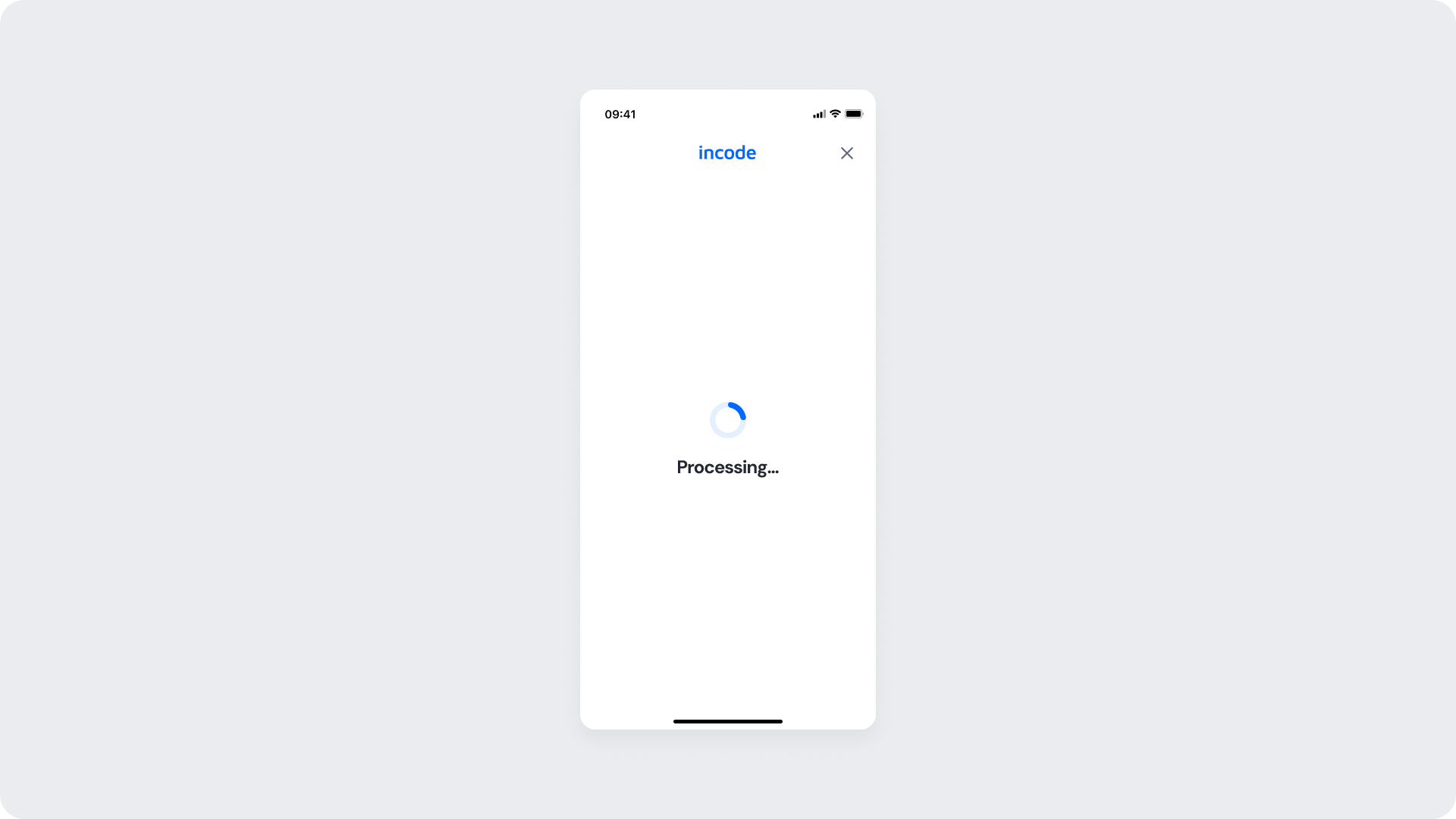
Form Processing
The form is replaced by a dedicated processing screen displaying a loading spinner and a "Processing..." label. This full-screen state indicates that the business data is being transmitted and validated against official registries
Form Error
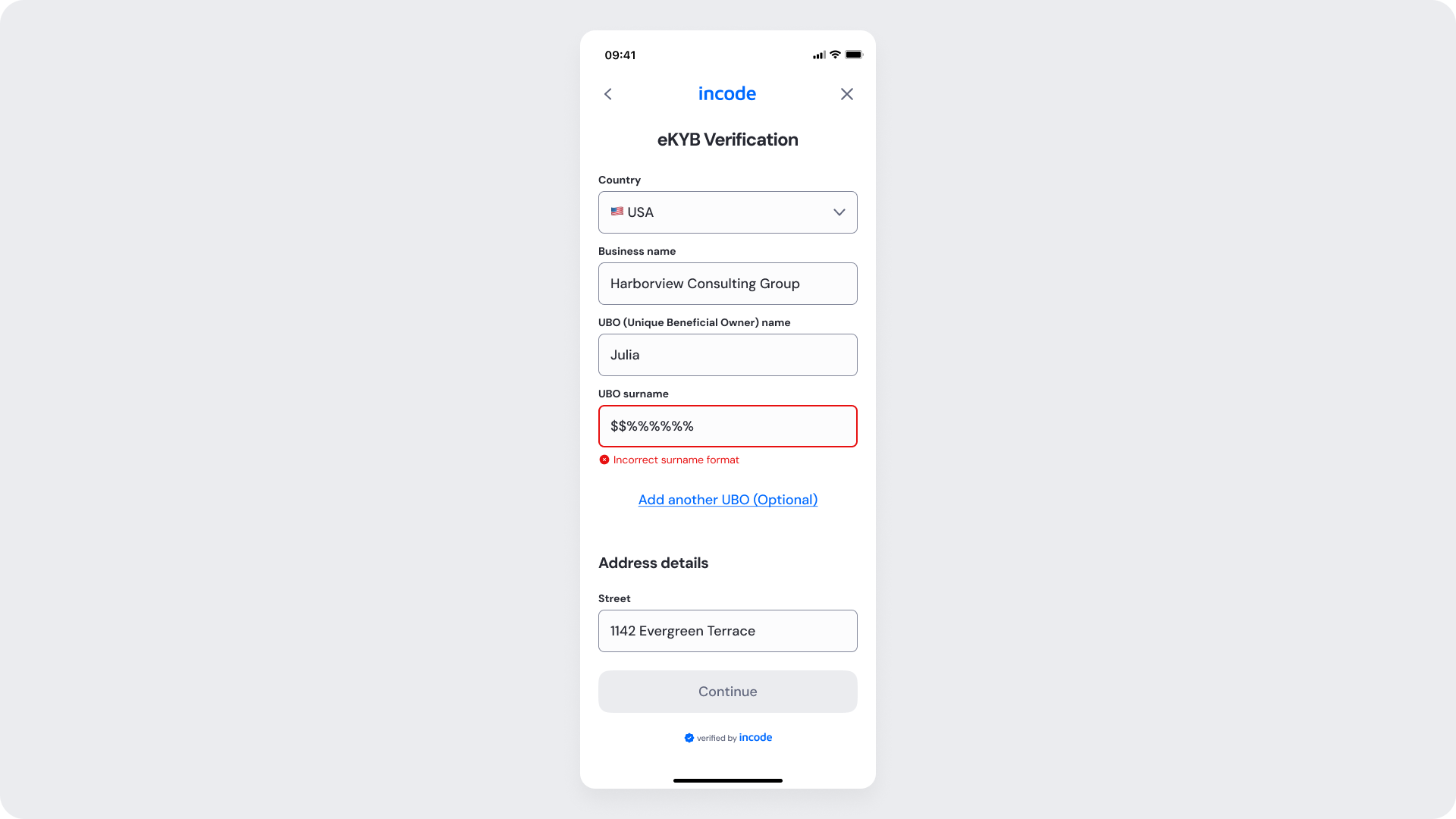
Displayed when one or more fields contain invalid or mismatched data (e.g., incorrect UBO surname).
Invalid fields are highlighted with a red border and inline error messaging beneath the affected field.
Processing Screen
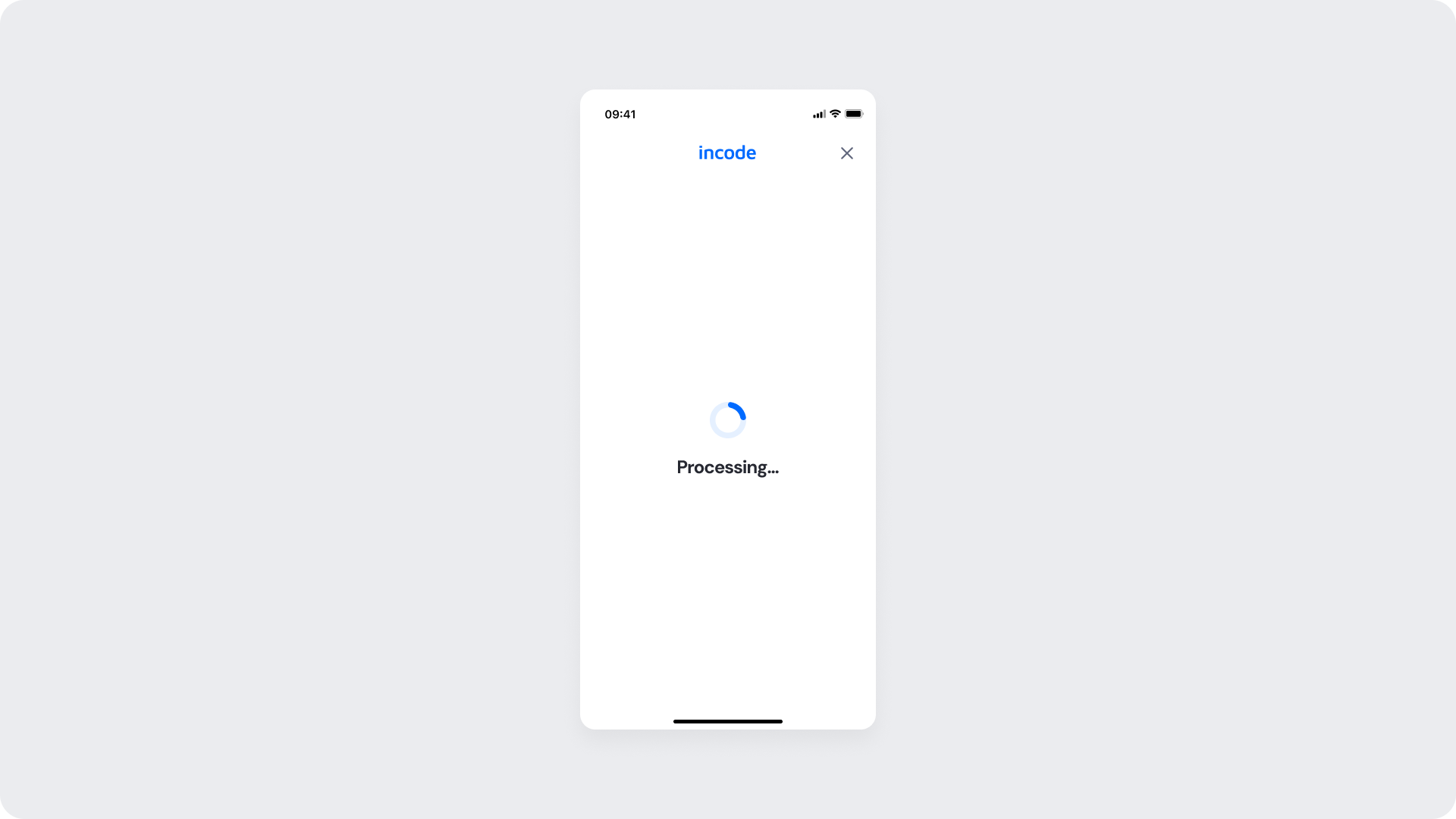
Indicates that eKYB verification is in progress after successful submission.
A full-screen loading state with spinner and “Processing…” message communicates that backend services are validating the provided data. No user interaction is available during this step.
Failure Screen
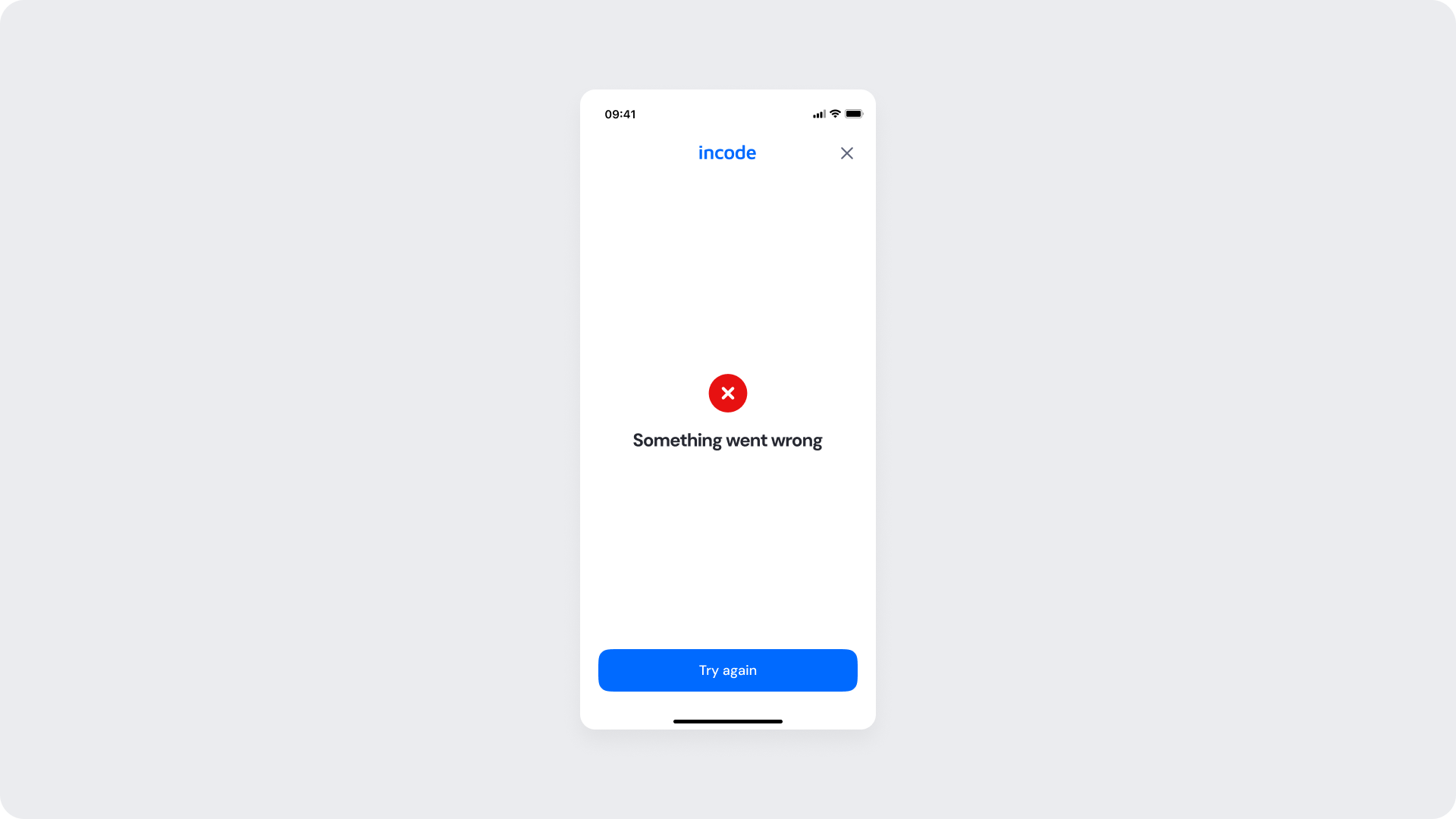
Shown when eKYB verification fails due to backend validation, service errors, or data mismatches.
A clear error message and icon communicate the outcome. The Try again CTA allows the user to restart the verification attempt. Depending on configuration, retry limits or escalation logic may apply.
Success Screen
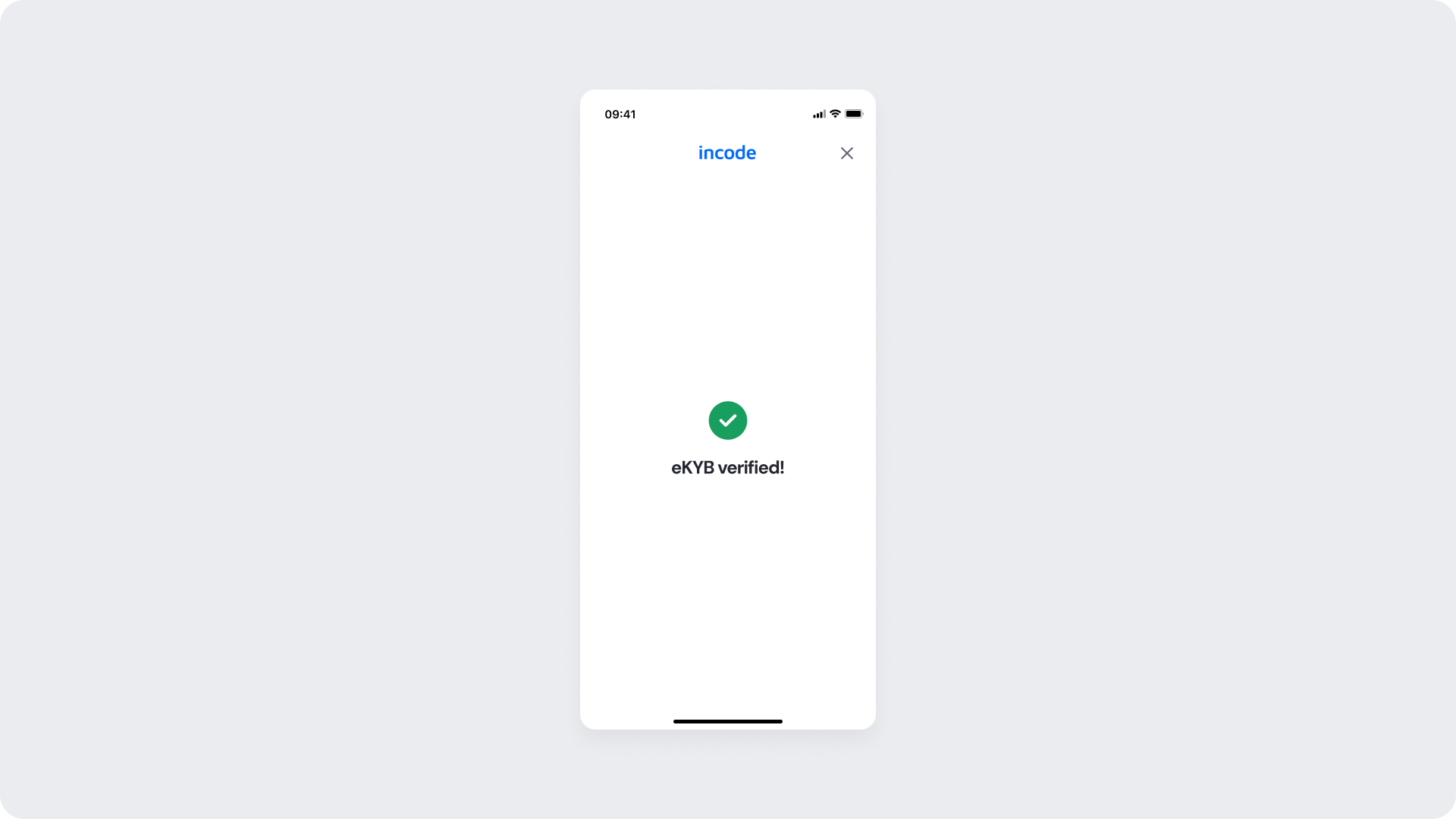
Displayed when eKYB verification is successfully completed.
A confirmation icon and message (“eKYB verified!”) indicate completion of the module. The system may automatically advance to the next step or wait for user confirmation, depending on configuration. This marks the successful end of the eKYB verification stage.
Updated 20 days ago