
Screens & States
This section provides a complete overview of all possible user-facing states within the Advanced Signature experience.
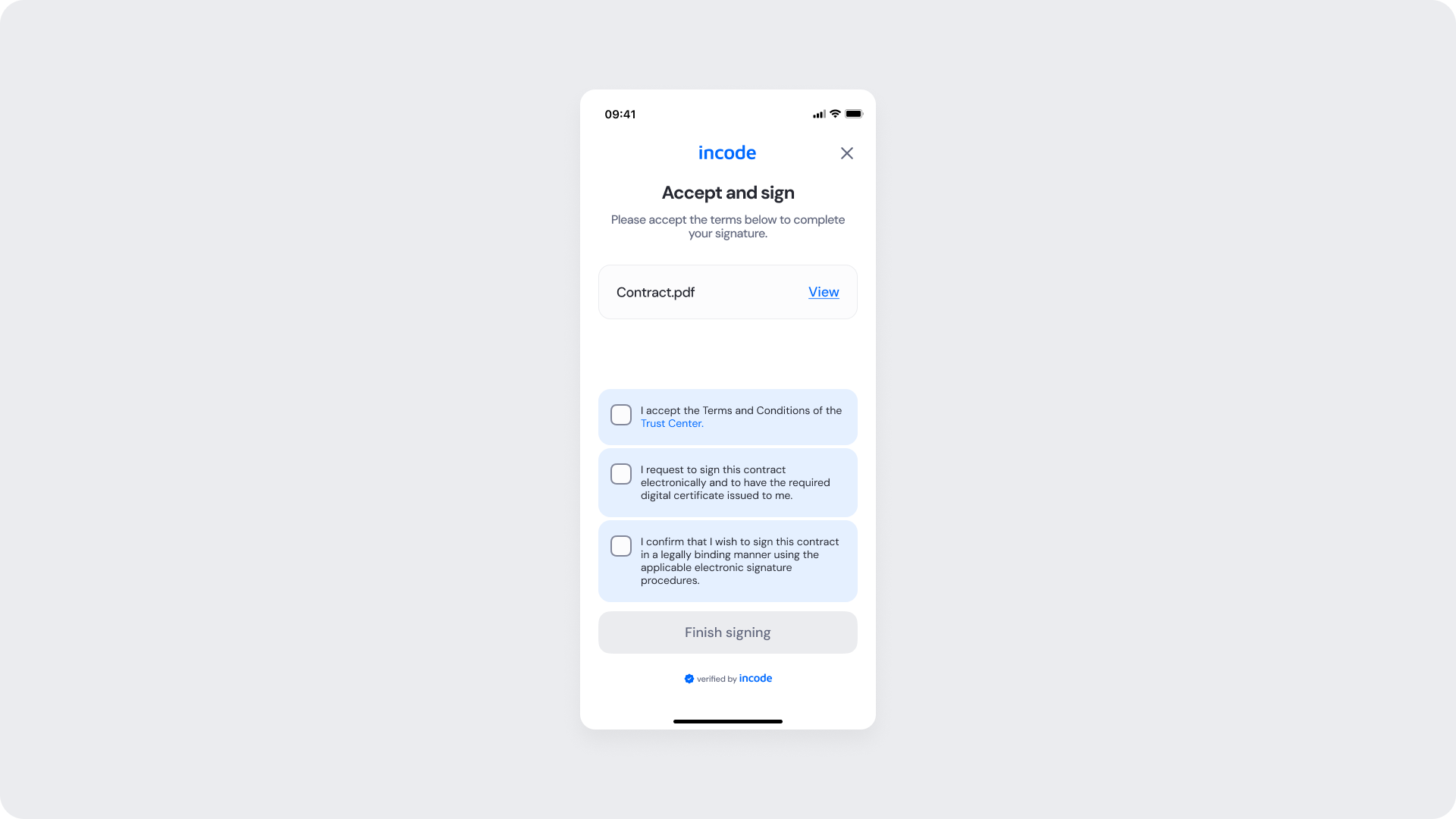
Signature empty
Entry point of the Advanced Signature module. This screen presents the user with a consent form titled "Accept and sign," accompanied by a brief instruction to accept the terms before completing the signature. It displays a linked document with a "View" option, followed by three unchecked checkboxes listing the required consent statements. A "Finish signing" button appears at the bottom but remains disabled until all checkboxes are selected.
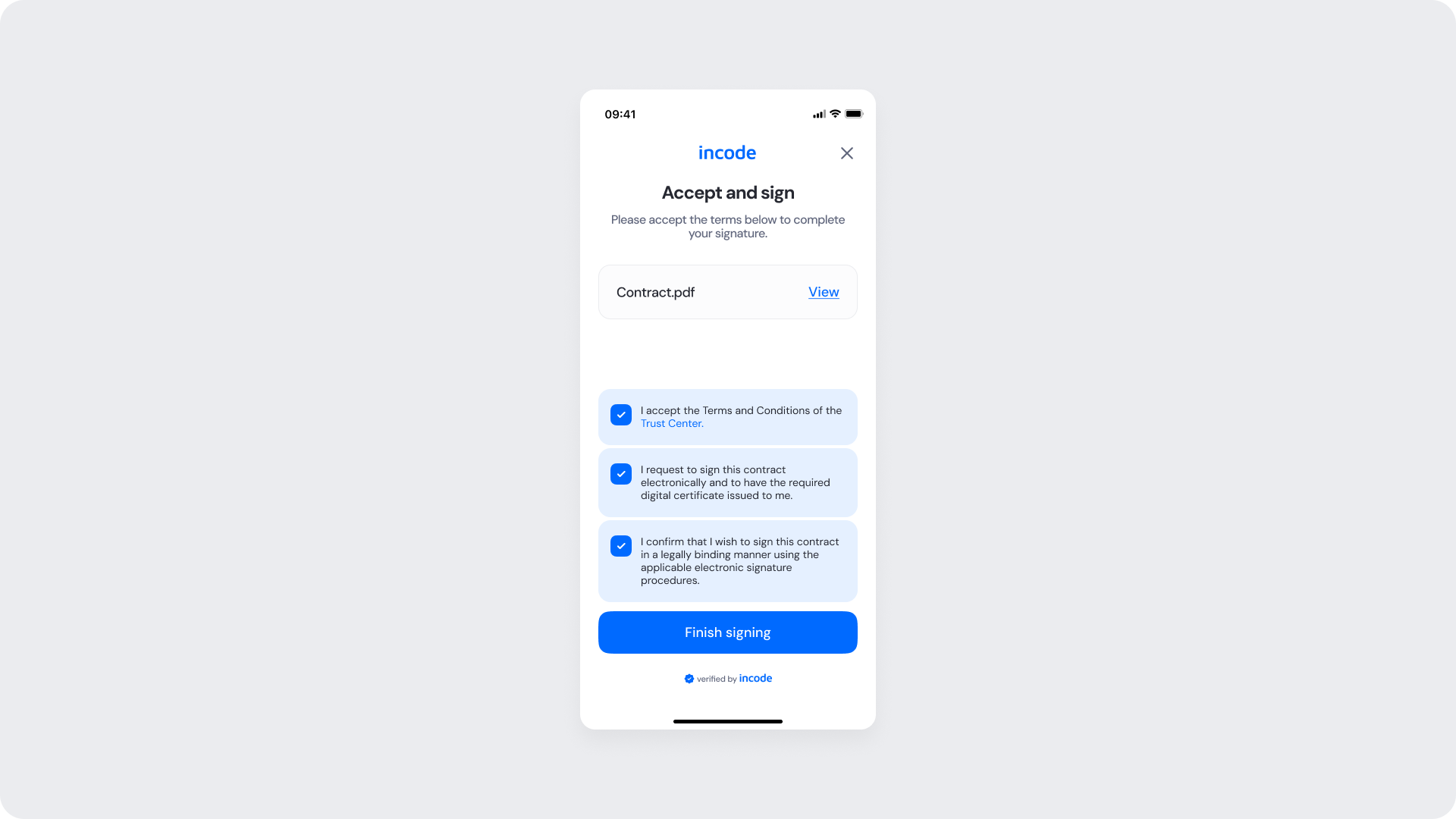
Signature filled
This screen reflects the state after the user has checked all three consent checkboxes. Each checkbox is now marked and highlighted in blue, confirming the user's agreement to the terms. The "Finish signing" button becomes active and is highlighted in blue, indicating the user can proceed to the signature step.
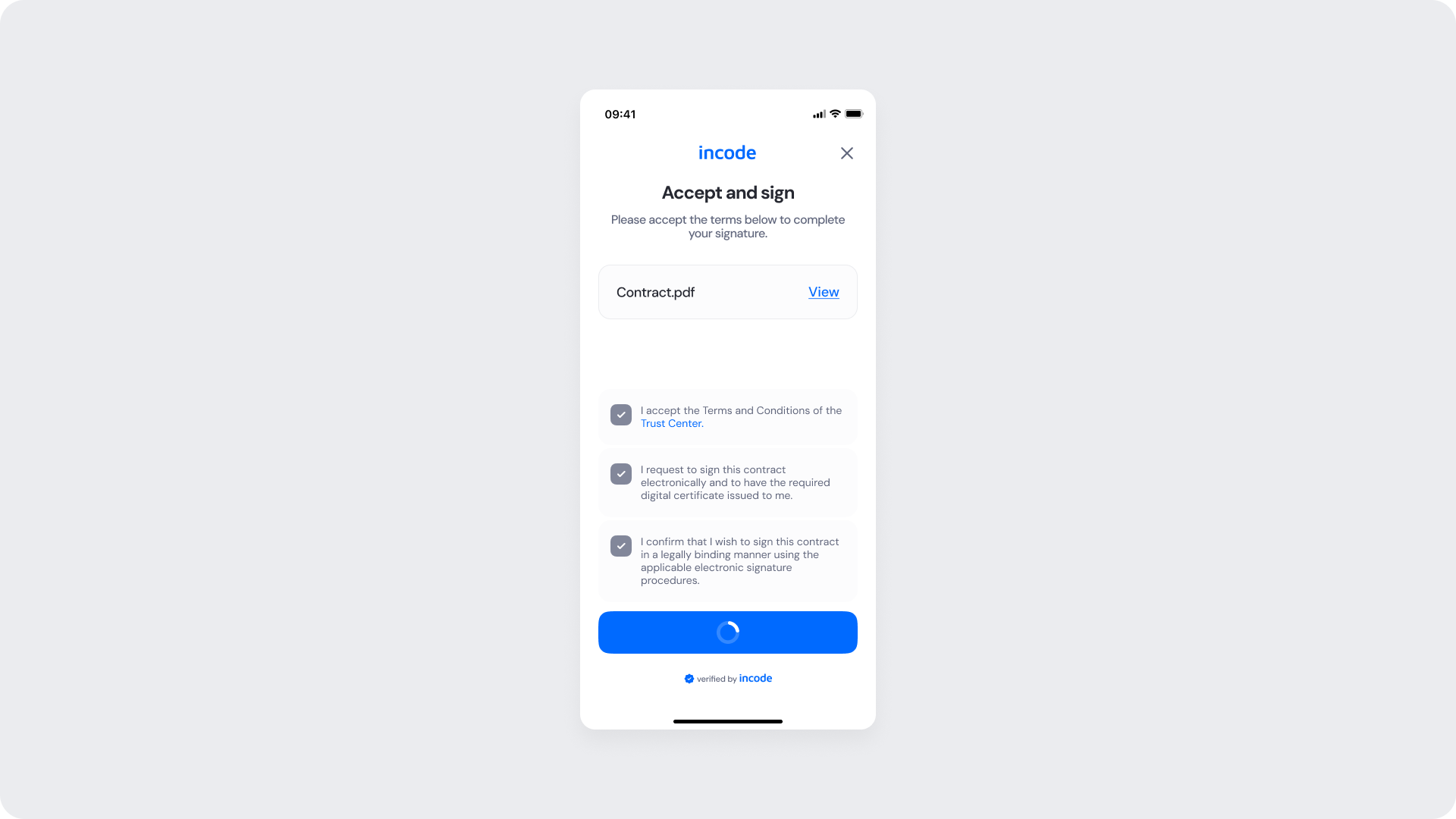
Signature Loading
Transitional state shown after the user taps "Finish signing." The screen retains the consent form layout while a loading spinner appears on the "Finish signing" button, providing visual feedback that the system is processing the request.
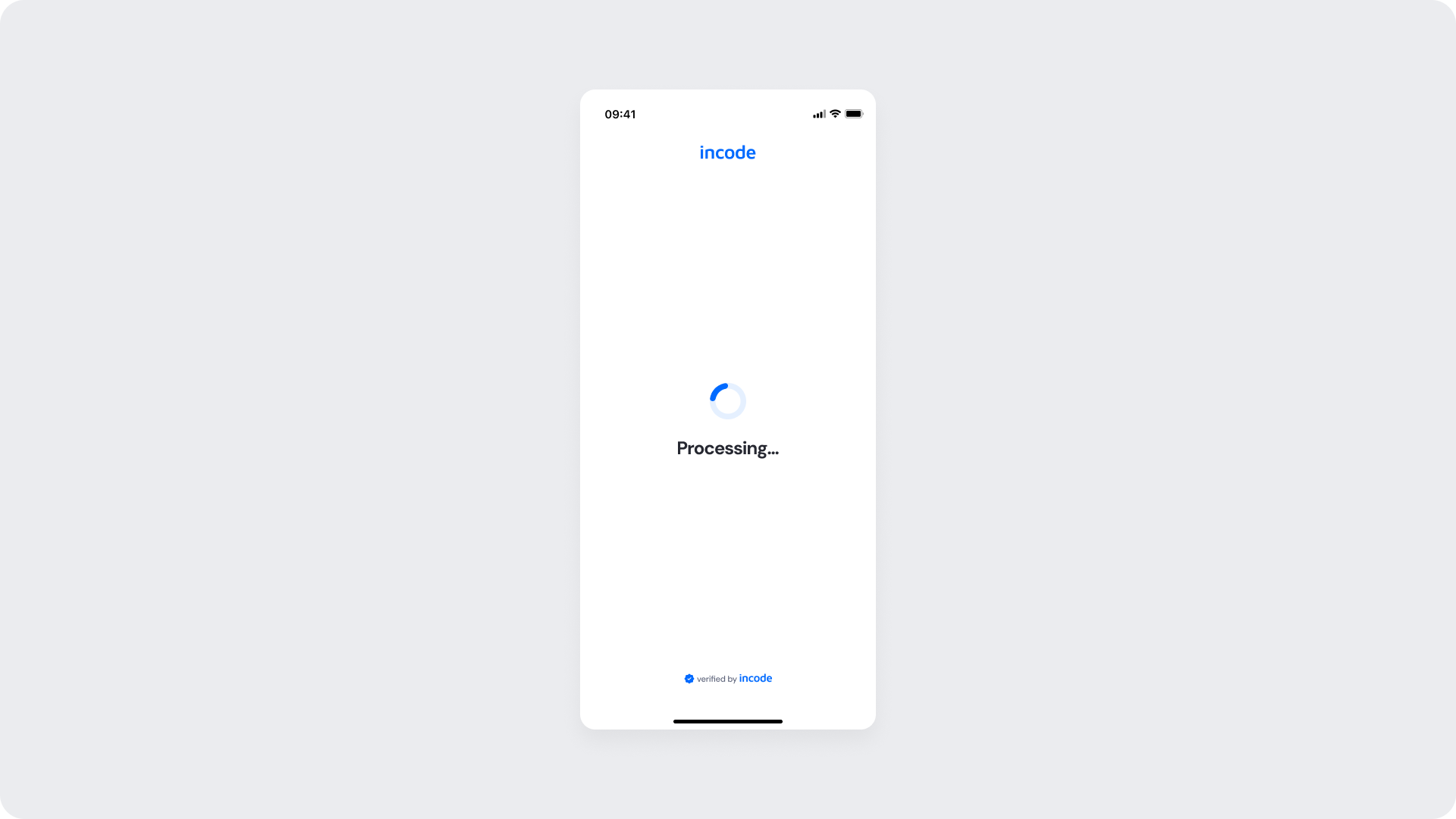
Signature Processing
Intermediate screen displayed while the system processes the signature submission. The screen shows a spinning progress indicator alongside the text "Processing…", communicating to the user that their action is being handled and they should wait.
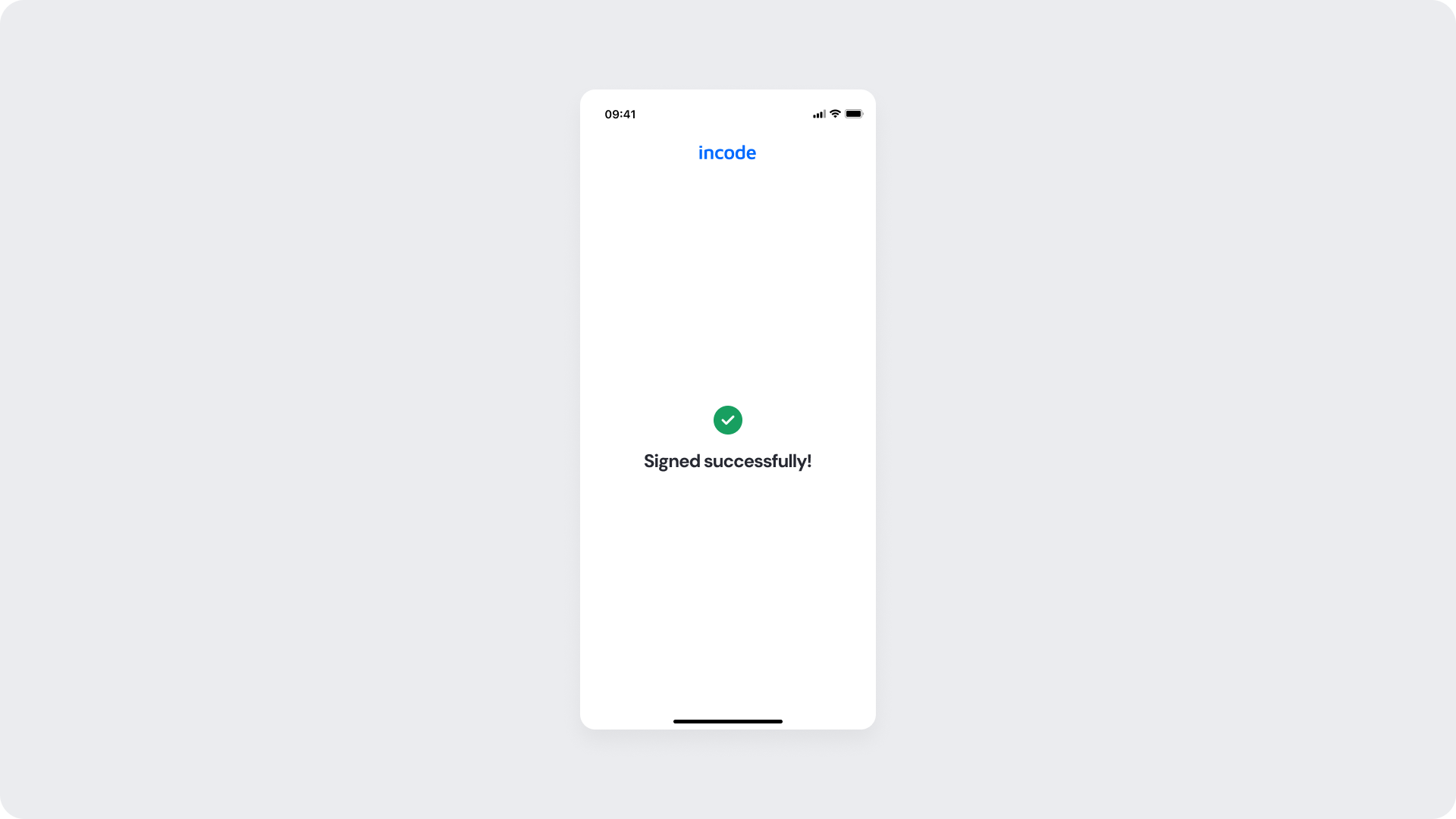
Signature Success
Final confirmation screen of the Advanced Signature module. After processing completes, the screen displays a green checkmark icon along with the message "Signed successfully!" confirming that the signature has been captured and the process is complete. No further user action is required.
Updated about 2 hours ago