
Fiscal QR OCR
Fiscal QR OCR guides the user through scanning a fiscal QR code from a supported document. Once the code is detected, the module extracts the corresponding URL, retrieves the associated fiscal data, and makes it available for downstream processing as part of the verification flow.
Fiscal QR OCR typically occurs during the document verification step, as a complementary or standalone module to capture fiscal information encoded in QR format.
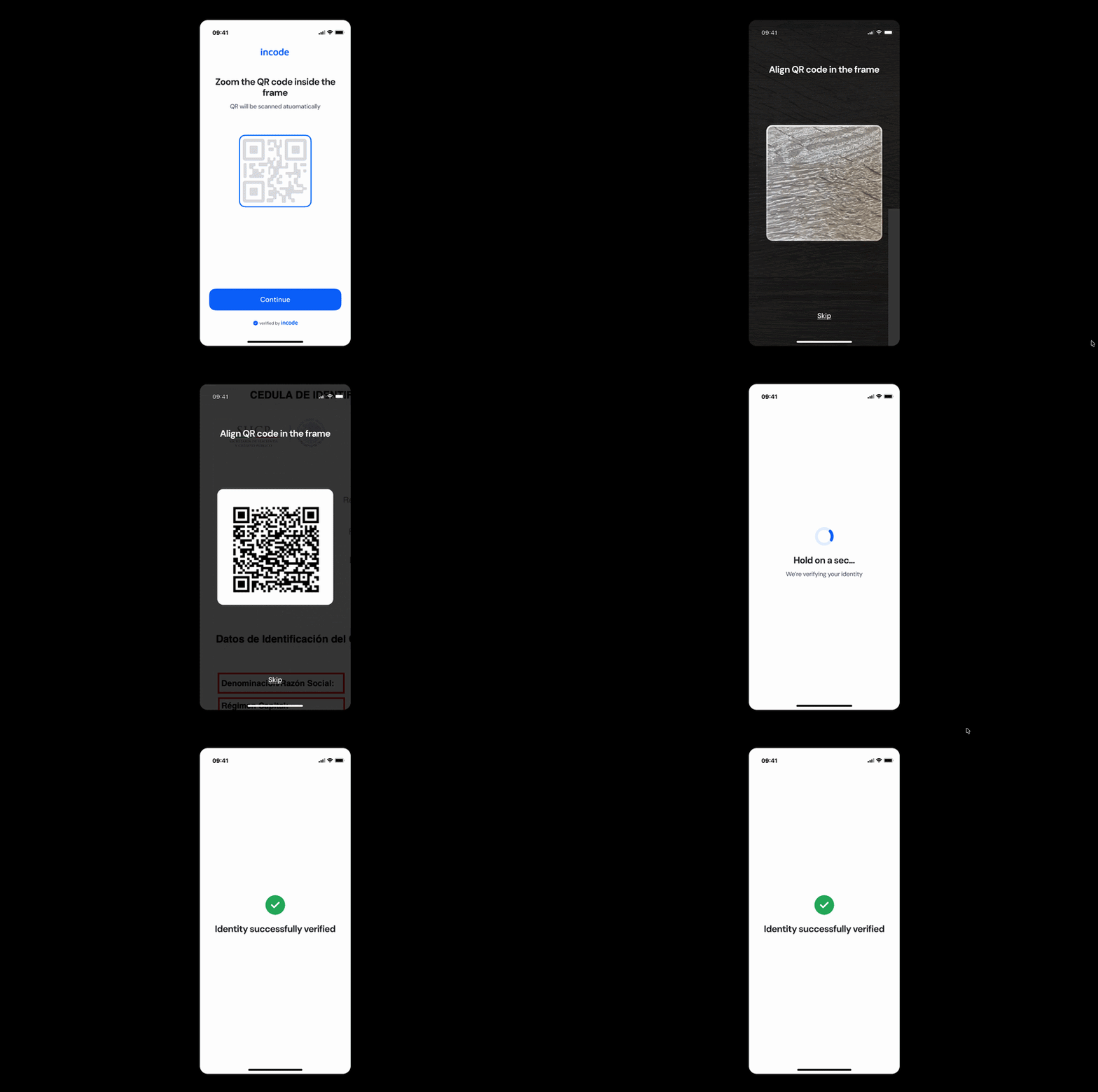
Where it fits in the flow
Fiscal QR OCR usually appears during the document verification step, either as a standalone module or alongside other capture steps.
Once the QR code is successfully scanned and the fiscal data is extracted, the flow continues to the next verification step or presents the final result, depending on the outcome and the downstream logic configured in the application.
User Flow
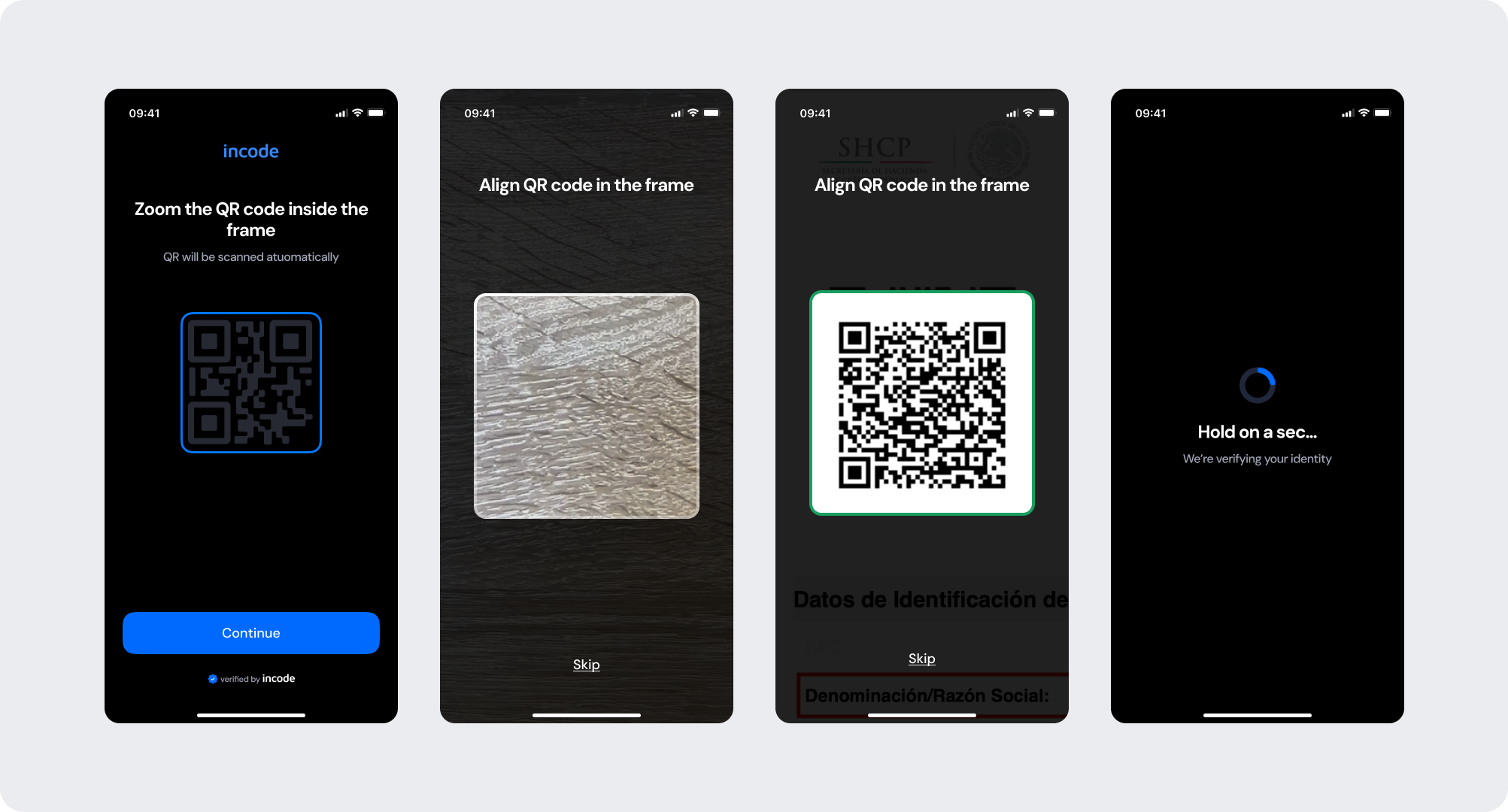
The Fiscal QR OCR experience is designed to be clear and guided. The user is introduced to the scanning step through an intro screen, then directed to align the fiscal QR code within the scanning frame. The module detects and decodes the code automatically — a blue frame indicates the camera is actively searching, while a green frame confirms the code has been detected and data extraction is underway.
Once the scan is complete, the user receives a success state or an error message and the flow continues accordingly.
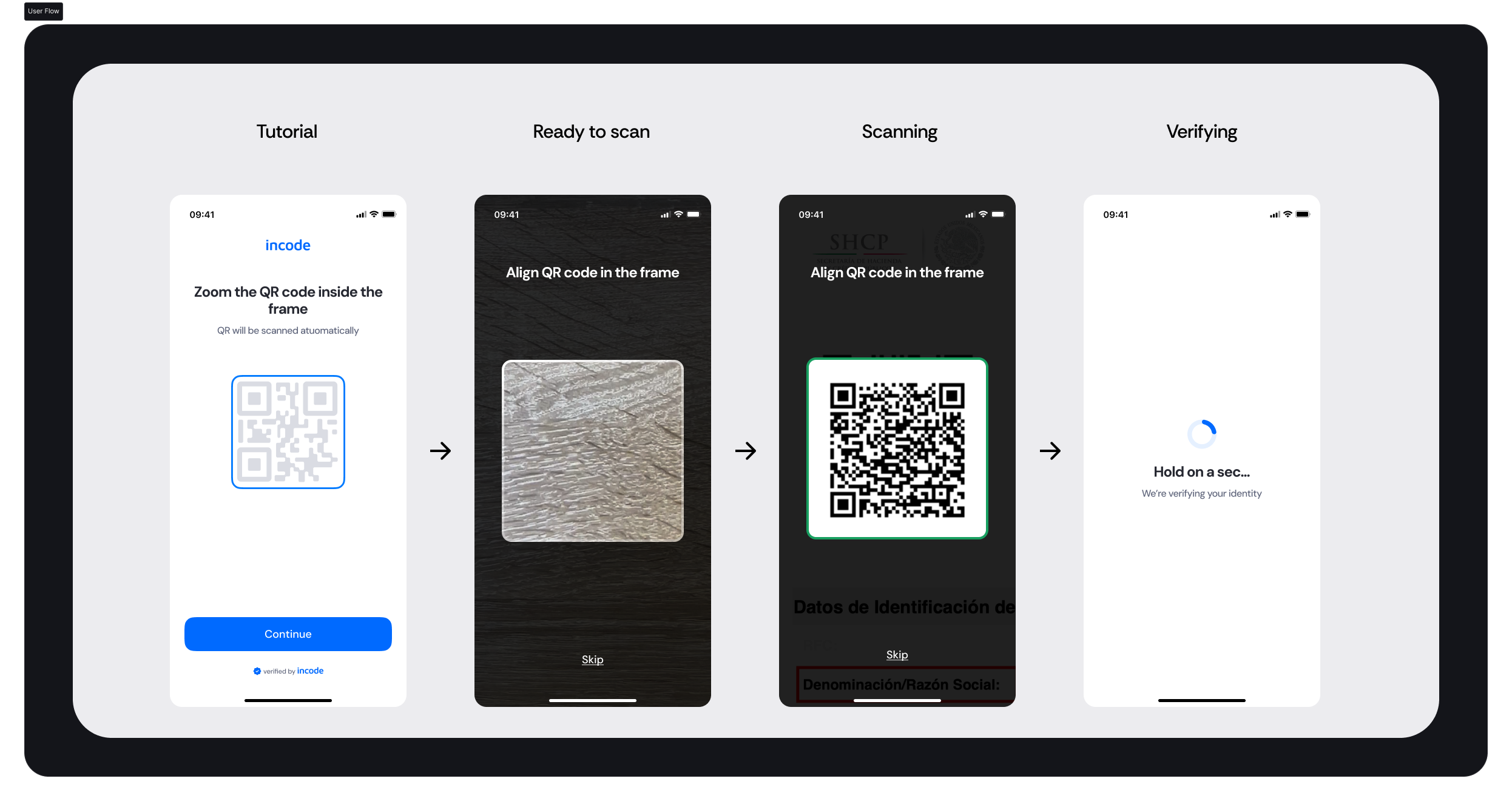
Full Flow Map
This diagram presents the full sequence of screens involved in Fiscal QR OCR, from the intro screen and active scanning state, through detection feedback, to the success and error outcomes.
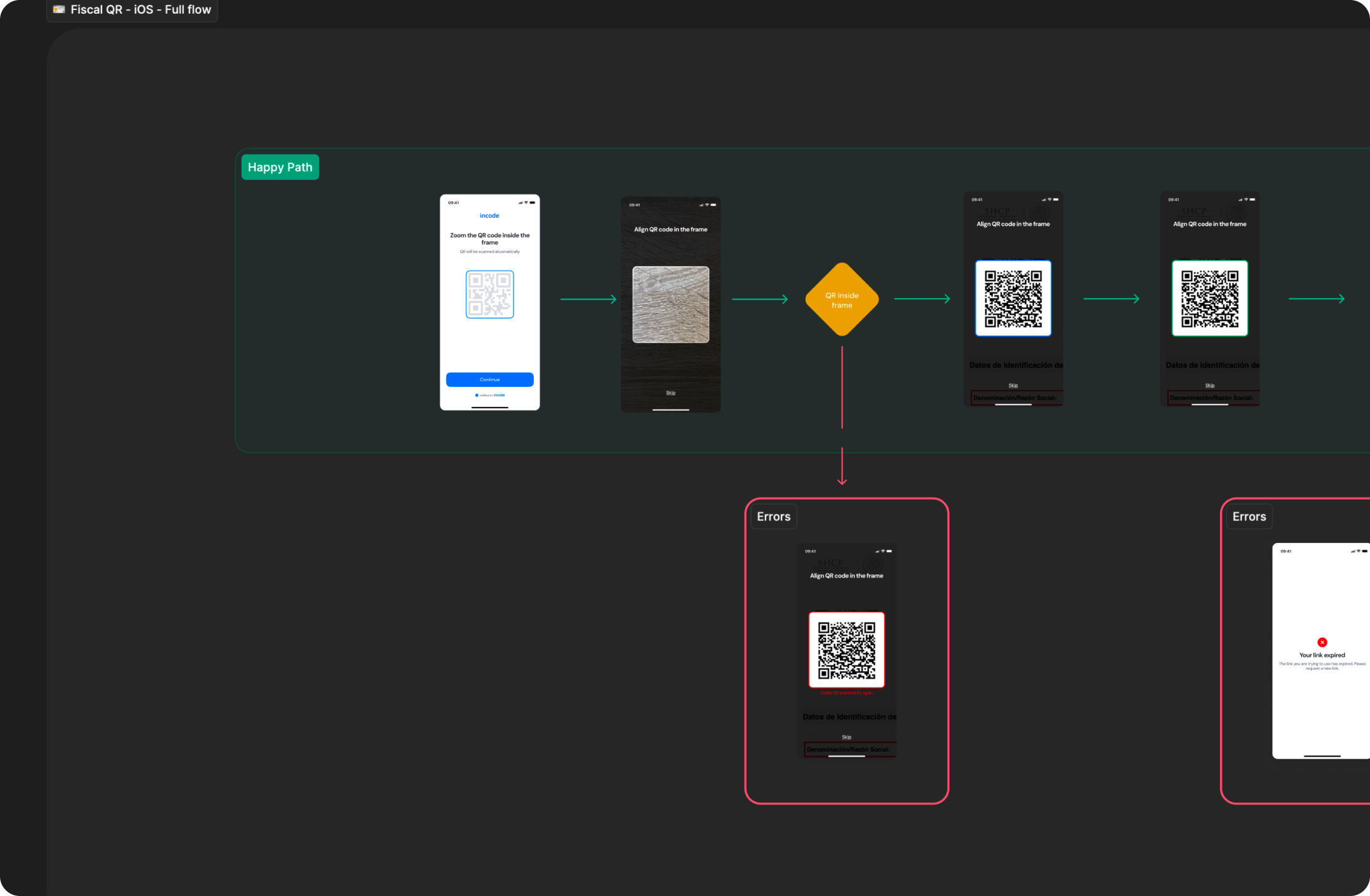
Happy Path (Light & Dark)
The ideal user journey when the fiscal QR code is successfully detected and data is extracted with no interruptions.
The happy path represents the smoothest version of the experience, where the user aligns the QR code correctly within the frame, the module detects and decodes it automatically, and the fiscal data is extracted without errors or retries. Both light and dark mode previews are included so teams can validate visual consistency across themes.
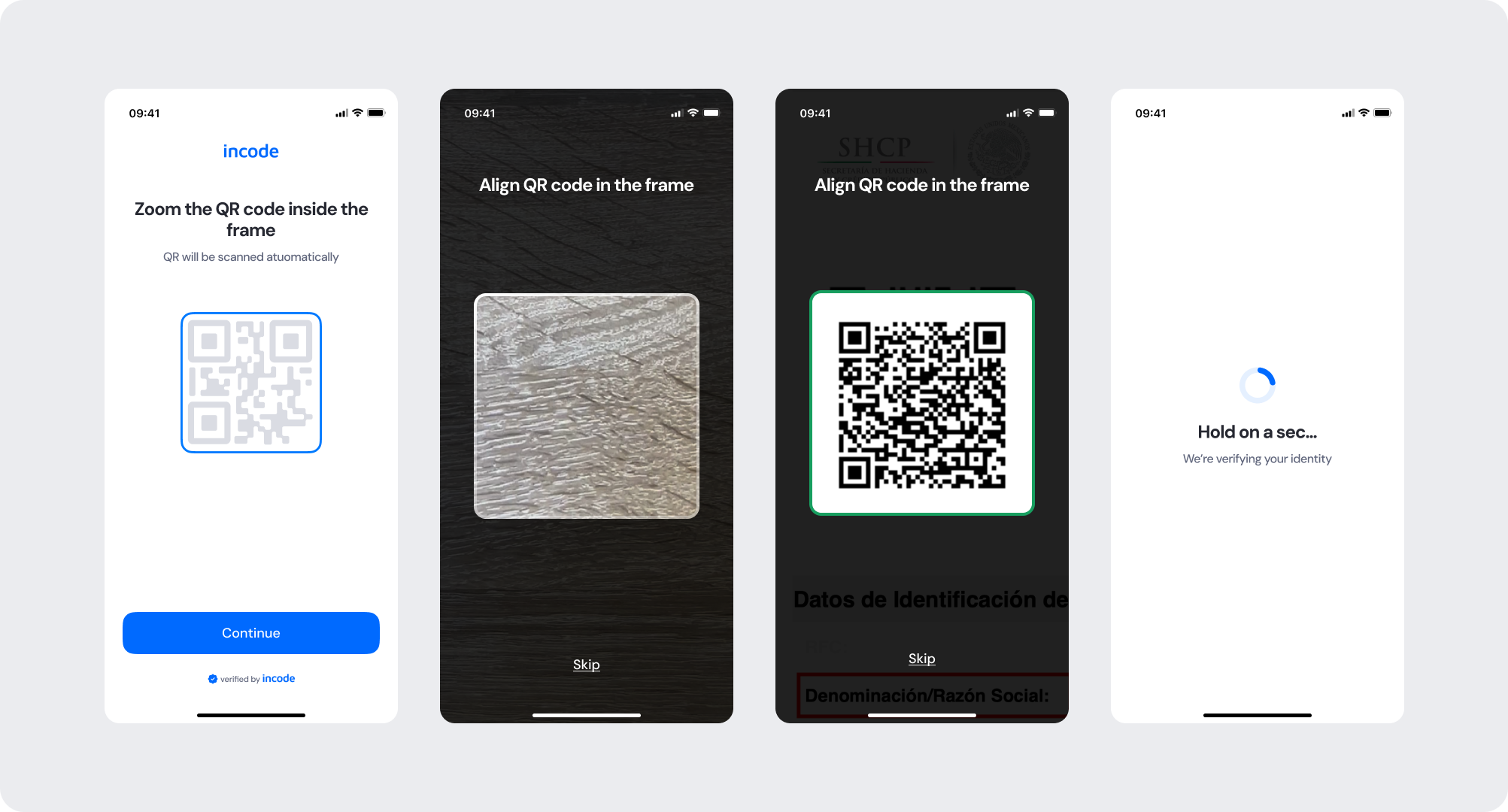
Light mode
Dark mode
Best Practices
Recommended guidelines for designing and implementing the Government Record Verification experience.
✅ Do
- Keep the intro screen copy clear about what type of document and QR code is expected.
- Use the scanning frame color states to communicate detection progress — blue for searching, green for detected.
- Provide clear inline error feedback when an invalid QR code is scanned, so the user can retry without leaving the screen.
- Keep the scanning interface clean and distraction-free to help users position the QR code correctly.
- Use the "verified by Incode" footer to maintain trust throughout the flow.
❌ Don’t
- Don't remove or skip the intro screen — users need to understand what document and QR code they are expected to scan.
- Don't rely solely on color to communicate scanning status; pair color changes with instructional text where possible.
- Don't remove error states — inline feedback for invalid QR codes and session-level errors must remain intact, as they correspond to specific detection logic.
- Don't add UI elements over the scanning frame that could obstruct the user's view of the QR code.
Updated about 1 month ago