
Manual Upload ID
Manual Upload ID allows users to submit photos of their physical identity document directly from their device's photo library or files as part of the verification flow. It supports multiple document types — such as ID and Passport — and requires the user to upload both the front and back sides, enabling verification without requiring a live camera capture.
Manual Upload ID typically occurs at the beginning of the document verification step, as an alternative to camera-based ID capture.
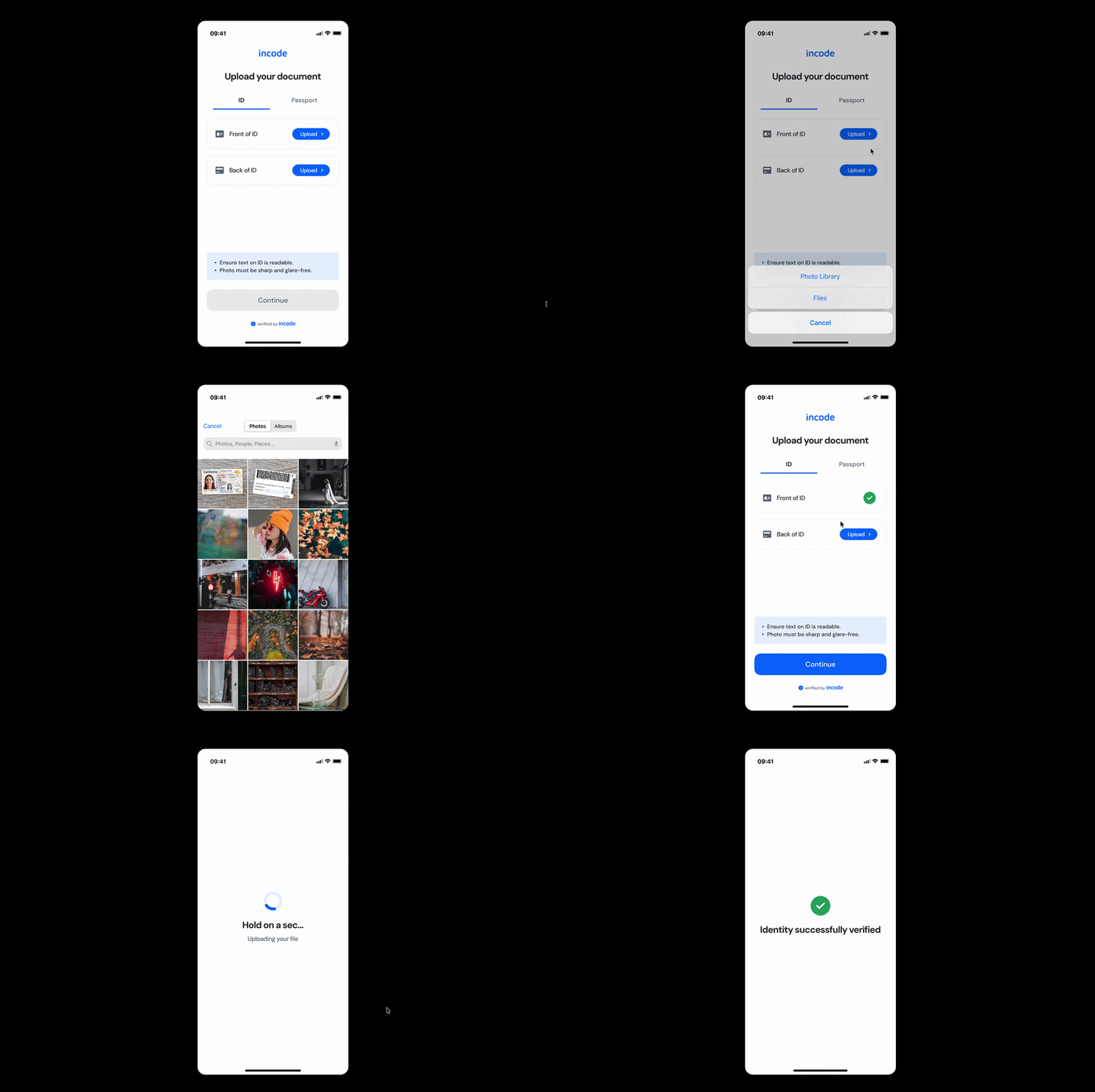
Where it fits in the flow
Manual Upload ID usually appears at the beginning of the document verification step, as an alternative to real-time camera capture.
Once the user successfully uploads both sides of their document and the files are validated, the flow continues to identity verification and any downstream verification logic required by the application.
User Flow
The Manual Upload ID experience moves through several clear stages that guide the user from document selection to successful submission. The user selects a document type — such as ID or Passport — and is prompted to upload the front and back sides of their document from their device's photo library or files.
Once both sides are uploaded and confirmed, the module processes the files and validates the document. The user then receives a success state or an inline error message with the option to correct and retry before continuing to the next step.
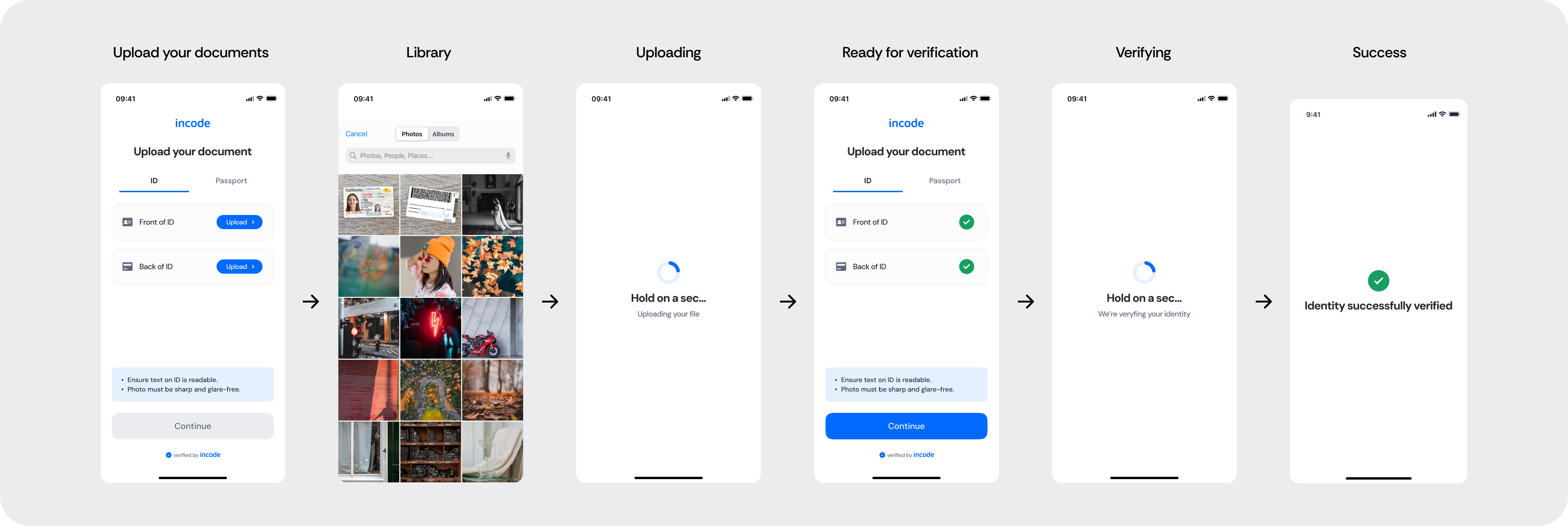
Full Flow Map
This diagram presents the full sequence of screens involved in Manual Upload ID, from document type selection and file upload, through the uploading and verification states, to the final success or error feedback.
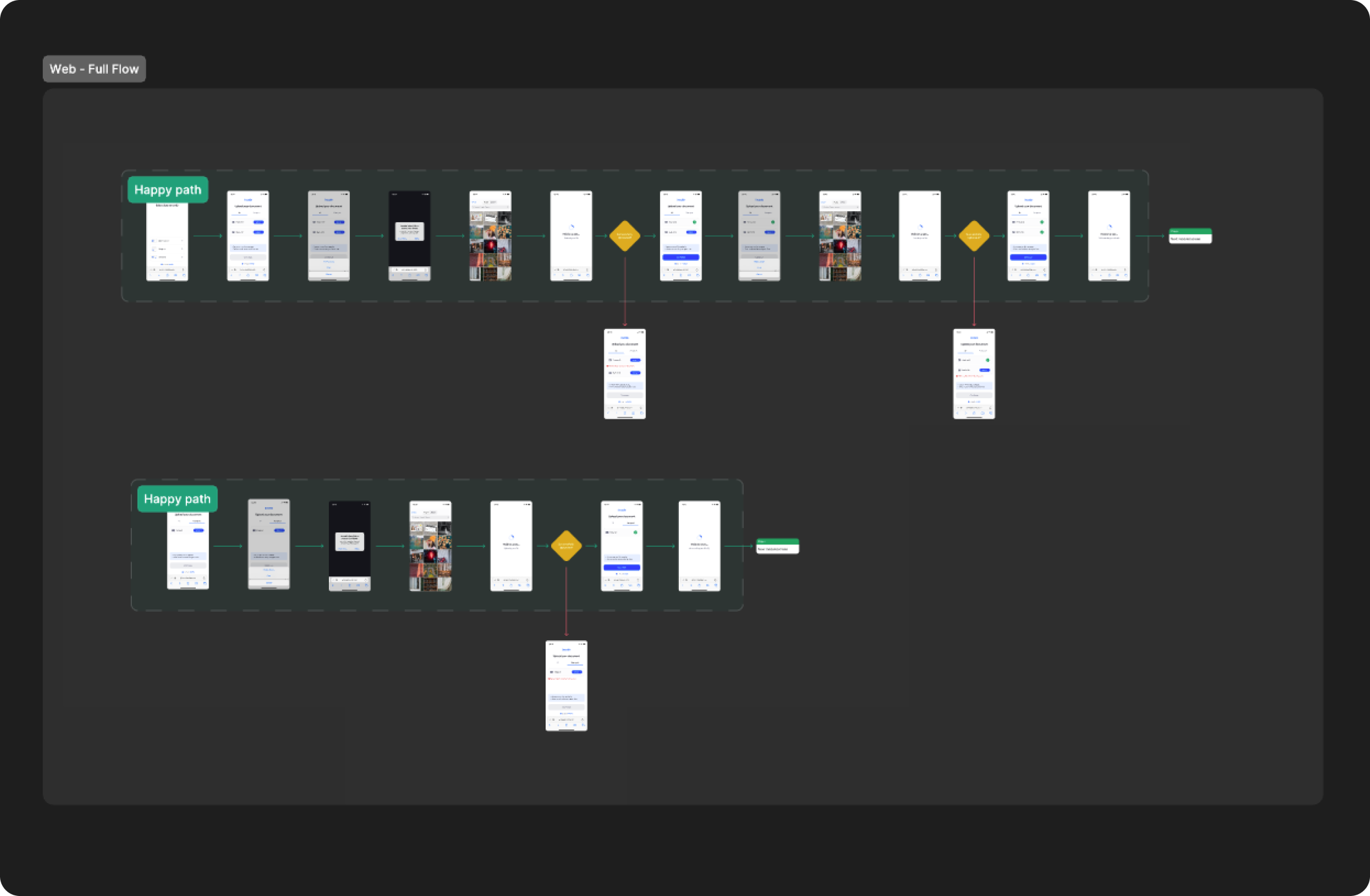
Open Full Flow Map in Figma
Happy Path (Light & Dark)
The ideal user journey when both document sides are uploaded and verified successfully with no interruptions.
The happy path represents the smoothest version of the experience, where the user selects the correct document type, uploads both sides from their library, the files are validated without errors, and the system successfully processes the document without requiring retries or corrections. Both light and dark mode previews are included so teams can validate visual consistency across themes.
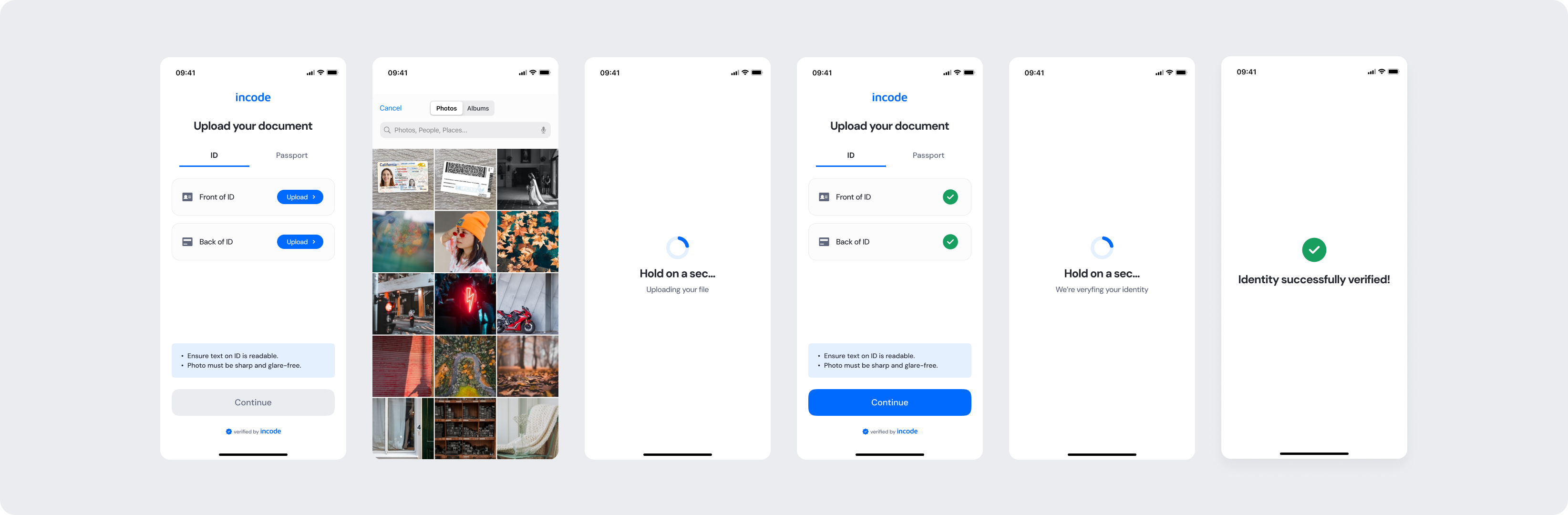
Light mode
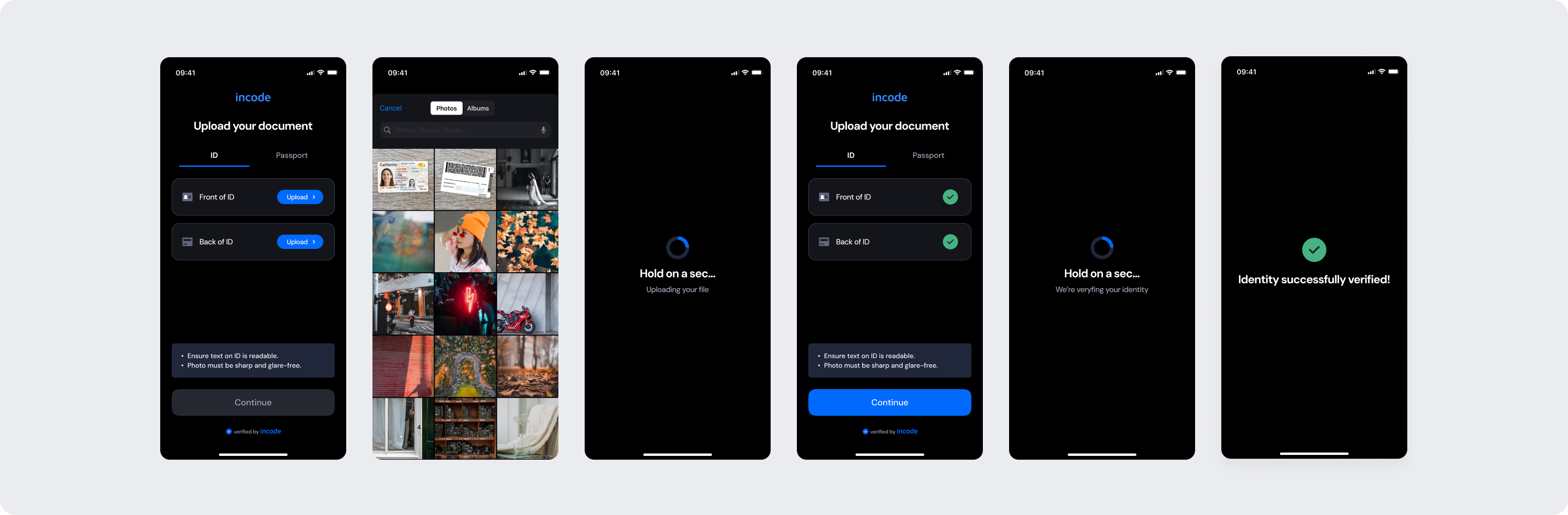
Dark mode
Open Happy Path in Figma
Best Practices
Recommended guidelines for designing and implementing the Manual Upload ID experience.
✅ Do
- Keep instructions clear about what document sides are required and the expected image quality.
- Show upload status per document side so users always know what has been completed.
- Provide clear inline error messages with actionable next steps when a file is rejected.
- Always allow users to re-upload a side if it was rejected, without restarting the entire flow.
- Include image quality hints (e.g. "Ensure text on ID is readable", "Photo must be sharp and glare-free") to reduce submission errors.
❌ Don’t
- Don't allow the Continue button to be active until all required document sides have been uploaded and validated.
- Don't skip or reduce essential error states.
- Don't rely solely on color to communicate upload status or validation feedback.
- Don't remove the image quality hints, as they help users submit files that can be processed successfully.
Updated about 1 month ago