
Screens & States
A complete view of all screens the user may encounter during the Fiscal QR OCR experience. Each state includes a brief description and a direct link to its source in Figma.
Intro Screen
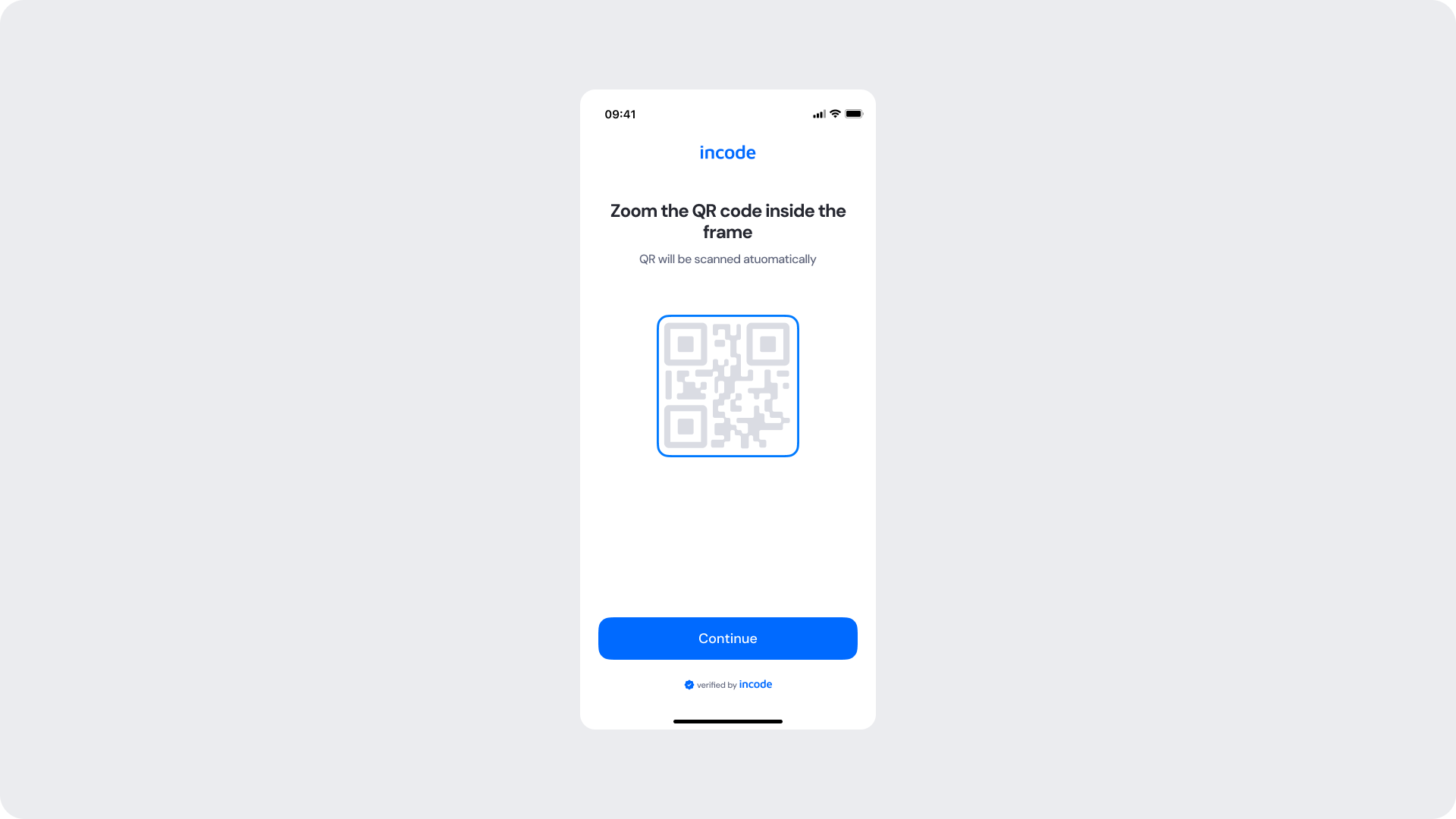
This screen appears at the beginning of the Fiscal QR OCR flow and prepares the user for the scanning step. It displays a dedicated illustration of a fiscal QR code and provides instructions on how to position the document for scanning. The user taps Continue to proceed to the active scanning screen.
Read to Scan
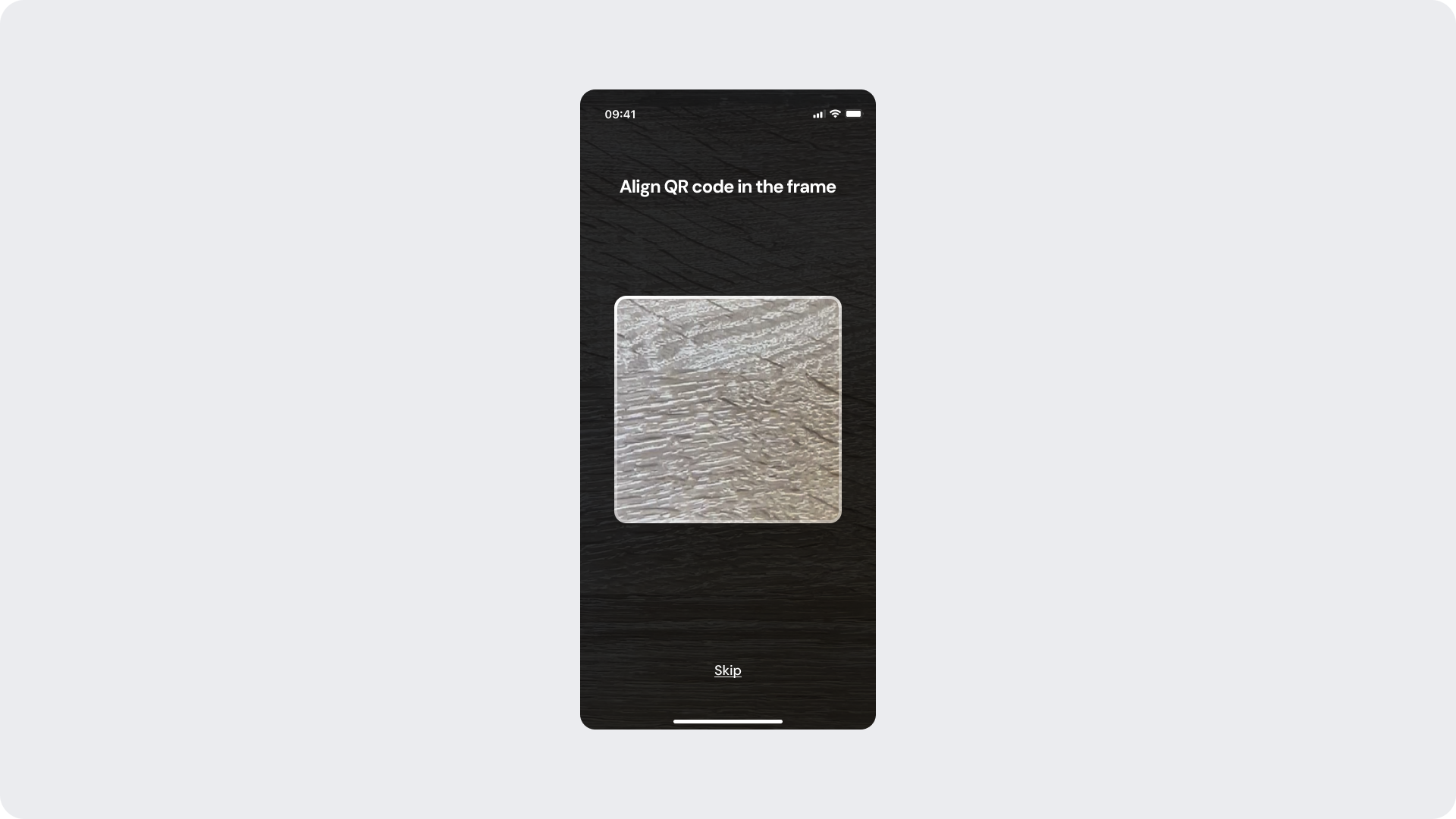
This screen appears when the camera is active and the module is ready to detect a fiscal QR code. The scanning frame is displayed with positioning guidance to help the user align the QR code correctly. At this state, the frame is neutral — the module is initialized but has not yet detected a code.
Scanning - QR Detected
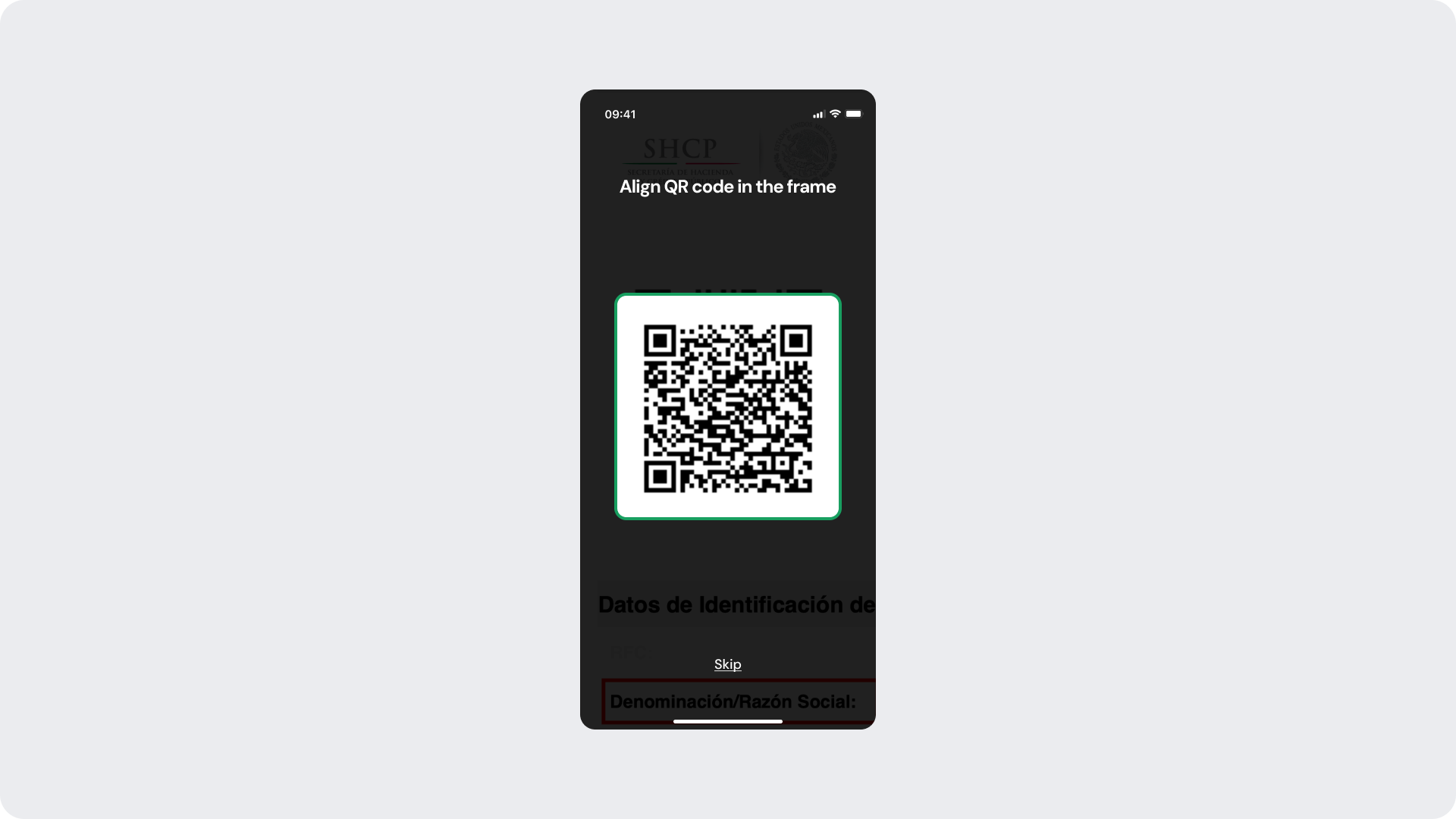
This state is shown when the camera detects a fiscal QR code within the frame. The scanning frame border changes from its neutral state to green, indicating that the code has been successfully detected and data extraction is underway. The transition happens automatically without user action.
Verifying
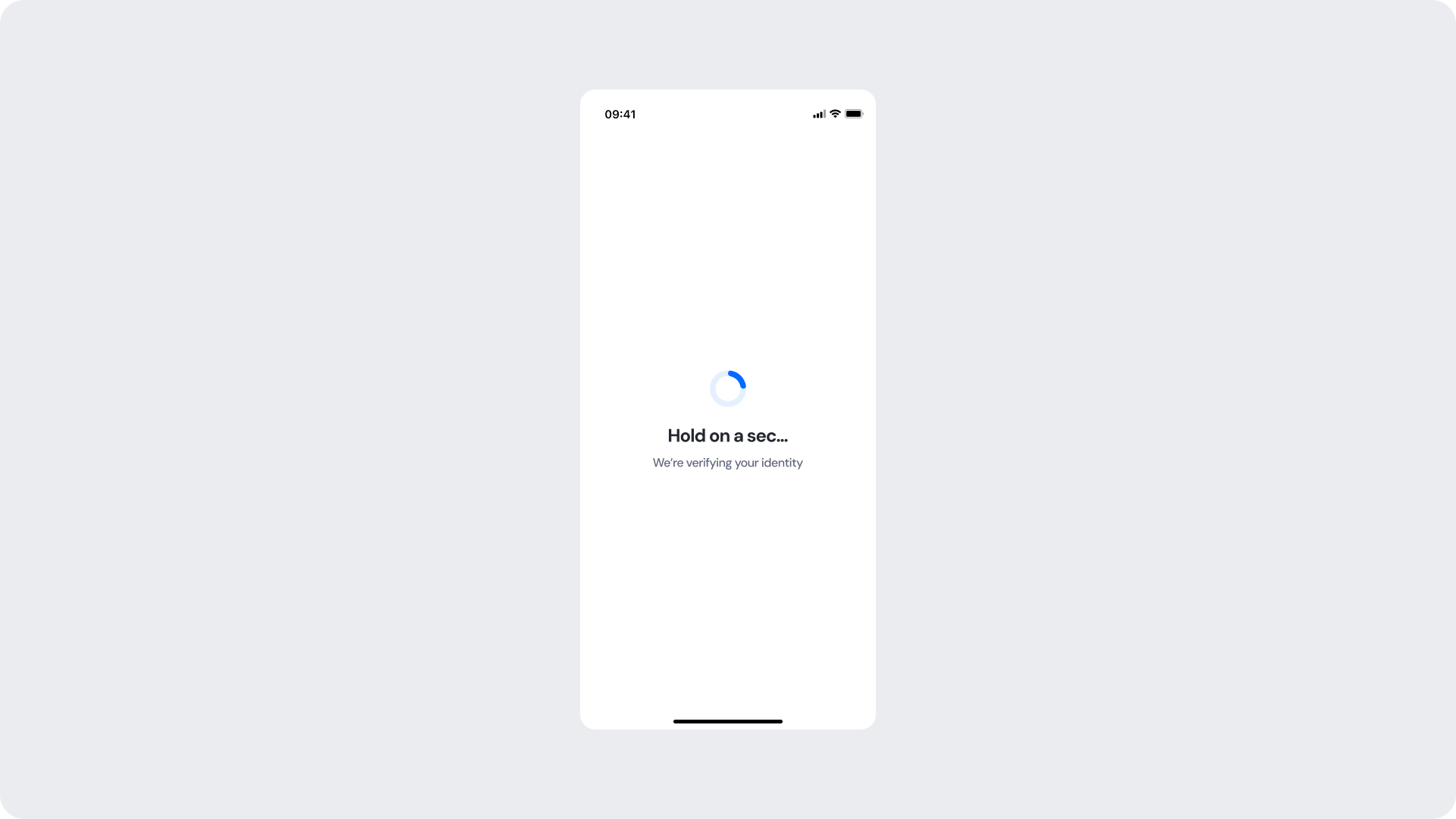
Shown immediately after a successful QR code detection, while the module retrieves the corresponding URL and processes the extracted fiscal data. A loading spinner and a status message keep the user informed while the operation completes in the background.
Updated about 1 month ago