
Screens & States
This section provides a complete overview of all possible user-facing states within the Qualified Signature experience.
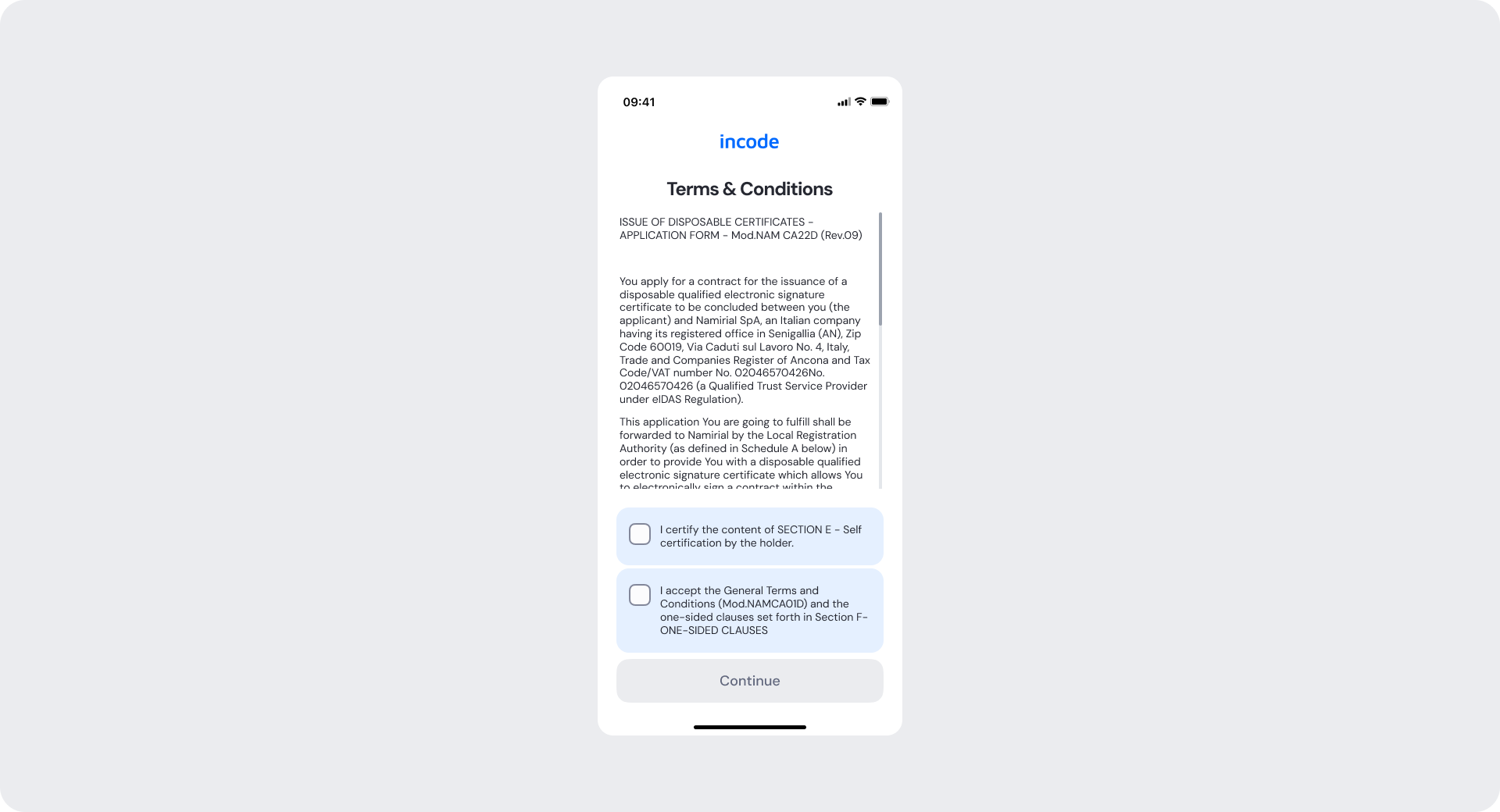
T&C
Entry point of the Qualified Signature module. This screen presents the Terms & Conditions document for review, allowing the user to read the agreement before proceeding. The consent section is displayed below the document with five unchecked checkboxes containing the required consent statements, while the "Continue" button remains disabled until all required consents are accepted.
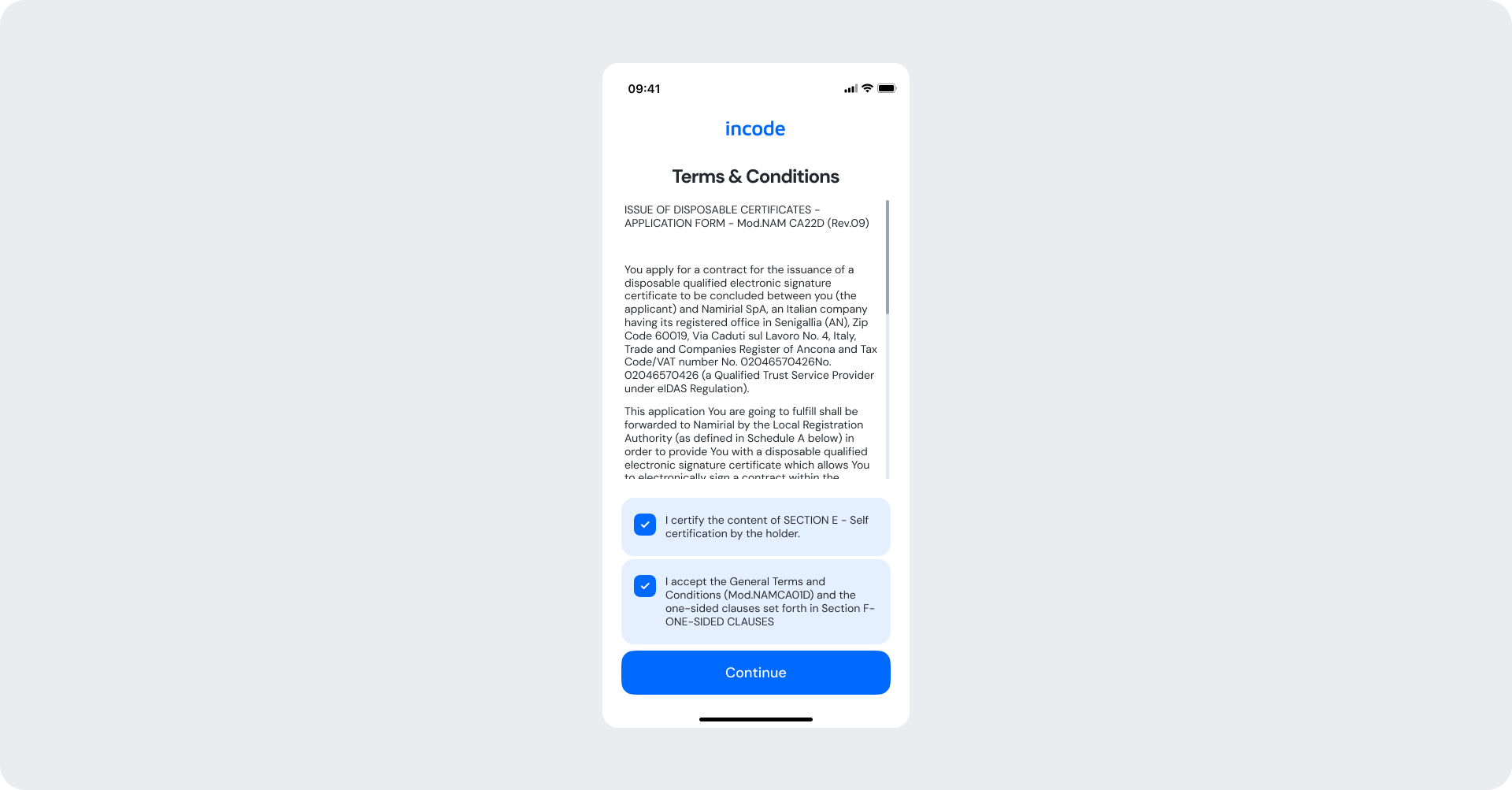
T&C Selected
Entry point of the Qualified Signature module. This screen displays the selected Terms & Conditions document in full, allowing the user to review its contents before continuing. The consent section remains available below the document, with five unchecked checkboxes containing the required consent statements. The "Continue" button remains disabled until all required consents are accepted.
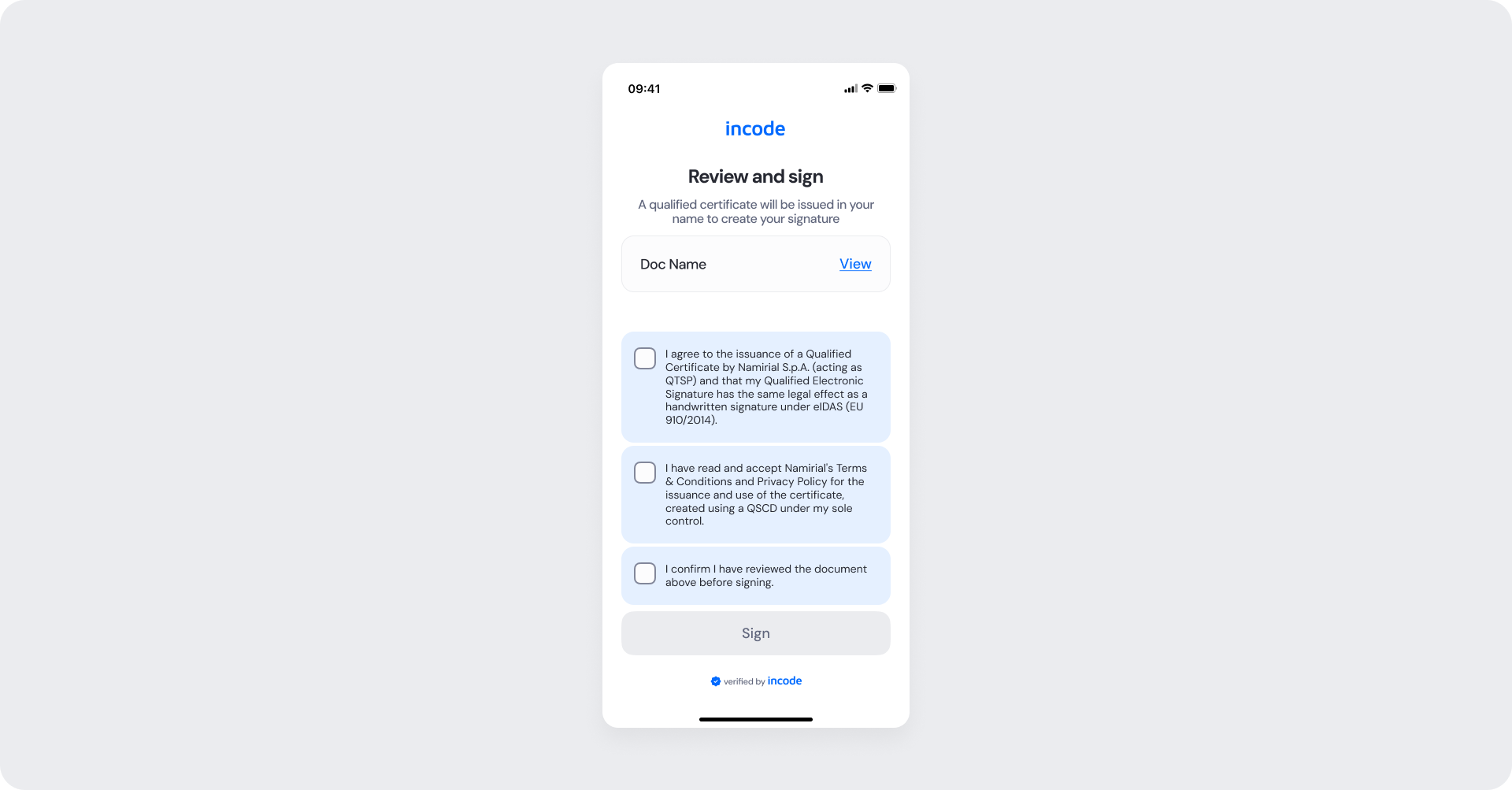
Signature
Entry point of the Qualified Signature signing flow. This screen presents the user with a "Review and sign" form, including a brief instruction explaining that a qualified certificate will be issued to create the signature. It displays a linked document with a "View" option, followed by three unchecked consent checkboxes containing the required consent statements. The "Sign" button remains disabled until all required consents are accepted.
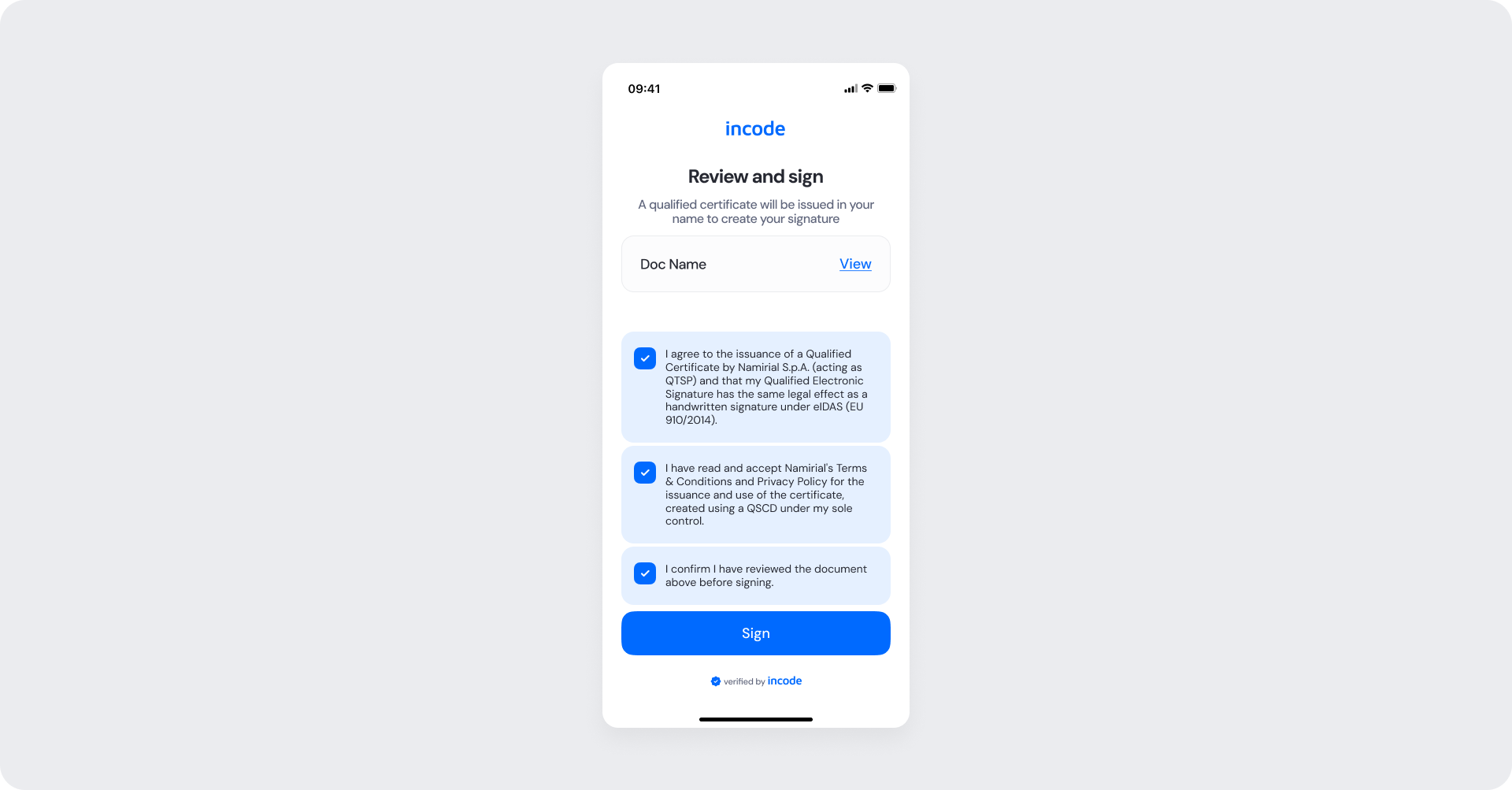
Signature filled
This screen reflects the state after the user has checked all three consent checkboxes. Each checkbox is now selected and highlighted in blue, confirming the user's agreement to the required consent statements. The "Sign" button becomes active and highlighted in blue, indicating that the user can proceed with the qualified signature process.
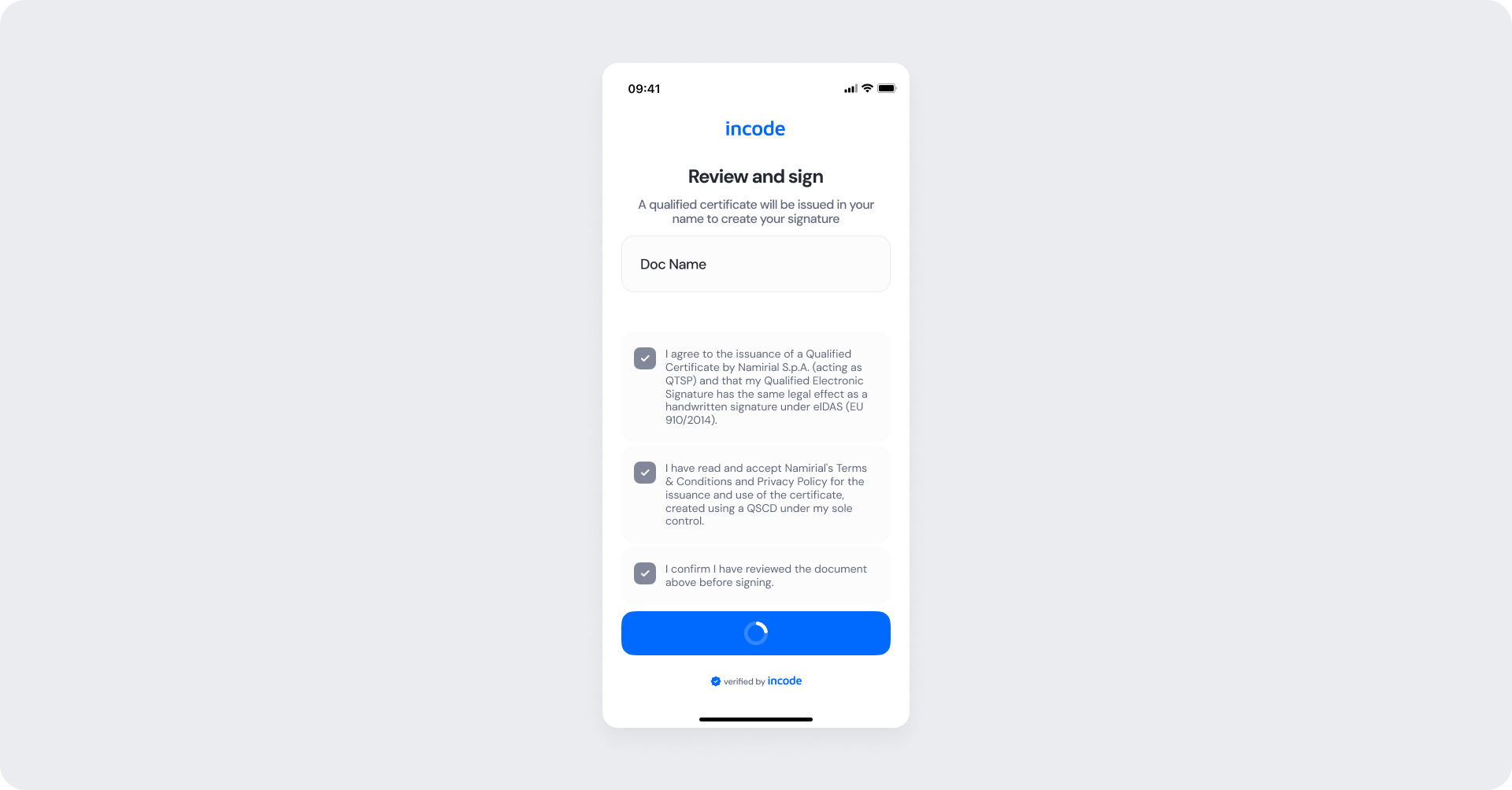
Signature Loading
Transitional state displayed after the user taps the "Sign" button. The screen retains the "Review and sign" form layout while a loading spinner appears on the "Sign" button, providing visual feedback that the signature request is being submitted and processed.
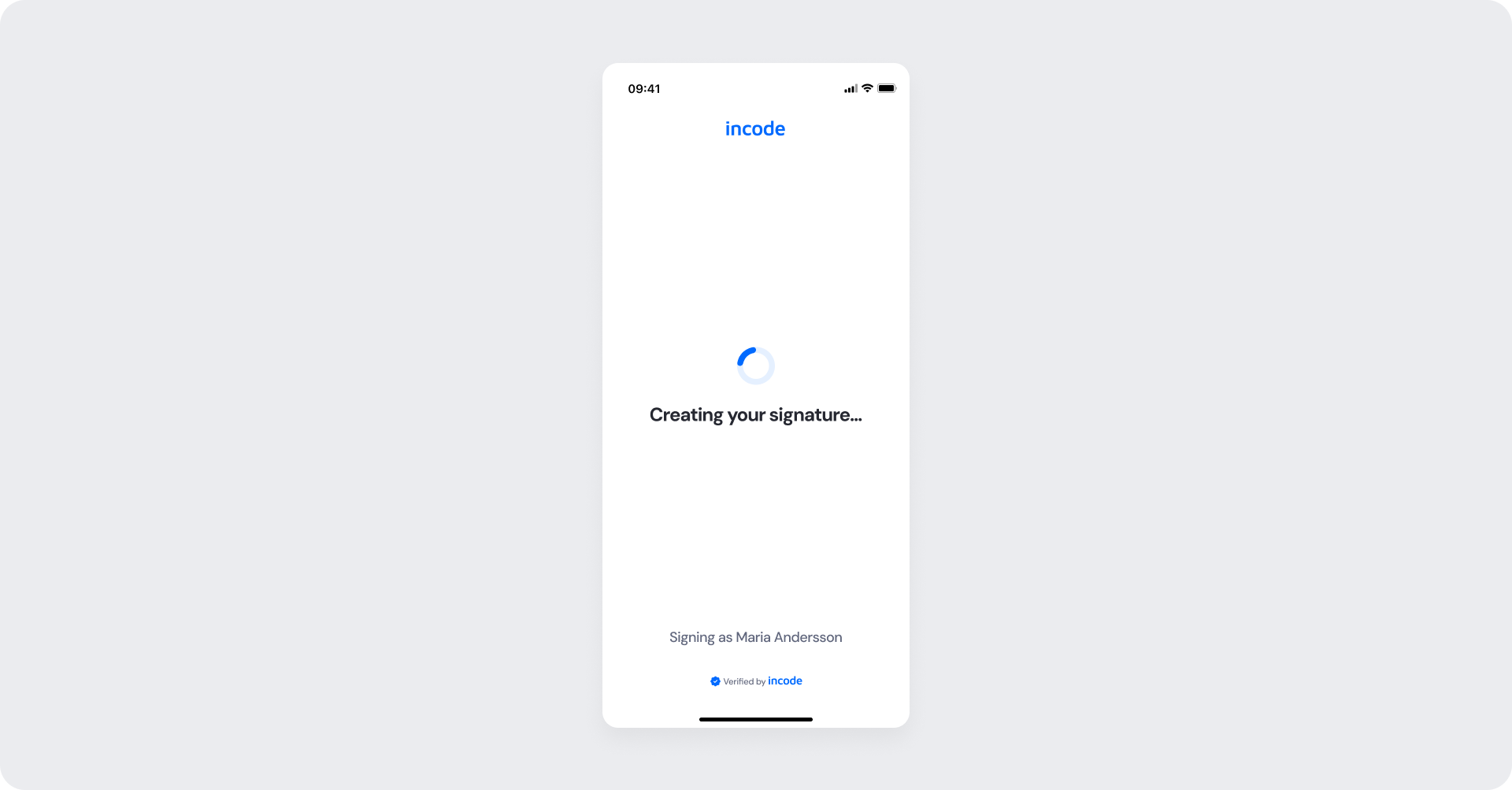
Signature Processing
Intermediate screen displayed while the system processes the signature submission. The screen shows a spinning progress indicator alongside the text "Creating your signature…", communicating to the user that their action is being handled and they should wait.
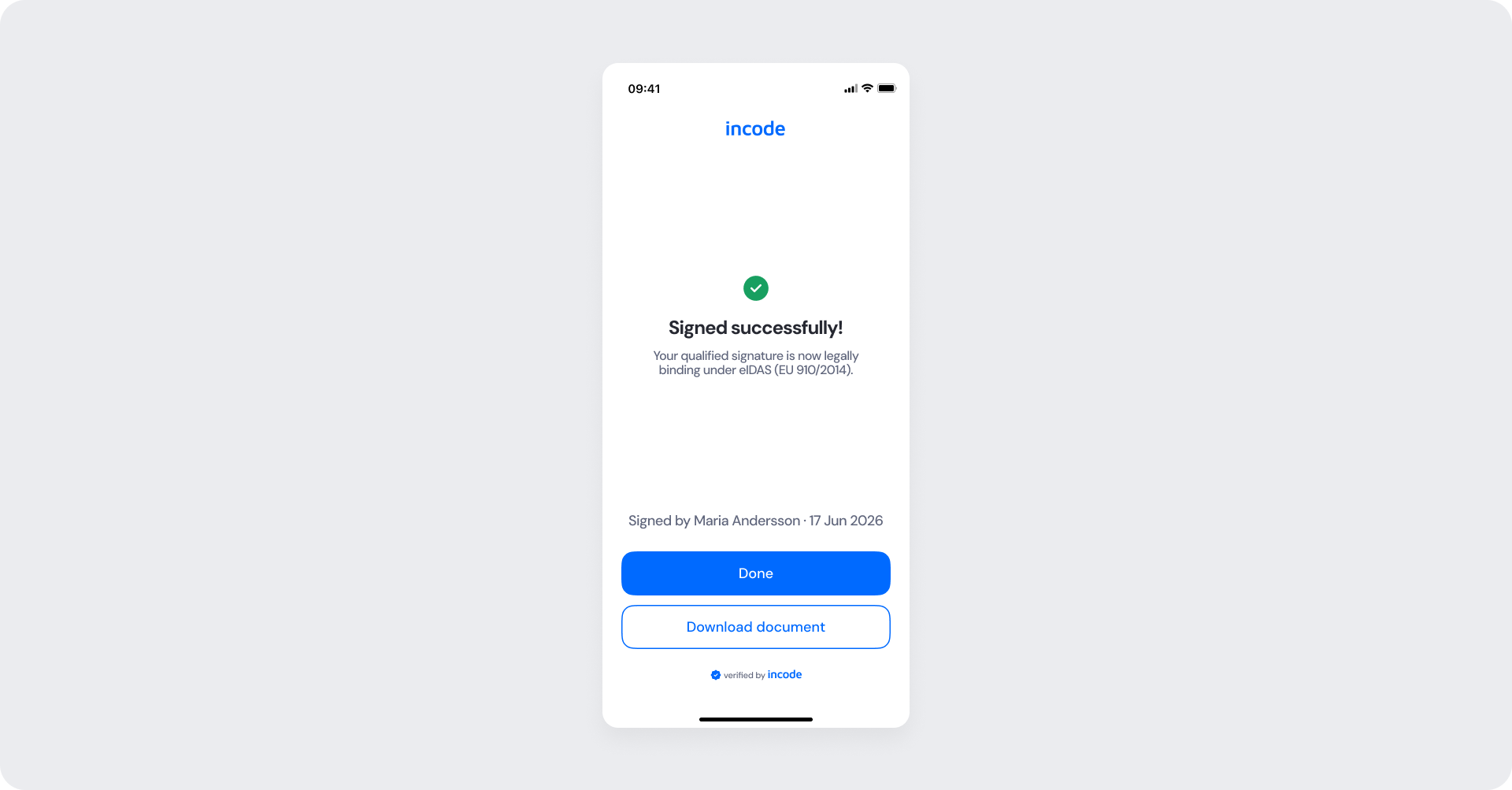
Signature Success
Final confirmation screen of the Qualified Signature module. After the signature has been successfully created, the screen displays a green checkmark icon with the message "Signed successfully!" confirming that the signing process is complete. The screen also displays the signed user's name and a "Done" button, allowing the user to exit the flow.
Updated about 1 month ago